Hyperliquid Whale Tracker
Hyperliquid Whale Tracker: top traders and positions
Help: How to track Hyperliquid wallets in the Hyperliquid tab
Learn: Hyperliquid wallet tracking
The Hyperliquid whale tracker ranks top traders and top positions on Hyperliquid, and lets you open any wallet and follow it. Follow an account and get an alert when it opens or closes a position. Free during Alpha.
Free during Alpha.
Product tour
What you can do in the Hyperliquid Whale Tracker tab
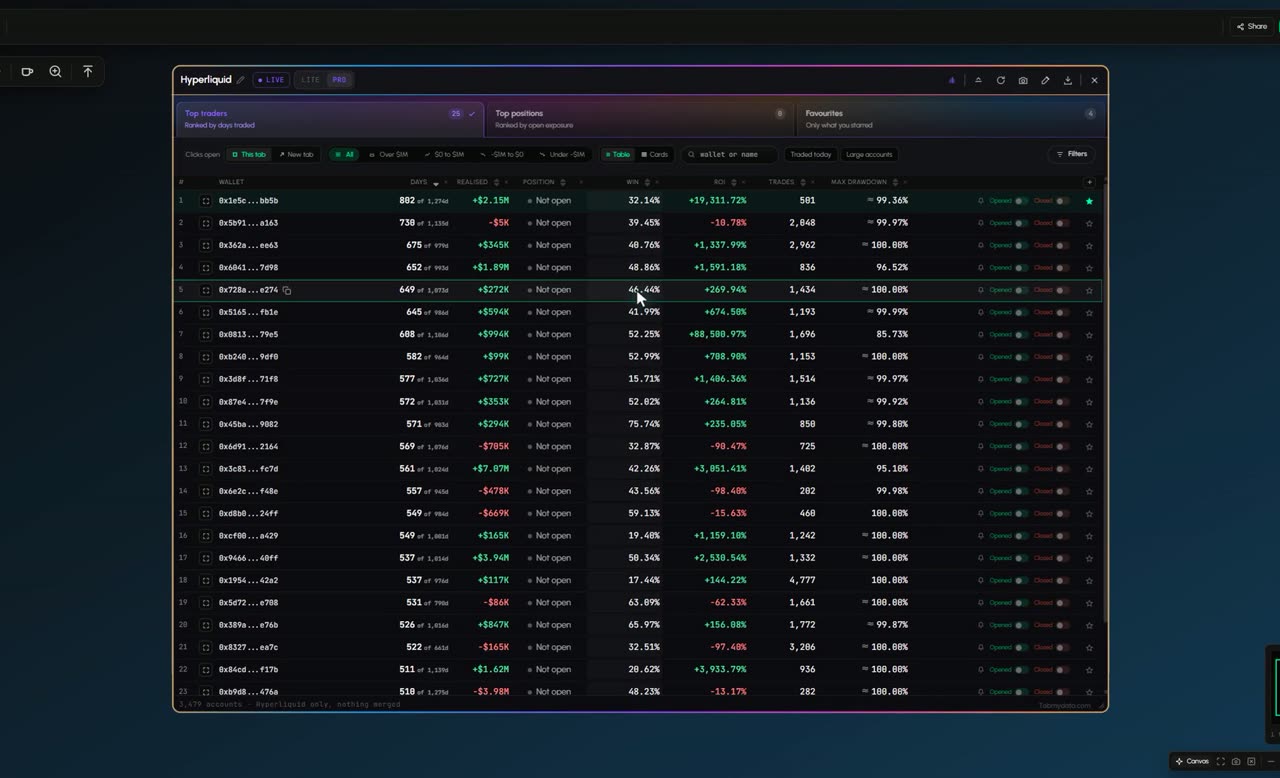
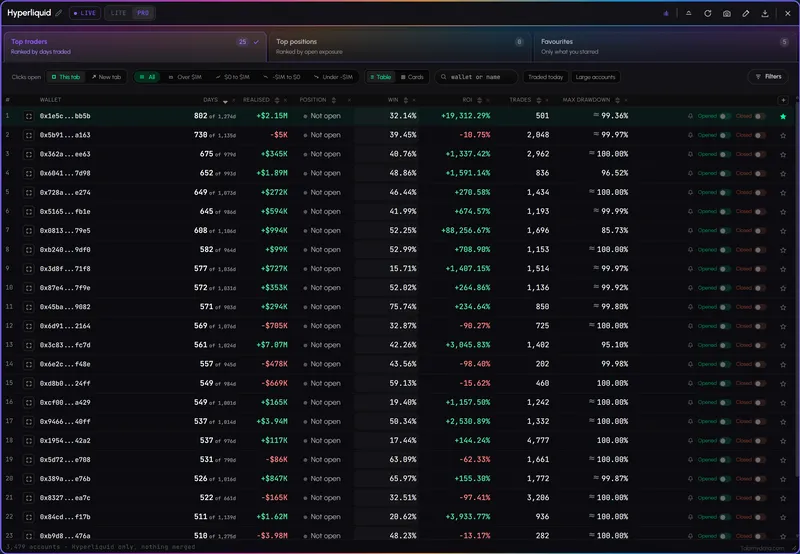
Positions on Hyperliquid are public. This Hyperliquid wallet tracker makes them readable, so you can track any Hyperliquid wallet or whale. Browse accounts in one table, sort by the column you care about, open any account for a full breakdown, star the ones you follow and switch on an alert for when they open or close a position. Add the tab from a preset or start from the full table. Hyperliquid only, nothing merged from other venues.
Features
- 01
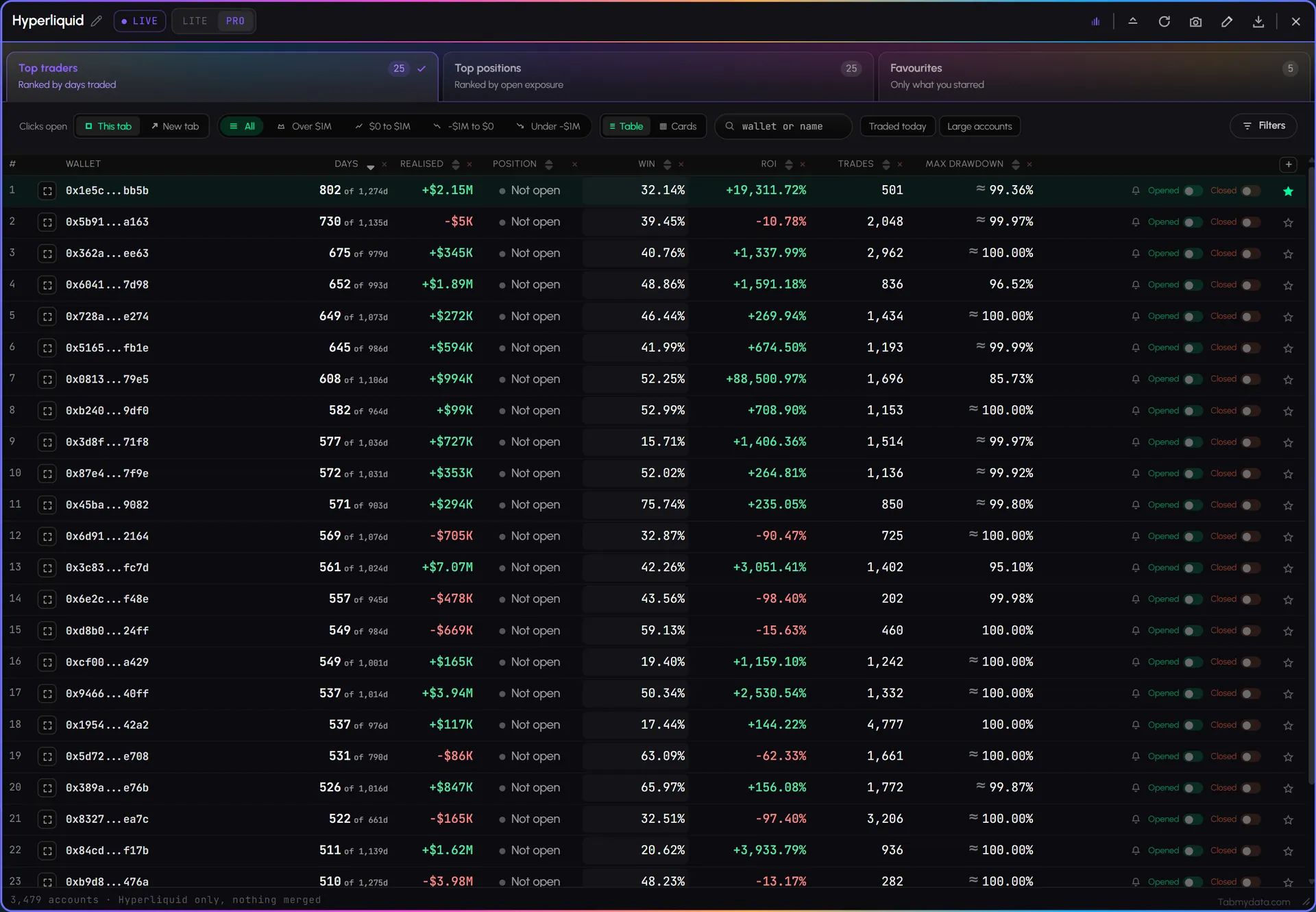
The accounts table
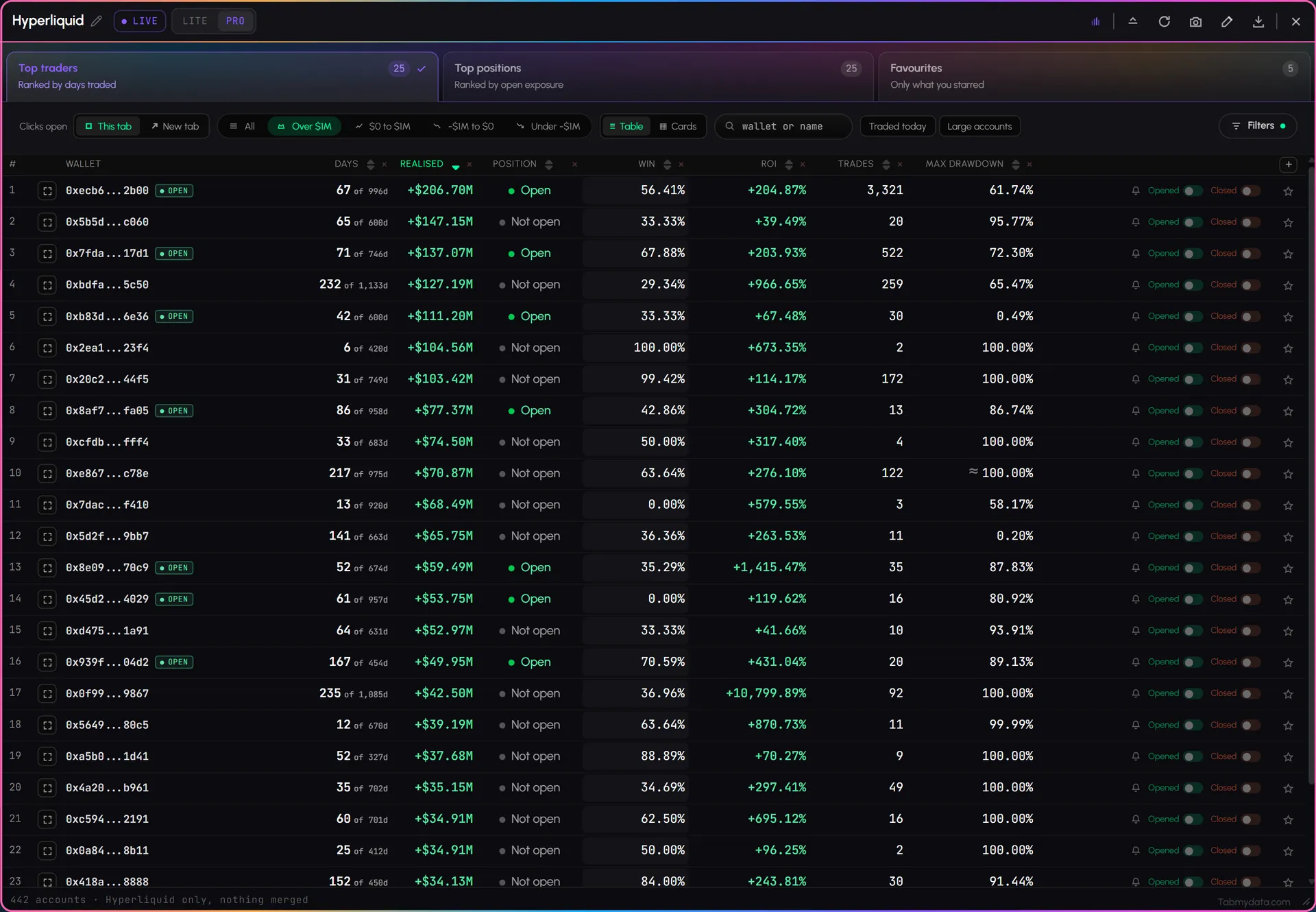
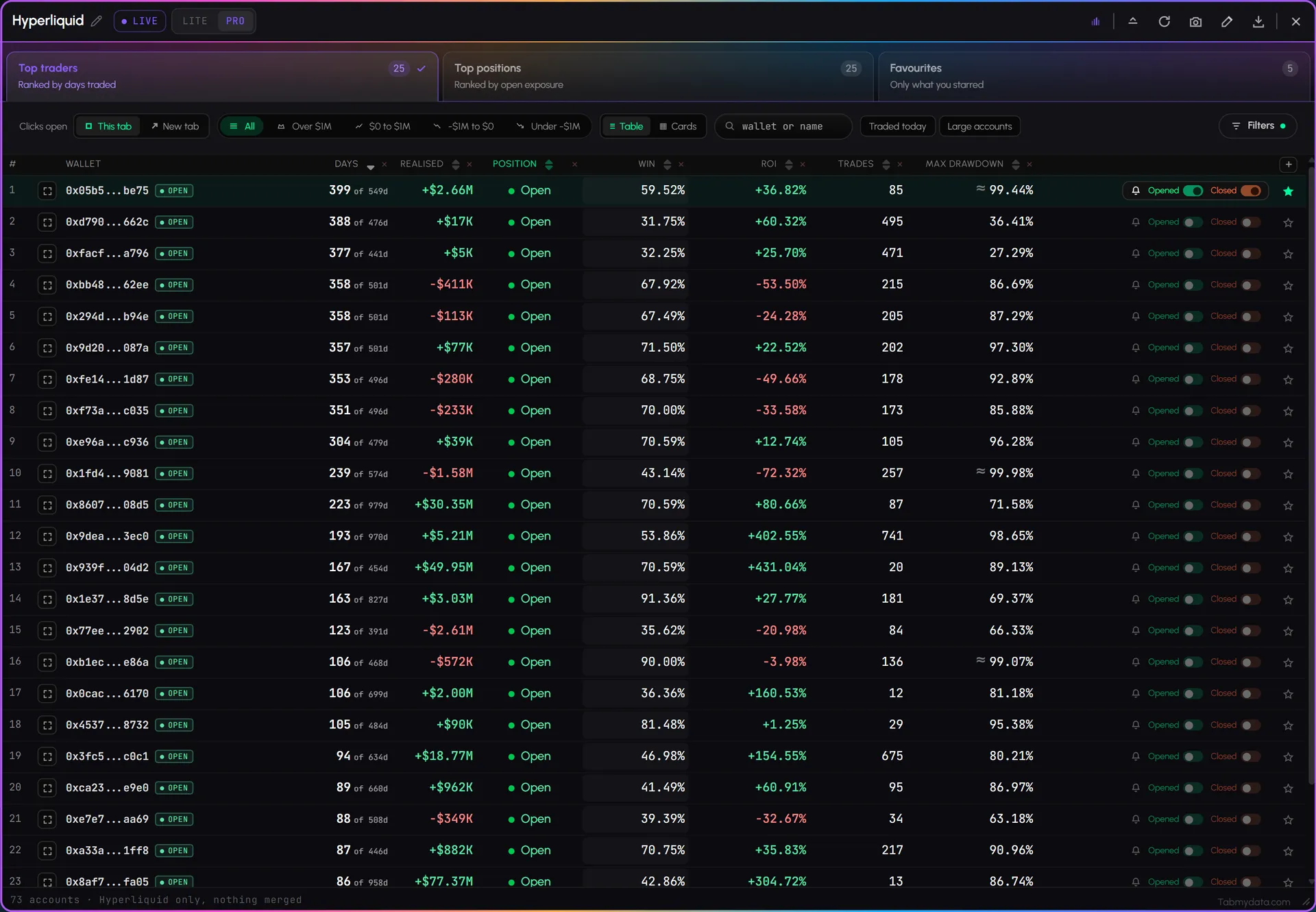
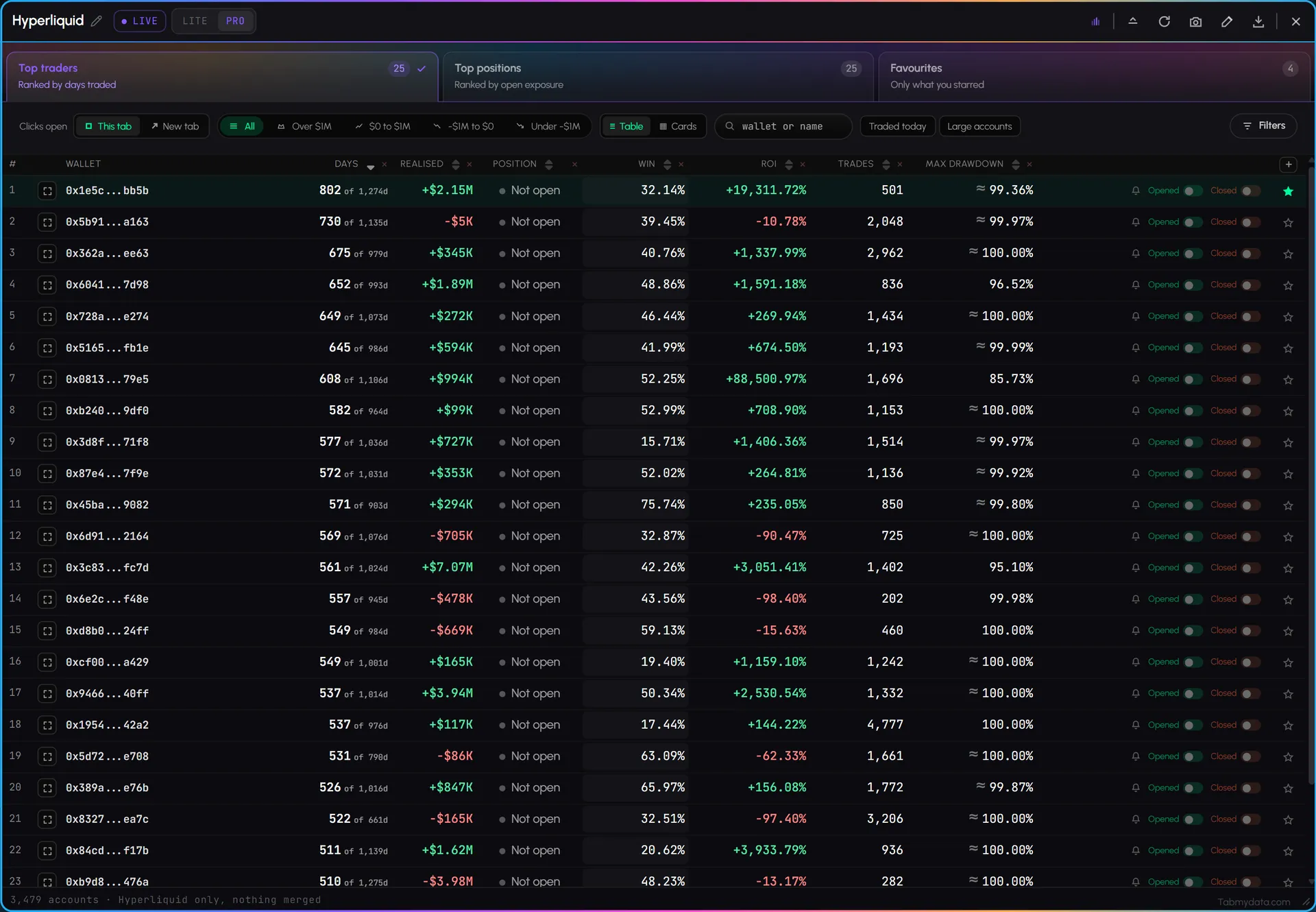
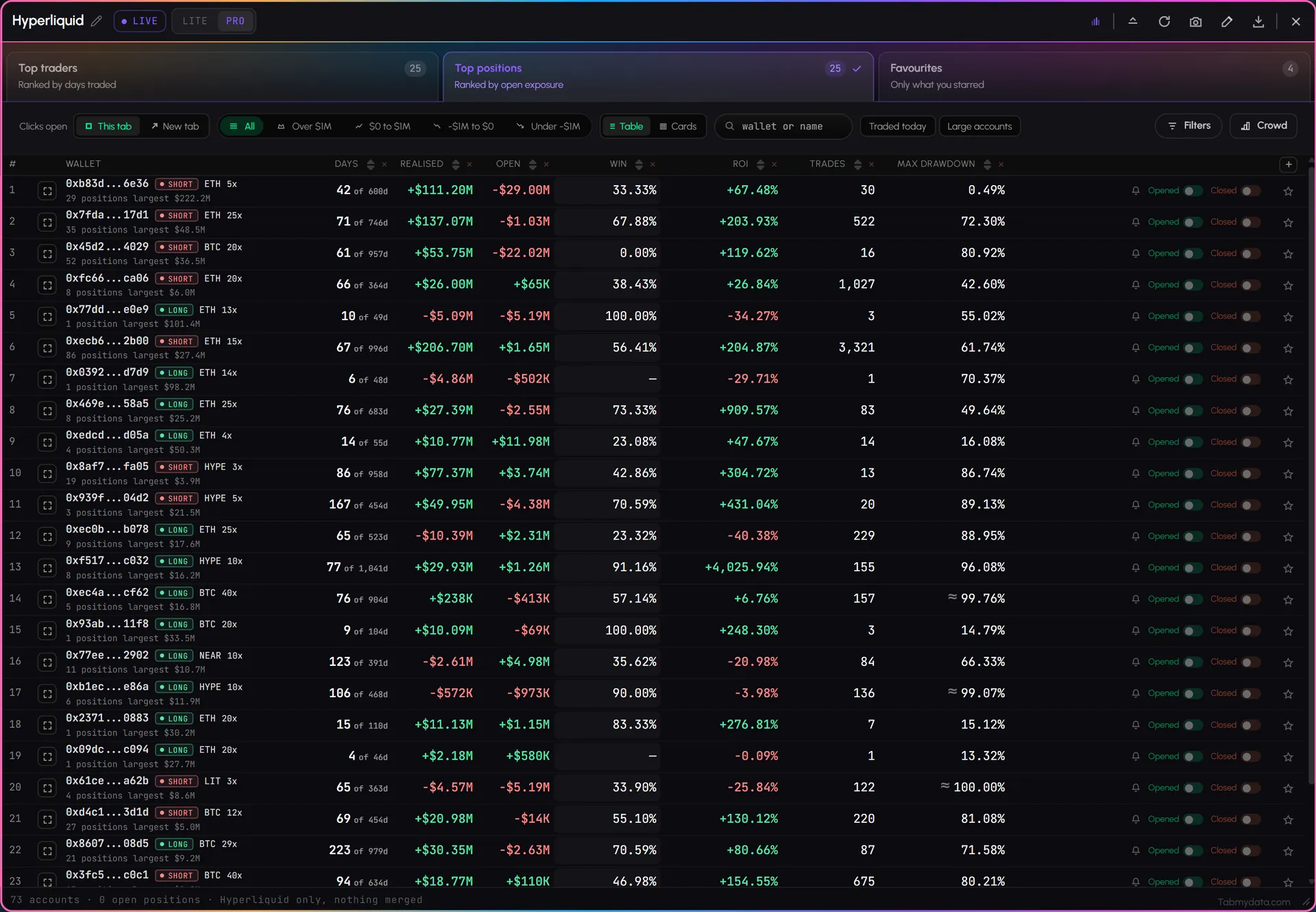
One row per Hyperliquid account: rank, wallet, days traded, realised PnL, win rate, ROI, trades and max drawdown. A green OPEN badge marks an account with a position open now. Click a header to sort, click again to reverse, and a third click clears the sort. The default order is by days traded, not by profit, so an account that got lucky over two days is not at the top. Sort by the column you care about to find Hyperliquid top traders. To see Hyperliquid whale positions, filter by Position status: Open now.
- 02
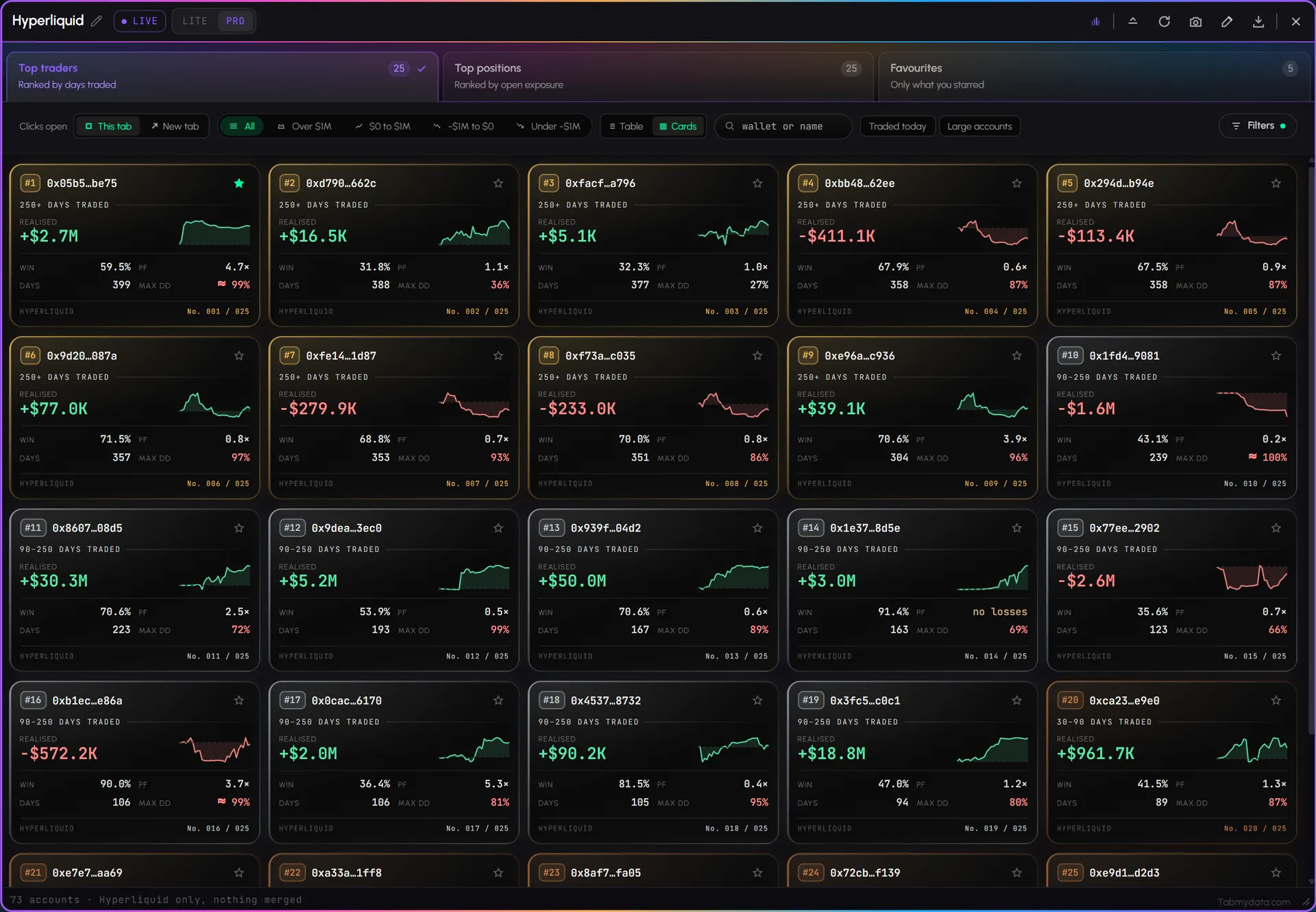
Table or Cards
Switch the same list between a dense table and cards. A card shows the rank, the address, a days-traded band and the key figures.
- 03
Filters, chips and search
Narrow by realised PnL band (all, over $1M, $0 to $1M, minus $1M to $0, under minus $1M), or tap "Traded today" or "Large accounts". Open Filters to build your own from 13 options, such as active trading days, account value, all-time PnL, position status (open now or flat now), profit factor, max drawdown, preferred asset, wallet age and direction bias. Each filter becomes a column, and removing a filter removes its column. Search by wallet or name.
- 04
Your columns
Hide any column from its header, or press "+" at the end of the header row to add one. The view, the filters and the columns are saved per tab.
- 05
Account overview and full details
Click a row and a Trader overview opens beside the table: the wallet address, a rank badge such as #3 BY DAYS, an Add to favourites button and a green View full details button, then long and short bias, all-time PnL with the open and realised split, a PnL history chart, where the account ranks, equity, free margin, position value, leverage and its open positions. Full details also open from the cube icon at the left of every row. You choose where they open: in the same tab, in a new sub-tab or in a separate new tab. The tab starts with three built-in sub-tabs (Top traders, Top positions and Favourites), and any you open sit beside them.
- 06
Favourites and alerts
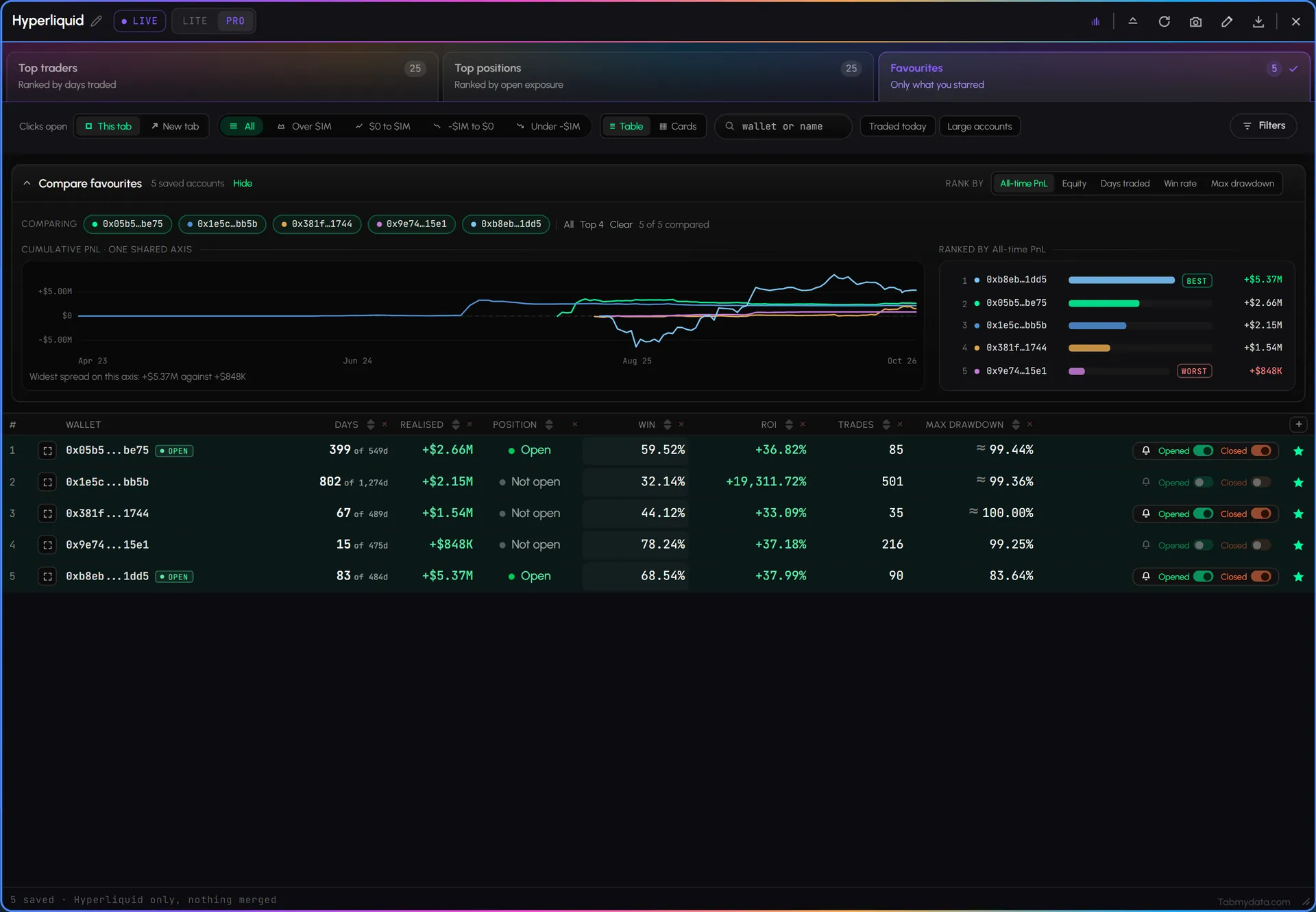
Hyperliquid whale alerts come in two kinds. Star an account to save it. Then switch Opened or Closed on and you hear when that account opens or closes a position. Wallet alerts land in the Alerts tab, under Hyperliquid, and reach you in the app, by email, by push or in your Discord by webhook. Whale Alerts, in the Alerts tab, report large prints on Hyperliquid above a minimum size you set.
- 07
Copy an address
A copy icon on each row copies the wallet address.
Use cases
How traders use it
- 01
Before charting a coin
open the accounts that trade it and see what they hold.
- 02
Following a few wallets
star five accounts, switch Opened and Closed on, then step away. Setup: how to get Hyperliquid wallet alerts.
- 03
Positions and forced closes
the tab beside live liquidations on the same coin.
Hyperliquid whale alerts: two ways
- Follow a wallet. Star the account and switch Opened or Closed on. You hear when that one account acts, whatever the size.
- Whale Alerts. Large prints on Hyperliquid above a minimum size you set, listed in the Whale tab of the Alerts page.
Both reach you in the app, by email, by push or in your Discord by webhook. Alerts can arrive late or not at all, so do not rely on them where timing is critical. Setup: how to get Hyperliquid wallet alerts.
Who it's for
- Traders who follow smart money and want to see what active Hyperliquid accounts hold before they chart a coin.
- Wallet watchers who star a handful of accounts and want to be told when one opens or closes a position.
- Derivatives traders who read positions next to live liquidations on the same coin.
How to use it
- Open the Hyperliquid Whale Tracker tab. You see Hyperliquid accounts in one table.
- Sort and filter. Click a header, tap a chip, build a filter or search for a wallet or name.
- Open an account to see its overview. View full details for the whole account.
- Star it if you want to follow it.
- Switch Opened or Closed on for the wallet. Alerts are managed in the Alerts tab. Step by step: how to get Hyperliquid wallet alerts.
- Put it next to a chart of the coin the account trades, and the liquidation feed. How the tab works: how to use the Hyperliquid Whale Tracker tab. The full workflow: how to track Hyperliquid wallets.
Related tools
- Alerts: wallet alerts, and whale alerts for large buys and sells.
- Crypto liquidation tracker: forced closes beside the positions.
- Charts: the coin an account trades.
FAQ
Hyperliquid Whale Tracker FAQ
How do I track Hyperliquid whales?
Open the Hyperliquid Whale Tracker tab and filter the table by Position status, Open now. Open an account to see its positions, size and leverage, and star the ones you follow. For large buys and sells, turn on Whale Alerts in the Alerts tab.
How do I track a Hyperliquid wallet?
Search for the address or name, open the account and star it. Then switch Opened or Closed on so you hear when it acts. Step by step: how to use the Hyperliquid Whale Tracker tab.
Who are the top traders on Hyperliquid?
Sort the table by days traded, ROI, realised PnL or max drawdown. By default the table is ordered by days traded, so an account that got lucky over two days is not at the top. The tab shows how accounts traded. It is not a recommendation.
Can I get an alert when a Hyperliquid wallet trades?
Yes. Star the wallet and switch Opened or Closed on. Alerts are managed in the Alerts tab and reach you in the app, by email, by push or in your Discord by webhook. A whale alert is different: it reports a large print above the minimum size you set.
Is there a free Hyperliquid whale tracker?
Yes. Tabmydata's Hyperliquid Whale Tracker tab is free during Alpha. No card needed.
How do I filter the Hyperliquid leaderboard?
Use the realised PnL chips, "Traded today" and "Large accounts", or open Filters and pick from 13 options. Each filter becomes a column. Search by wallet or name. The tab covers Hyperliquid accounts only.
Free during Alpha.
The Hyperliquid whale tracker ranks top traders and top positions on Hyperliquid, and lets you open any wallet and follow it. Follow an account and get an alert when it opens or closes a position. Free during Alpha.
Sign up free