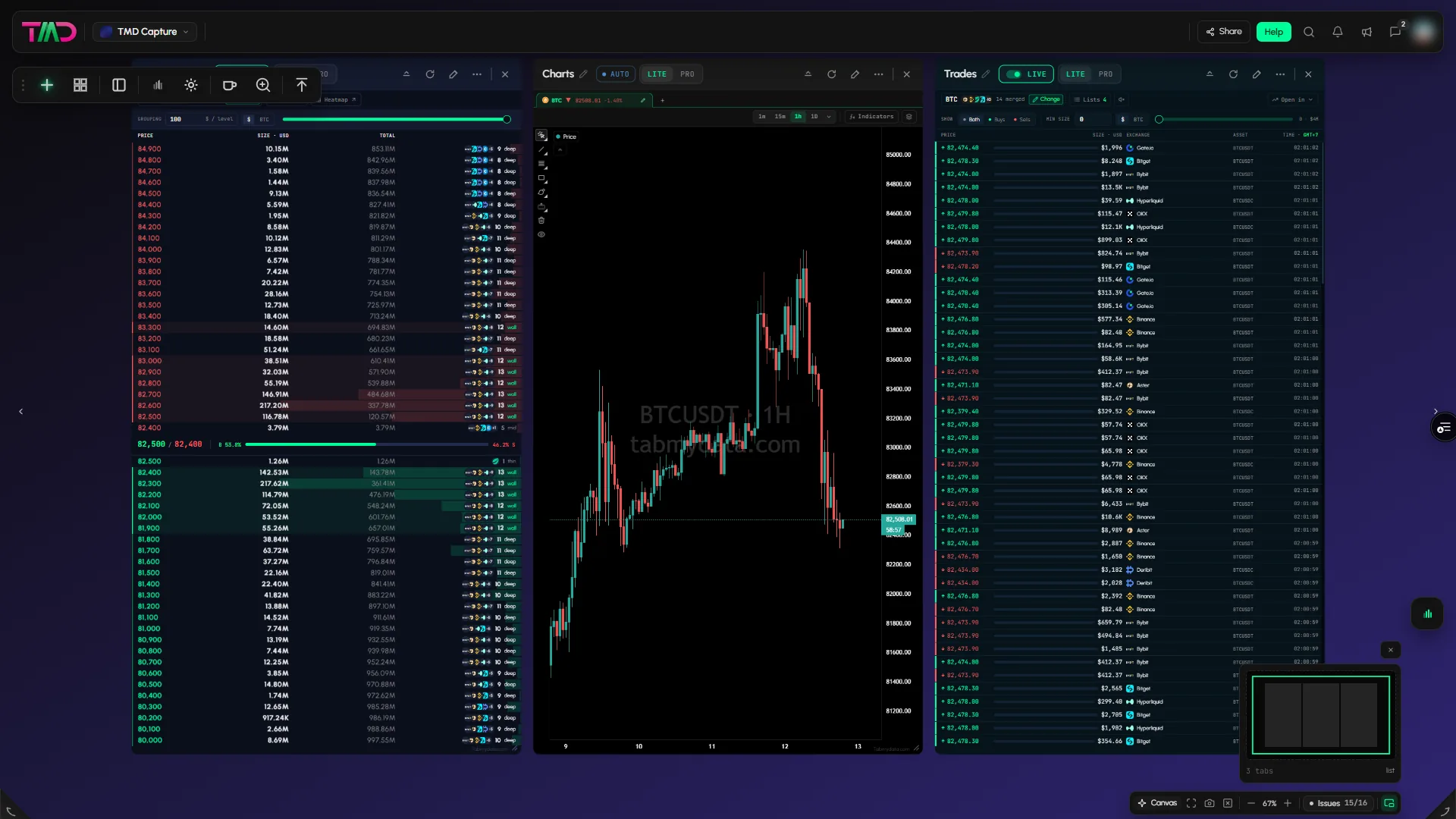
Serena's Practice Space
- 0 likes
- 807 views
- 2 tabs
@serena

Updated today
Real desks. Real layouts.
COMMUNITY
See how other traders arrange their tabs. Copy a whole workspace or just one tab, follow the people you like, and share your own.
Browse layouts from other traders. Copy a whole workspace, or just the tab you like, and make it yours.
Showing 7 workspaces
Updated today
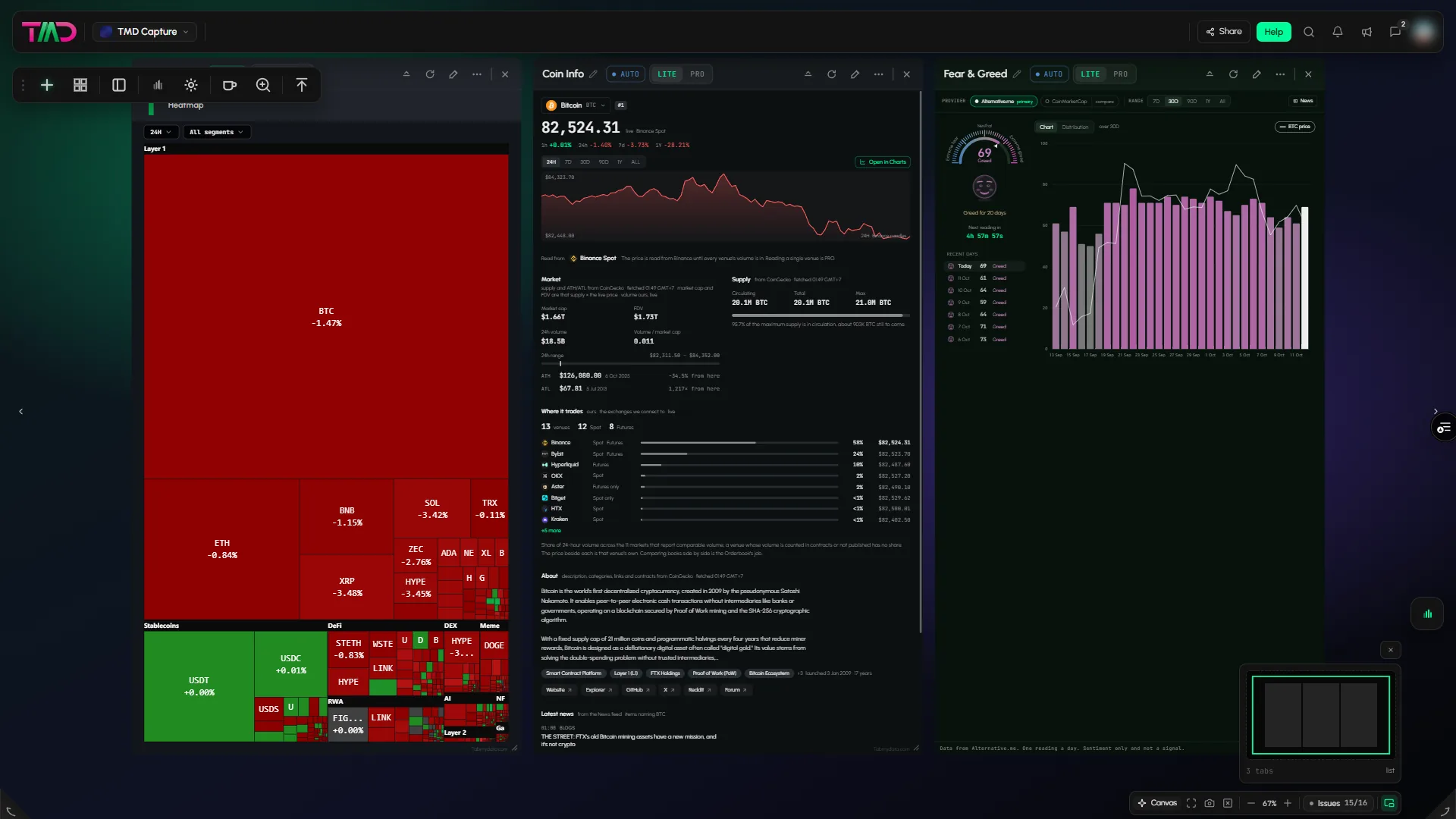
For show case
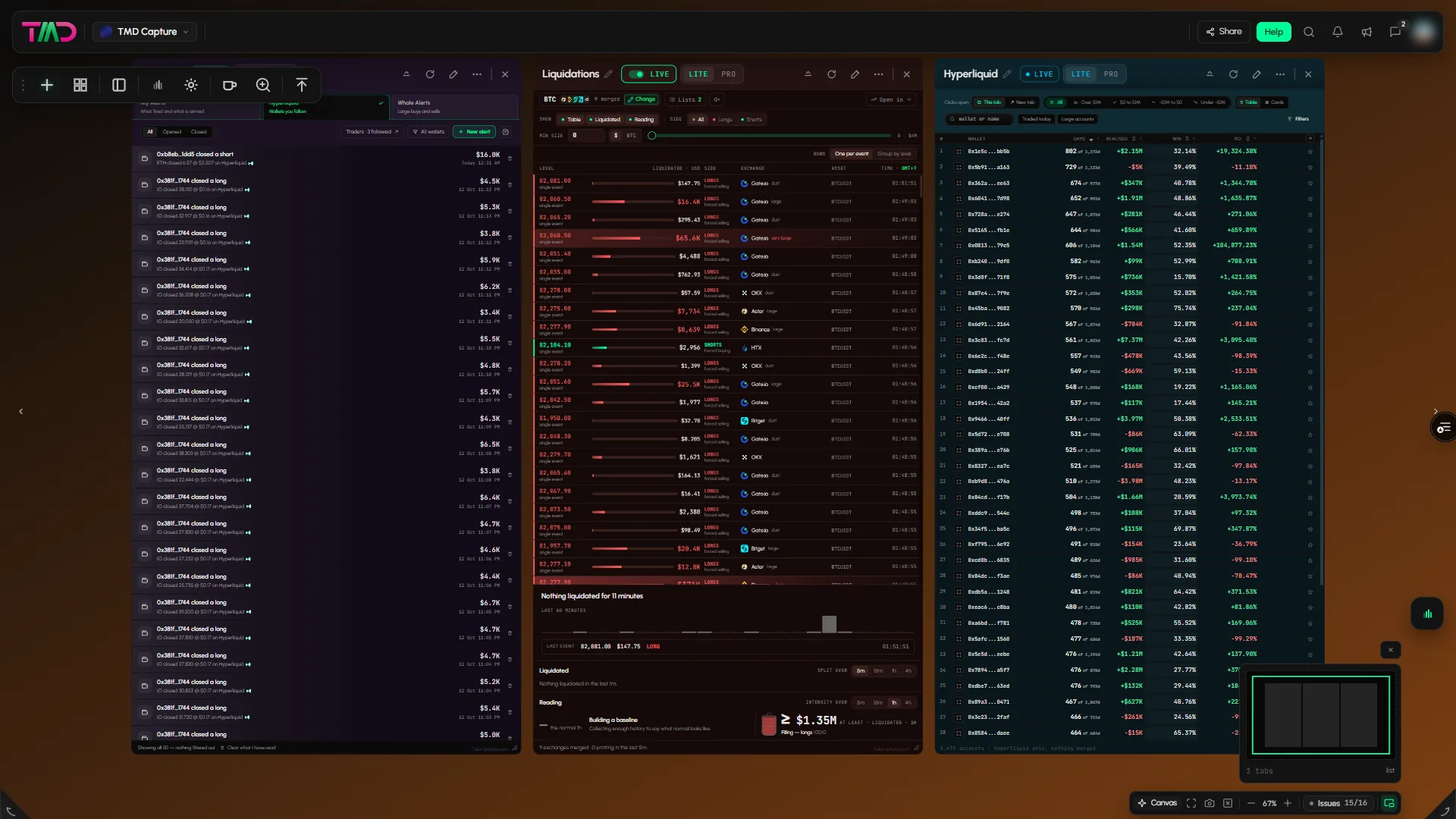
Updated 2 days ago
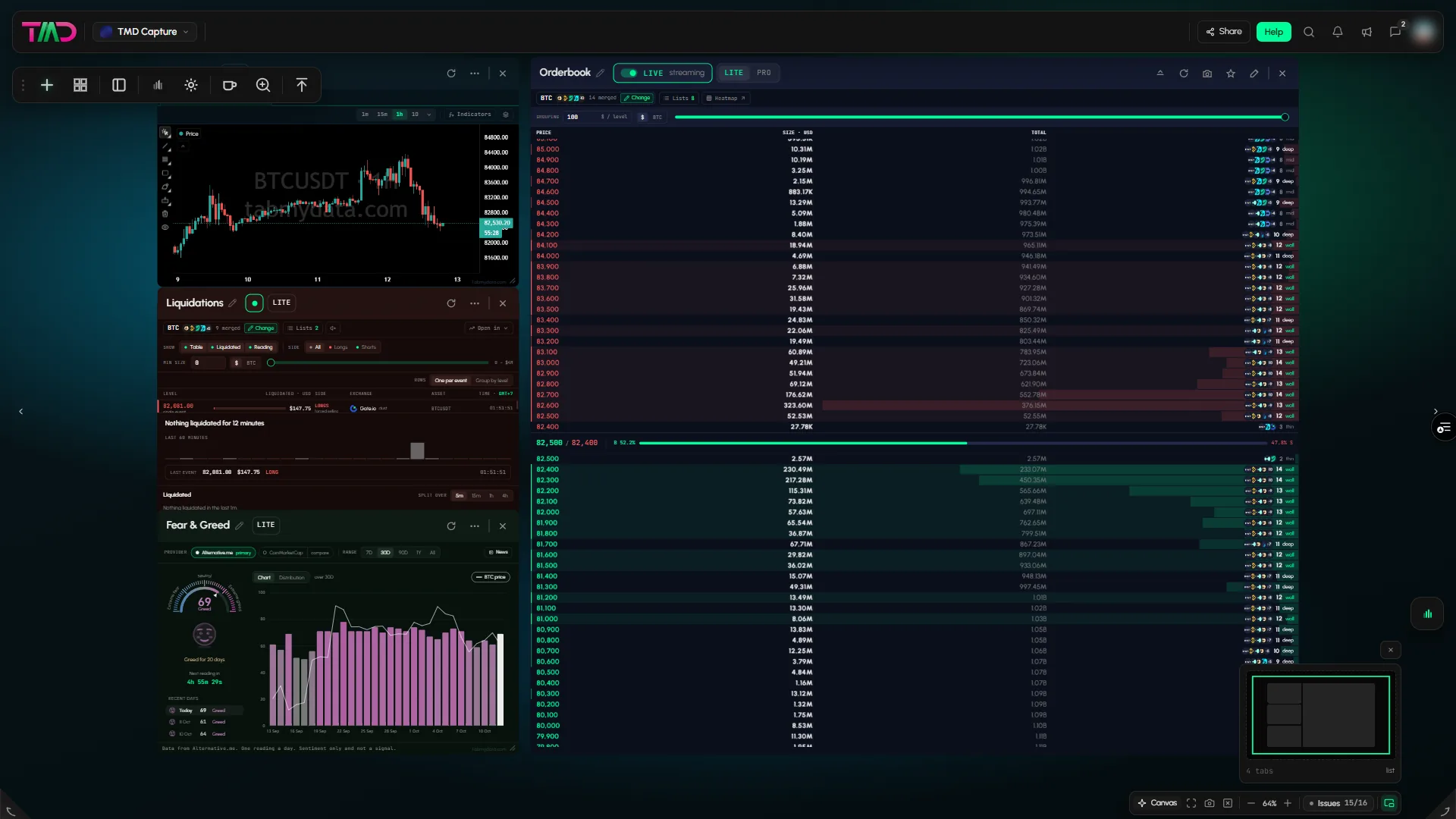
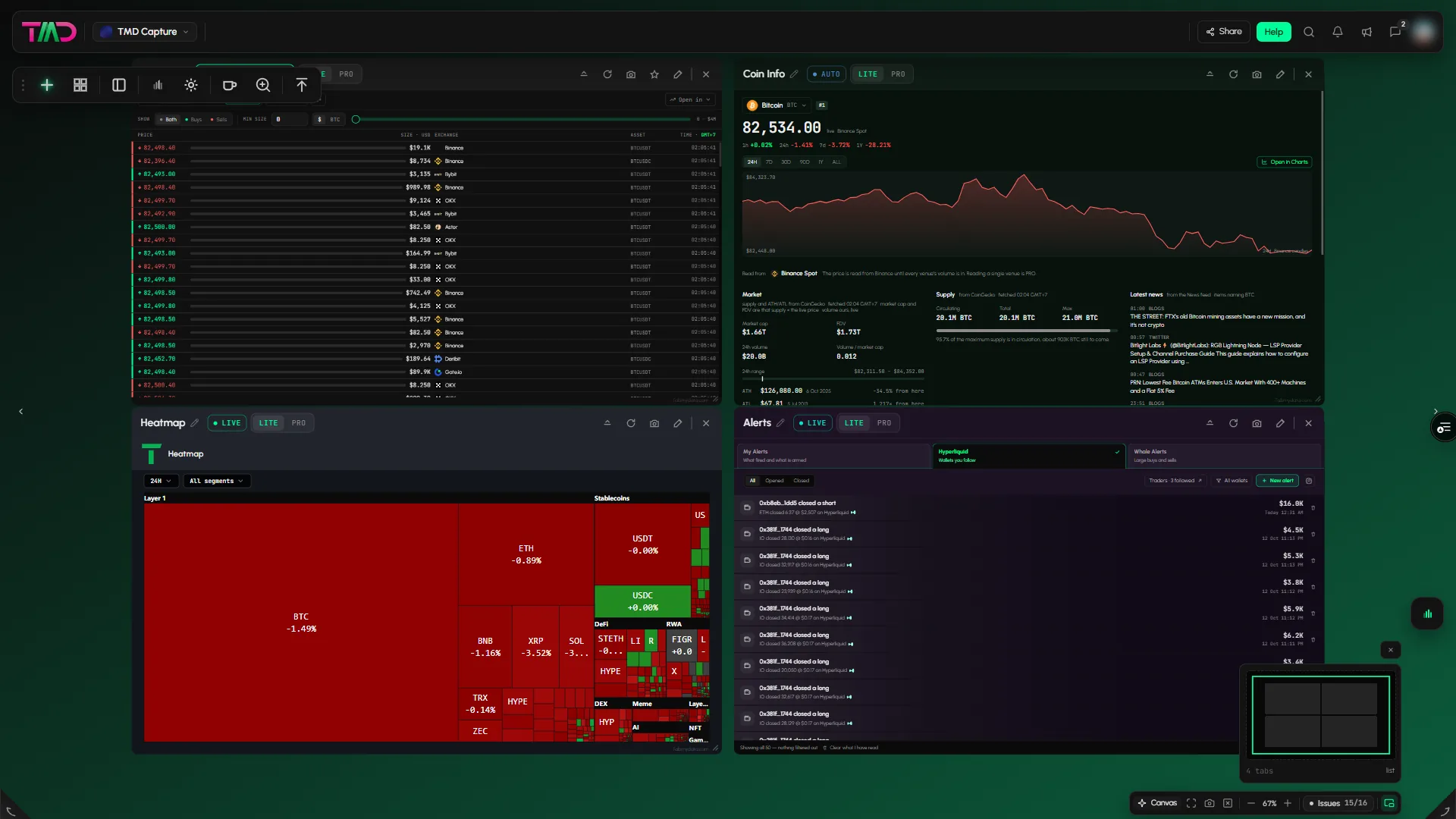
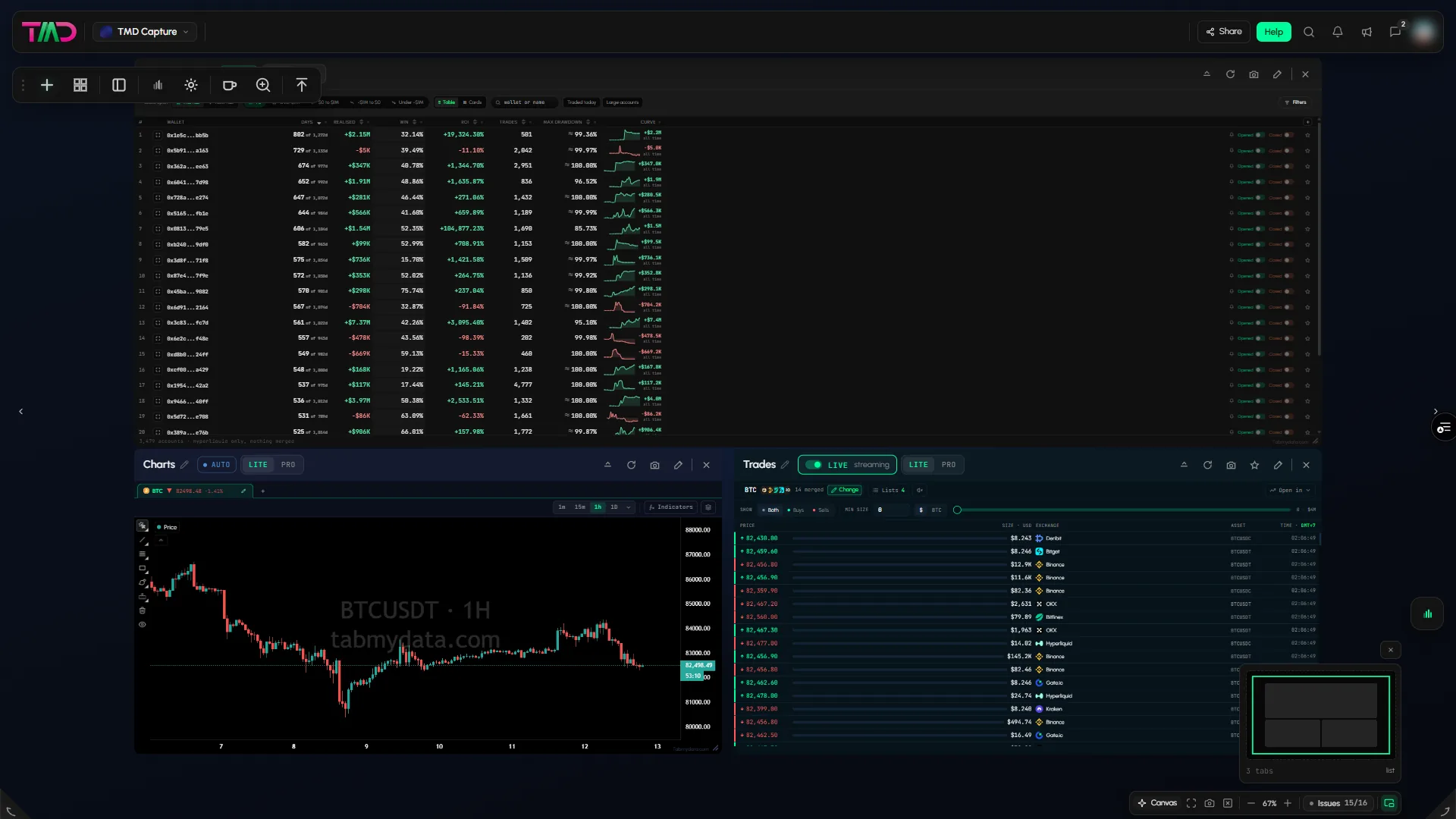
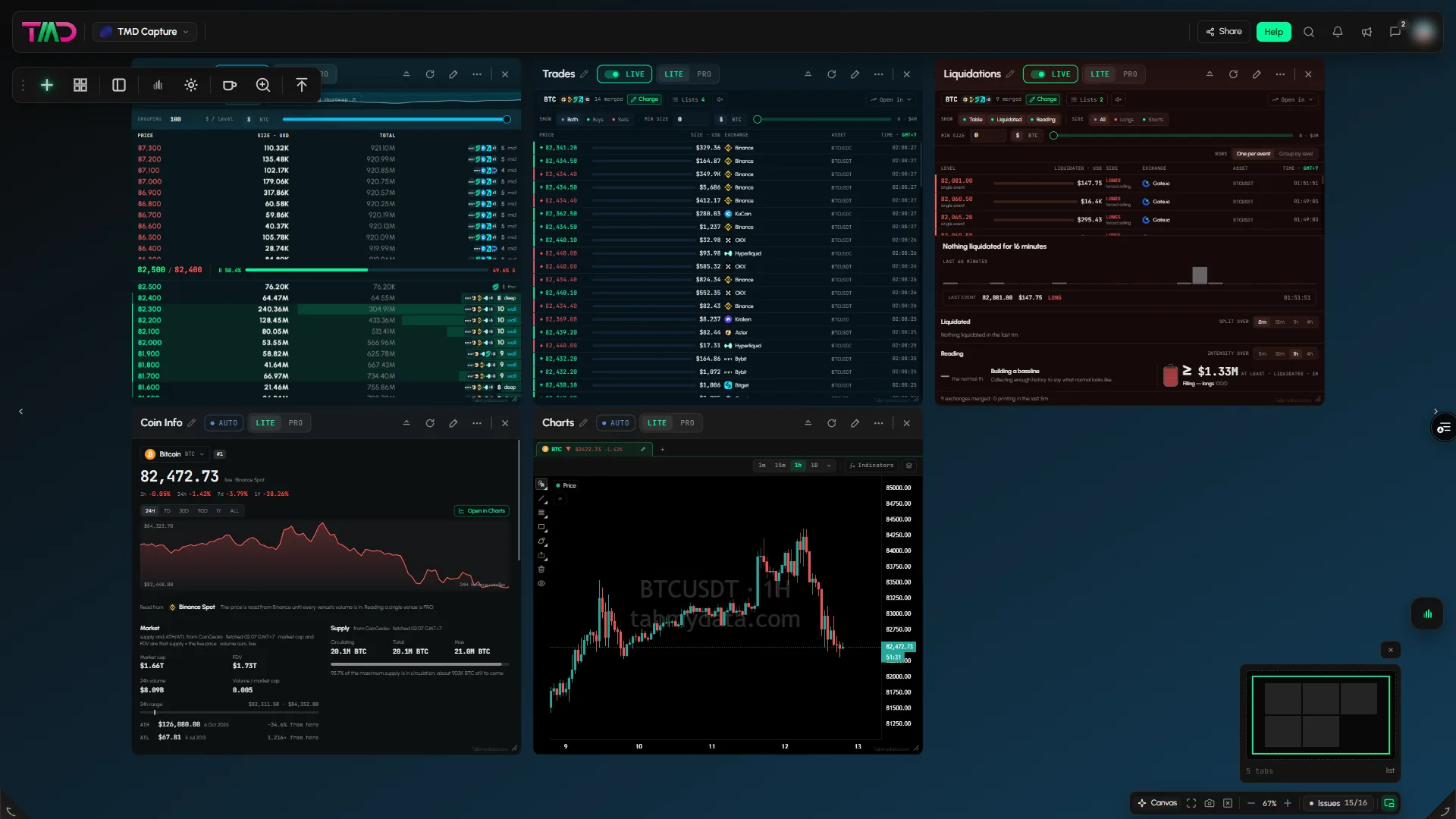
Updated today
No workspaces match this filter. Try another tab type.
Public workspaces shared by Tabmydata users, most viewed first. Opening one takes you to the app.
Copy it your way
Found a workspace you like? Copy all of it into your account. Only want one tab, like a heatmap or an order book? Copy just that tab into a workspace you already have.
Every tab and the layout come with it. Rename it and make it yours.
Pick the tab you like and drop it into one of your own workspaces. The rest stays where it is.
Only if you share it. To hide it anytime, go to Workspace settings > Details > Public workspace.
Only you, until you switch on Public workspace. Then anyone with the link can view it. Sharing gives a view of the workspace, not access to your account.
Open Workspace settings, go to Details, switch on Public workspace and click Save & Close. A Public badge then shows on its card.
Yes. In Details you set the workspace card name, a description and a cover photo (a PNG or JPG up to 4 MB, or a preset). A preview shows the card.
Yes. In PRO, the Share button in the title bar of a tab lets you copy or move that tab to another workspace of yours, or create a link to it. Anyone who opens the link takes their own copy.
4 per account. Each one keeps its own layout, so you can keep a workspace for each routine.
Yes. Use the camera button in the title bar of a tab for one tab, or Screenshot workspace in the bottom bar for the whole workspace.
Yes. You get a "Workspace likes" notification.
Cookie preferences
Choose which cookies we may set. Strictly necessary cookies are always on, because the site cannot work without them. You can change your choice at any time.
Sign-in, security and keeping the site working.
Helps us see how the site is used so we can improve it. Google Analytics.
Used to show relevant ads and measure them. Google Ads and the Facebook and Instagram Pixel. Decline or switch off to opt out of ad "sharing".
Remembers choices such as your theme.
Read the Cookie Policy