Workspaces
Crypto trading dashboard: your market tabs, arranged your way
Help: How to share a tab or workspace
A crypto trading dashboard you arrange yourself: the order book, liquidity heatmap, liquidations and charts on one screen, in workspaces you save. Keep four workspaces per account, each one as you left it, and share a tab or a whole workspace. Free during Alpha.
Free during Alpha.
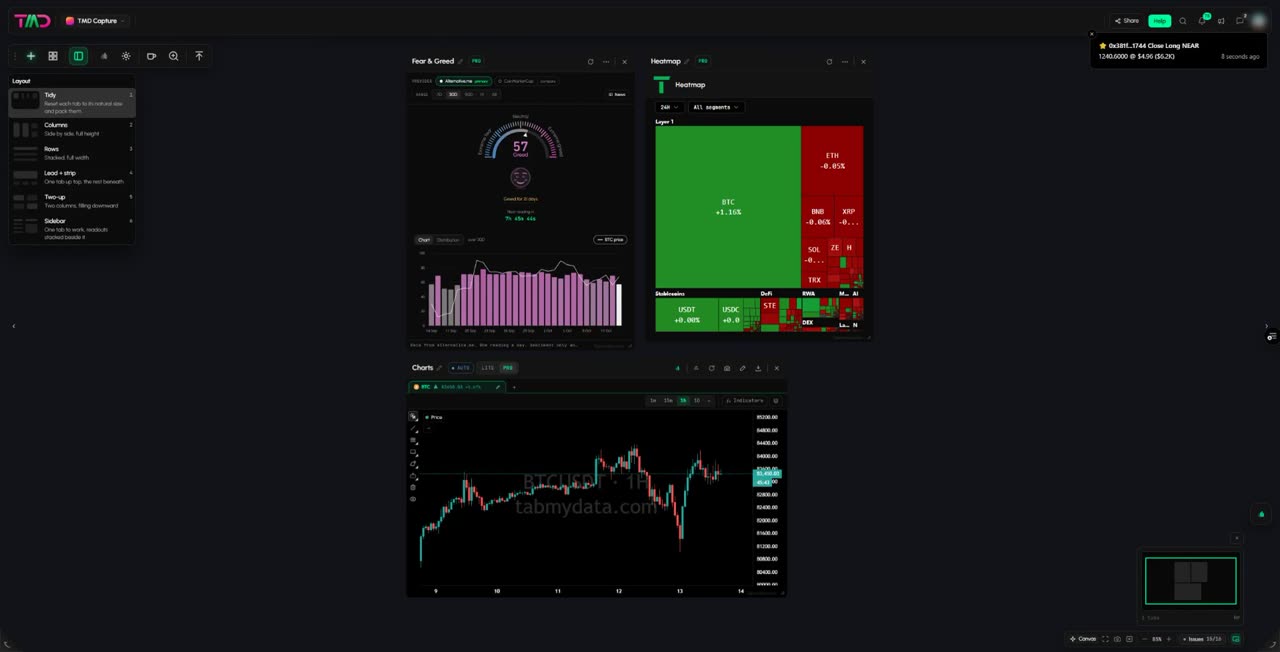
What's happening
Layout presets, Fit and the minimap
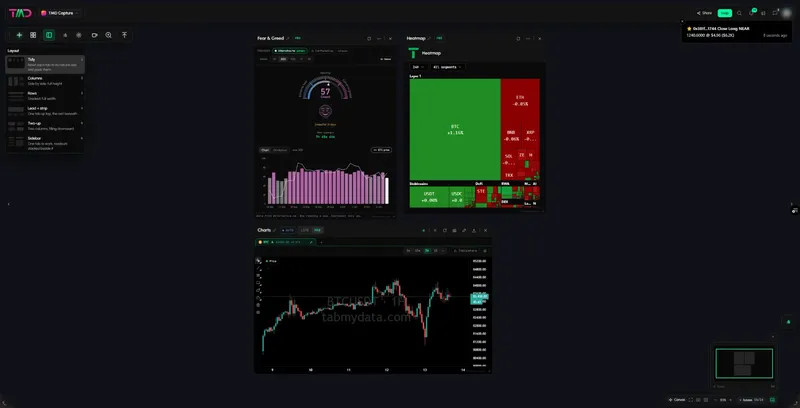
Open Layout, arrange three tabs with Columns and Tidy, fit every tab in view and jump with the minimap.
Product tour
What you can do in the Workspaces tab
Workspaces are the screens you arrange yourself in Tabmydata: a crypto trading dashboard where you drag, resize and arrange the tabs you use. Add any tab, place it next to the others and size it to fit, so the order book heatmap, the multi-exchange order book, many charts and liquidations sit on one screen instead of in separate browser tabs. You get four workspaces per account, one for each routine, and each opens exactly as you left it.
Features
- 01
Tabs side by side
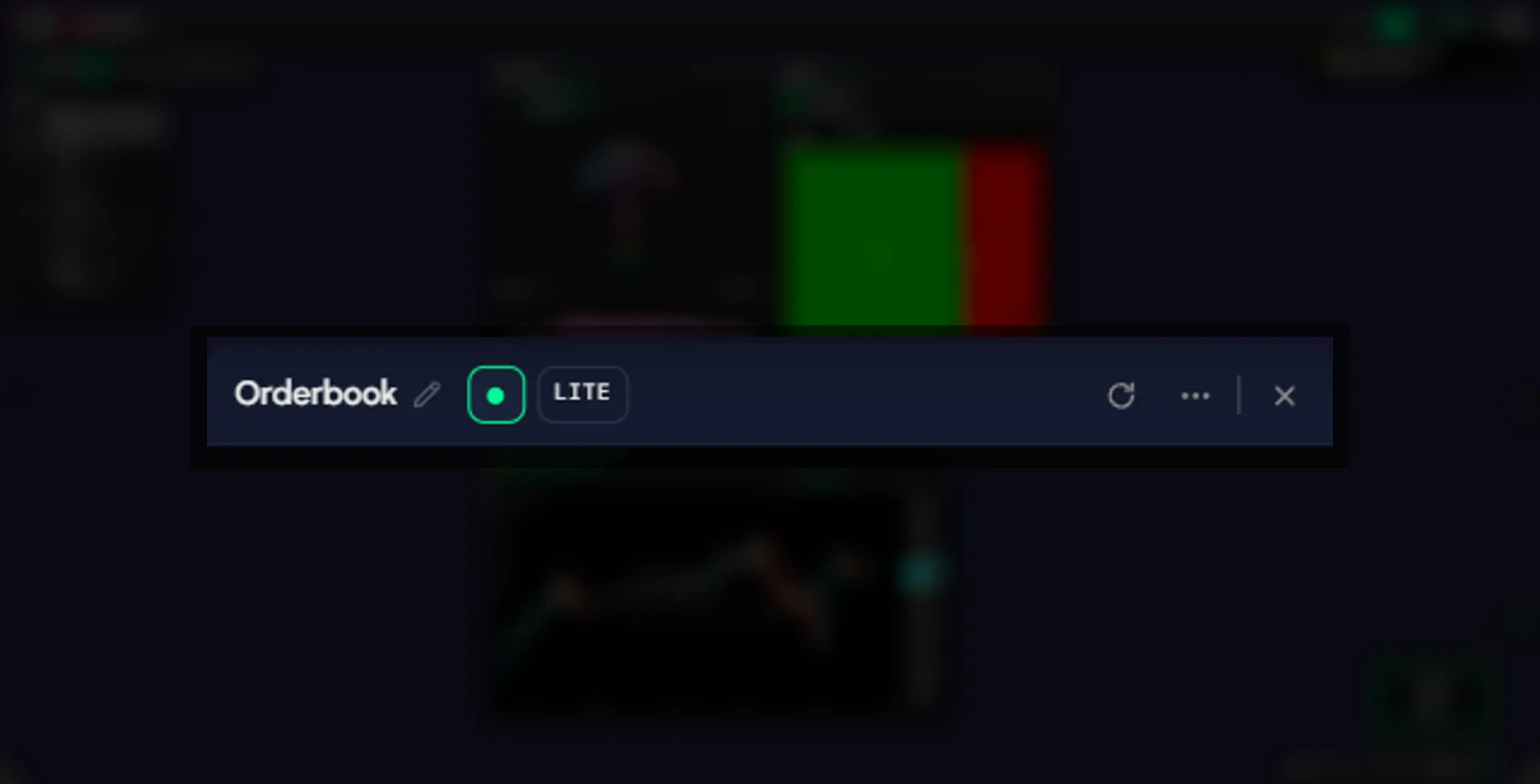
Drag a tab by its title row and resize it from the corner. Minimise it when you need the room, or close it: a toast with Undo brings it back. The order book, a heatmap, liquidations and many charts can share one canvas.
- 02
Layout presets
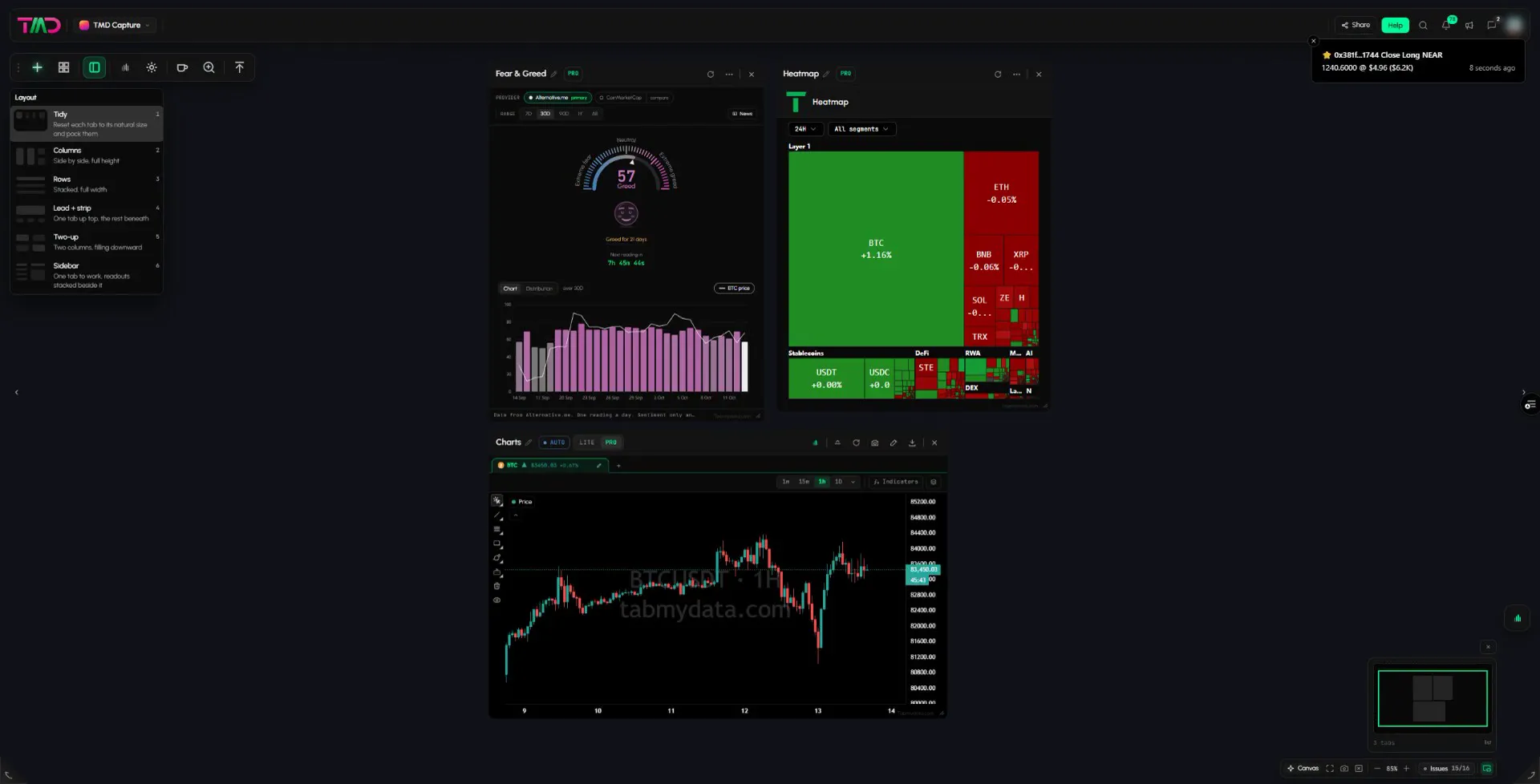
Open Layout on the tool rail and tidy a messy canvas in one key: Tidy, Columns, Rows, Lead plus strip, Two-up or Sidebar. Nothing closes. Workspace settings also offers ready-made desks that open a set of tabs for you.
- 03
Four workspaces, one per routine
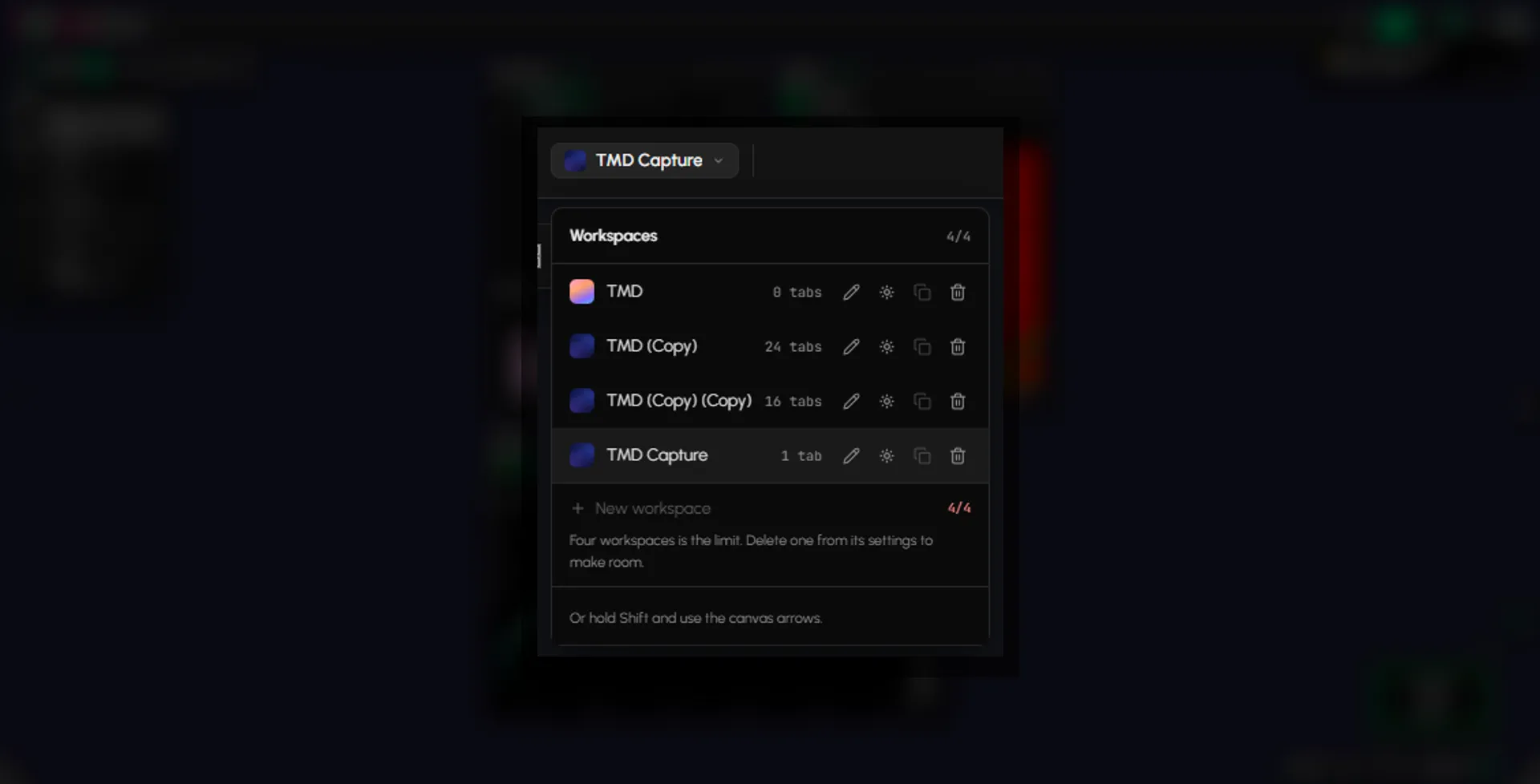
One for scalping, one for swing setups, one for watching wallets. Open the workspace name in the top bar to switch. Each row shows its tab count and lets you rename it, open its settings or duplicate it. Each workspace opens as you left it.
- 04
Share a tab or a workspace
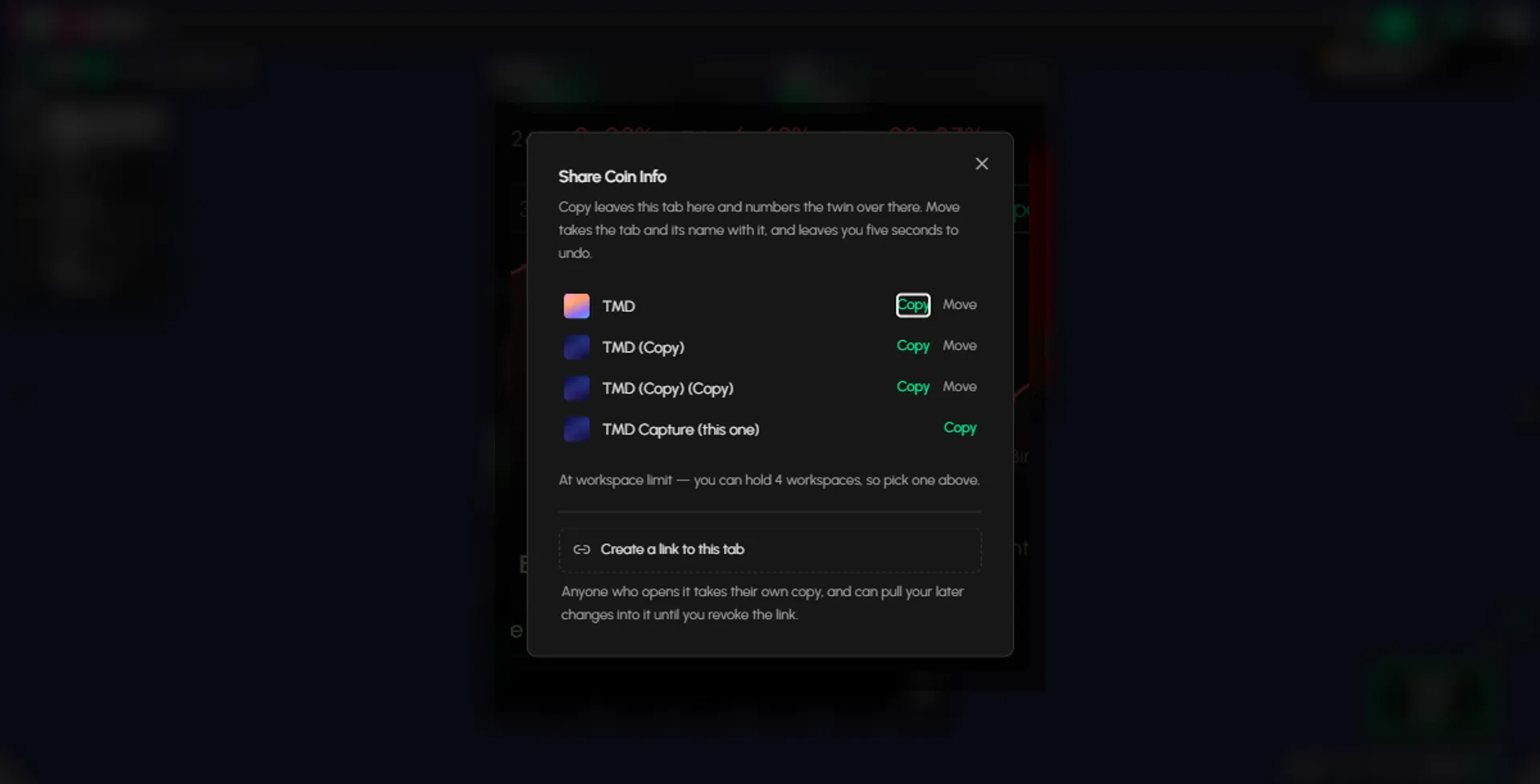
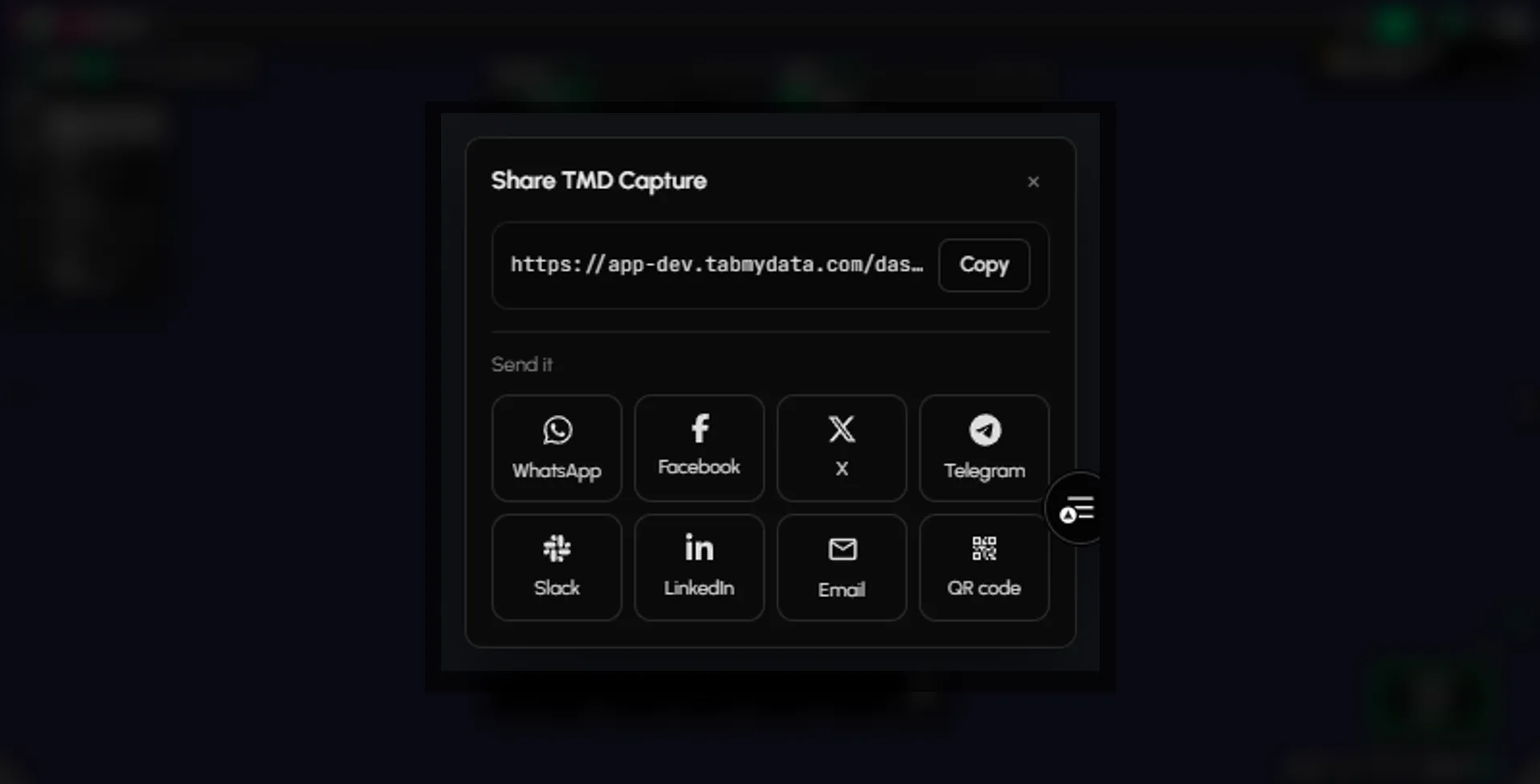
In PRO, the Share button on a tab's title bar copies or moves that tab to one of your workspaces, or creates a link to it. Whoever opens the link takes their own copy and can pull your later changes into it until you revoke the link; the dialog shows how many times it was taken. A whole workspace shares by link too, and opens for anyone with it once the workspace is Public.
- 05
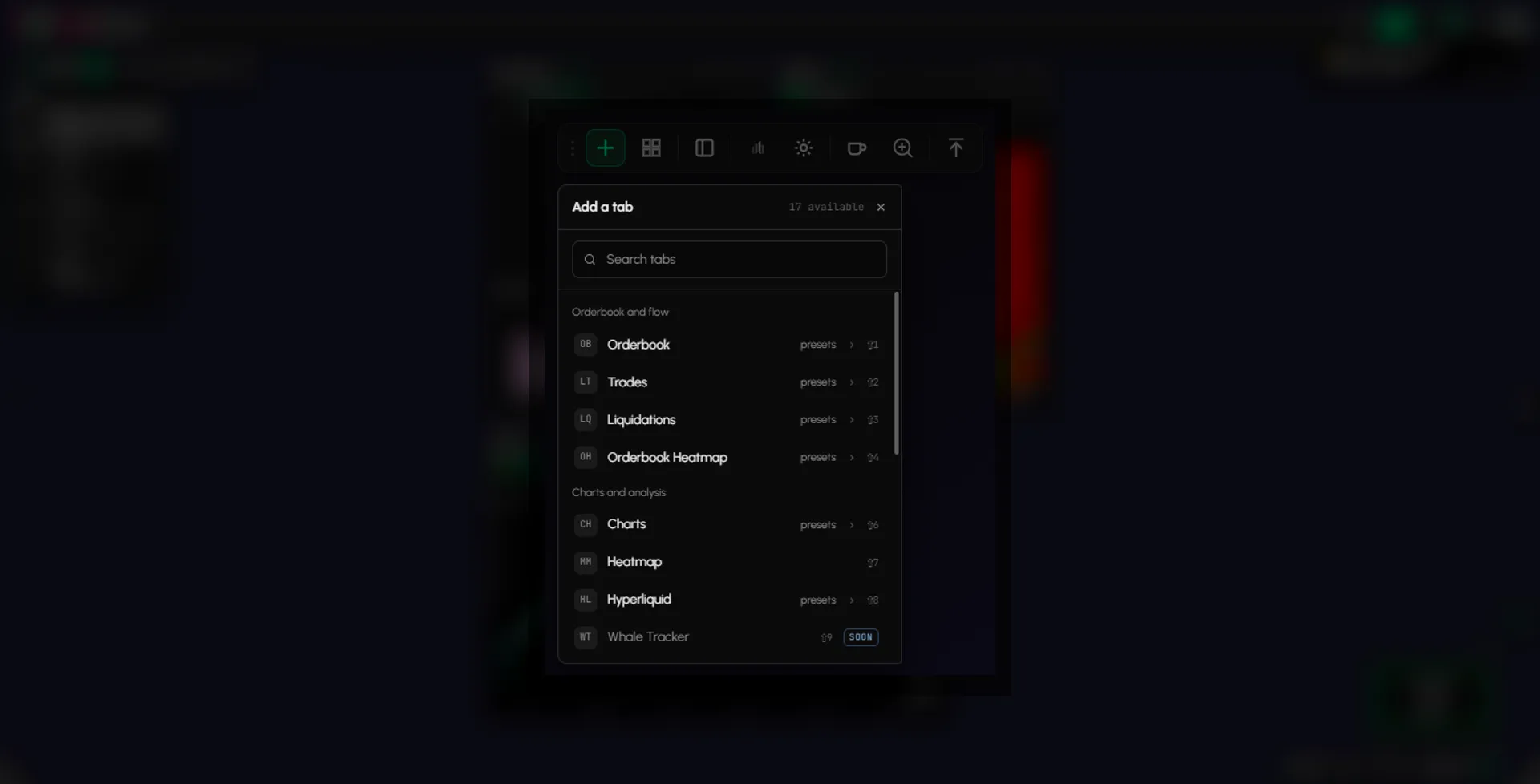
Add a tab fast
One searchable Add a tab menu lists the tabs, with a preview, ready-made presets and a keyboard shortcut for each. Shift plus a number adds the order book tabs and charts. Alt plus a number adds the market data and tools tabs.
- 06
Find your way
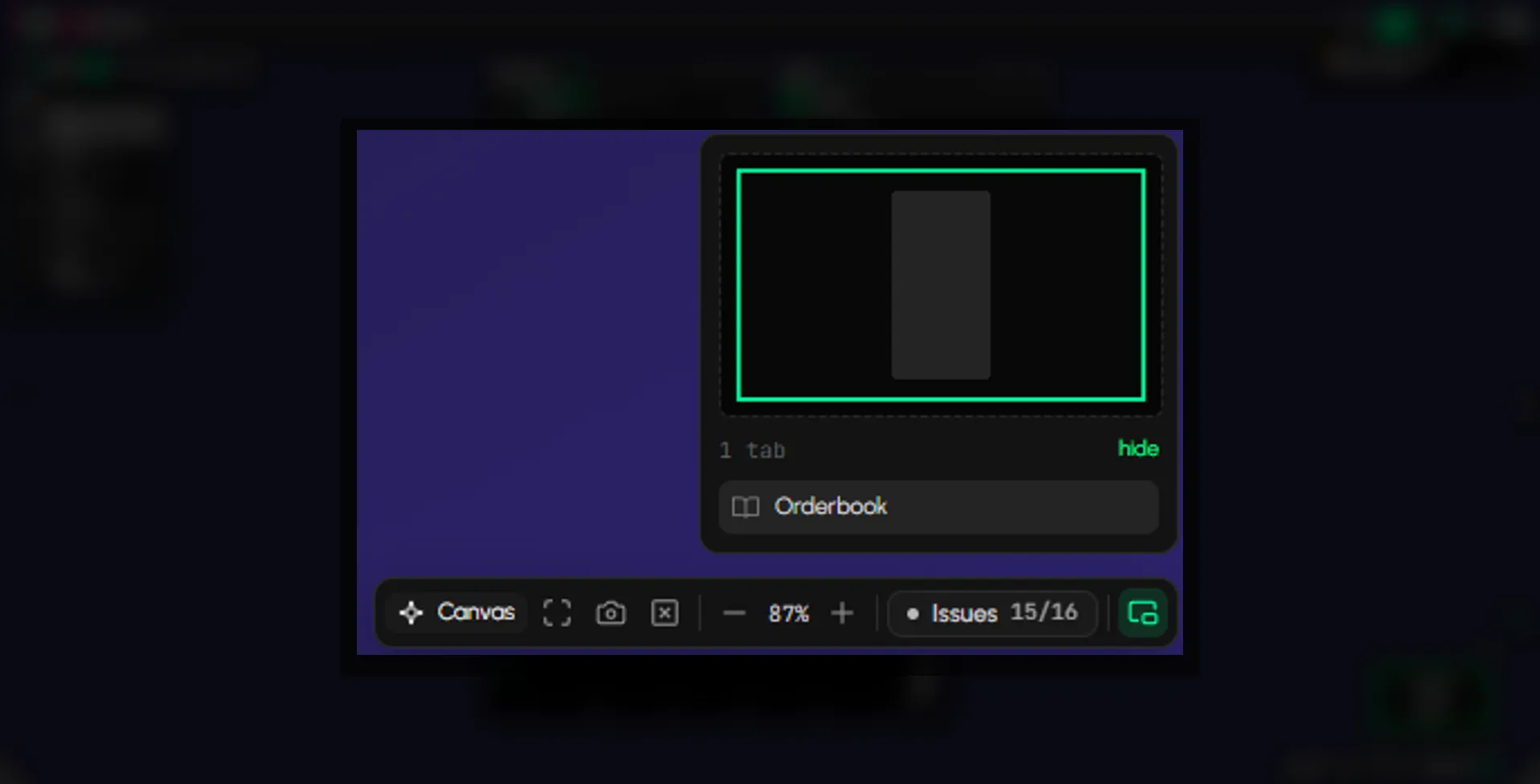
The bottom bar fits every tab in view, zooms in and out and shows a minimap with the list of open tabs: click the minimap to jump there. Take a break pauses tab updates for 15 minutes while alerts keep arriving silently, and a status strip shows which exchange feeds are up.
Use cases
How traders use it
- 01
Scalping workspace
Orderbook, Live Trades and a 1-minute chart side by side, with a crypto watchlist in the corner. New here? Set up your first workspace.
- 02
Second workspace for context
Orderbook Heatmap and Liquidations on the same coin, News beside them.
- 03
Sharing a chart
you create a link to your chart tab. A friend opens it, takes their own copy into one of their workspaces and can pull your later changes until you revoke the link.
Who it's for
- Active traders who want the order book, heatmap, liquidations and charts side by side.
- Traders with more than one routine, such as a fast session setup and a slower morning review.
- Friends and teams who share setups. Create a link to a tab, or share a workspace.
- Newer traders, who want one screen to learn what each tab shows.
How to use it
- Create your first workspace and add a tab. Set up your first workspace.
- Drag a tab by its title row to place it, and resize it from the corner.
- Open Layout on the tool rail and pick a preset: Tidy, Columns, Rows, Lead plus strip, Two-up or Sidebar.
- Add more tabs next to it: a chart, the order book, liquidations, a watchlist.
- Open a second workspace for a different routine from the workspace name in the top bar.
- Share a tab. In PRO, press Share on its title bar, then Copy or Move it to a workspace, or create a link. See how to share a chart, tab or workspace.
- Make it yours with a background, skins and fonts: customize your workspace.
Help: Create your first workspaceHelp: Share a tab or workspaceHelp: Lite and pro modes
Related tools
- Customize your workspace: backgrounds, skins and fonts.
- Order book heatmap and multi-exchange order book for liquidity.
- Crypto watchlist for the coins you follow.
- Help: share a chart, tab or workspace, LITE vs PRO.
FAQ
Workspaces FAQ
How do I see multiple crypto charts on one screen?
Add a Charts tab for each chart you want, place them next to each other and resize them, or open Layout and pick Columns or Two-up. The order book, heatmap and liquidations can sit on the same screen.
Can I keep more than one workspace and save different layouts?
Yes. You get four workspaces per account. Each keeps its own layout and opens as you left it. Use one workspace per routine, and switch between them from the workspace name in the top bar.
Can I share my setup?
Yes. In PRO, the Share button on a tab copies or moves it to another of your workspaces, or creates a link. Whoever opens the link takes their own copy and can pull your later changes into it until you revoke the link. A whole workspace shares by link too, and opens for anyone with it once it is Public. See how to share a chart, tab or workspace.
What happens if I close a tab by mistake?
A toast with Undo appears. Moving a tab to another workspace gives you five seconds to undo.
What is the difference between LITE and PRO?
LITE is the default and keeps the controls simple. PRO widens coin selection and adds the Share button to tab title bars. Every tab and feature is in both. More in LITE vs PRO.
Can I change how it looks?
Yes. Set a background for each workspace, skins for your tabs, fonts and a size for every tab. See how to customize your workspace.
Is there a free crypto trading dashboard?
Yes. Tabmydata Workspaces are free during Alpha. No card needed.
Free during Alpha.
A crypto trading dashboard you arrange yourself: the order book, liquidity heatmap, liquidations and charts on one screen, in workspaces you save. Keep four workspaces per account, each one as you left it, and share a tab or a whole workspace. Free during Alpha.
Sign up free