Live Trades
Live crypto trades in one time and sales tape
Help: How to use the Trades tab
Learn: Crypto Trading Glossary
Live crypto trades from the exchanges you pick print here as one time and sales tape, and you can set a minimum size to see the large ones. Show buys, sells or both, and set a minimum size so the small trades drop away. Free during Alpha.
Free during Alpha.
What's happening
One tape, many exchanges
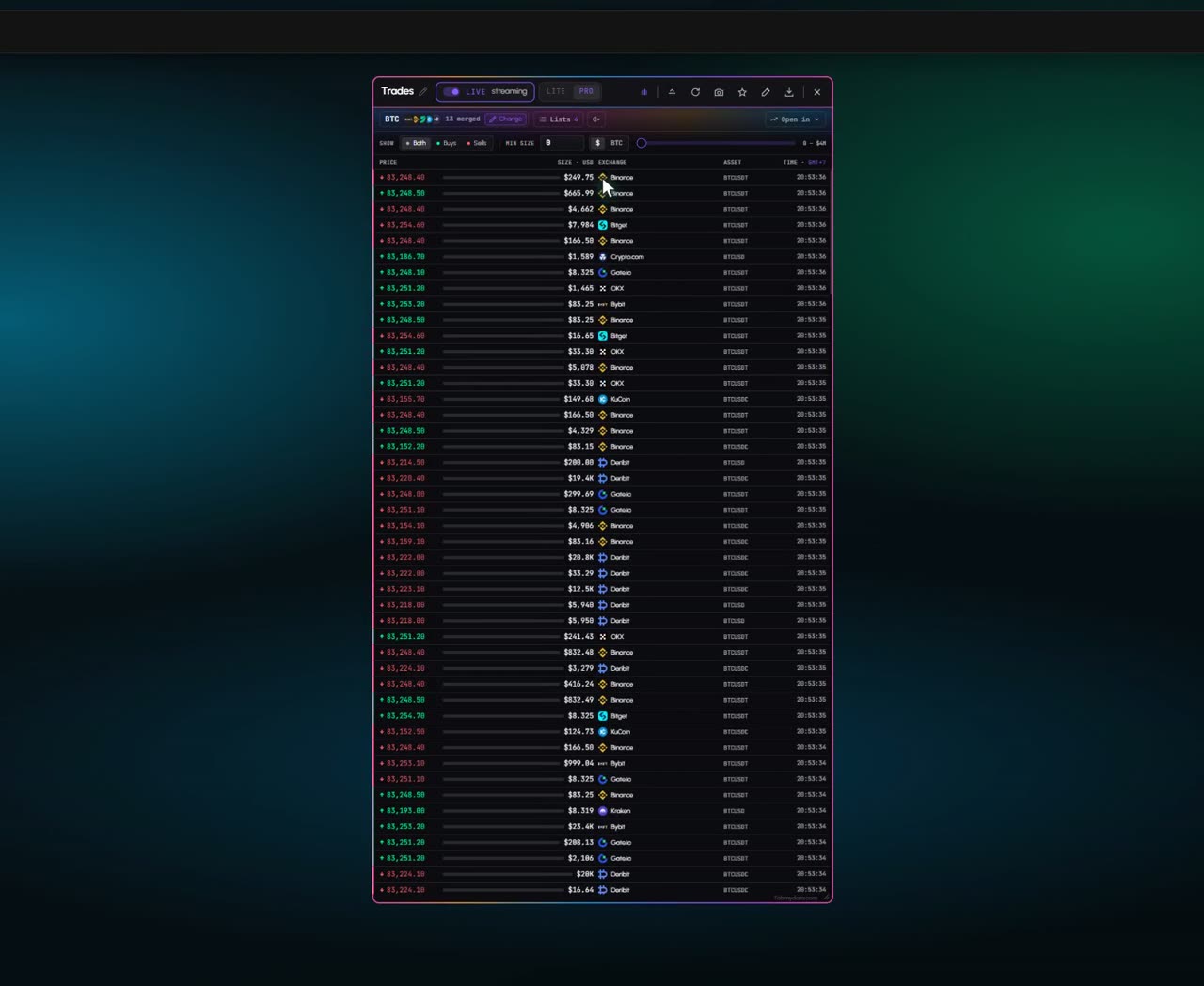
Prints from every market you select land in one live tape, with price, size, exchange and time.
Product tour
What you can do in the Live Trades tab
Live Trades streams executed trades from the exchanges and markets you select into one time and sales tape. In the app the tab is called Trades. You see what was bought, what was sold and how big each print is, newest on top. Show both sides or only buys or sells. Set a minimum size in coin or dollar terms and the small trades drop away. It sits in your workspace next to the chart and the order book.
Features
- 01
One tape across exchanges
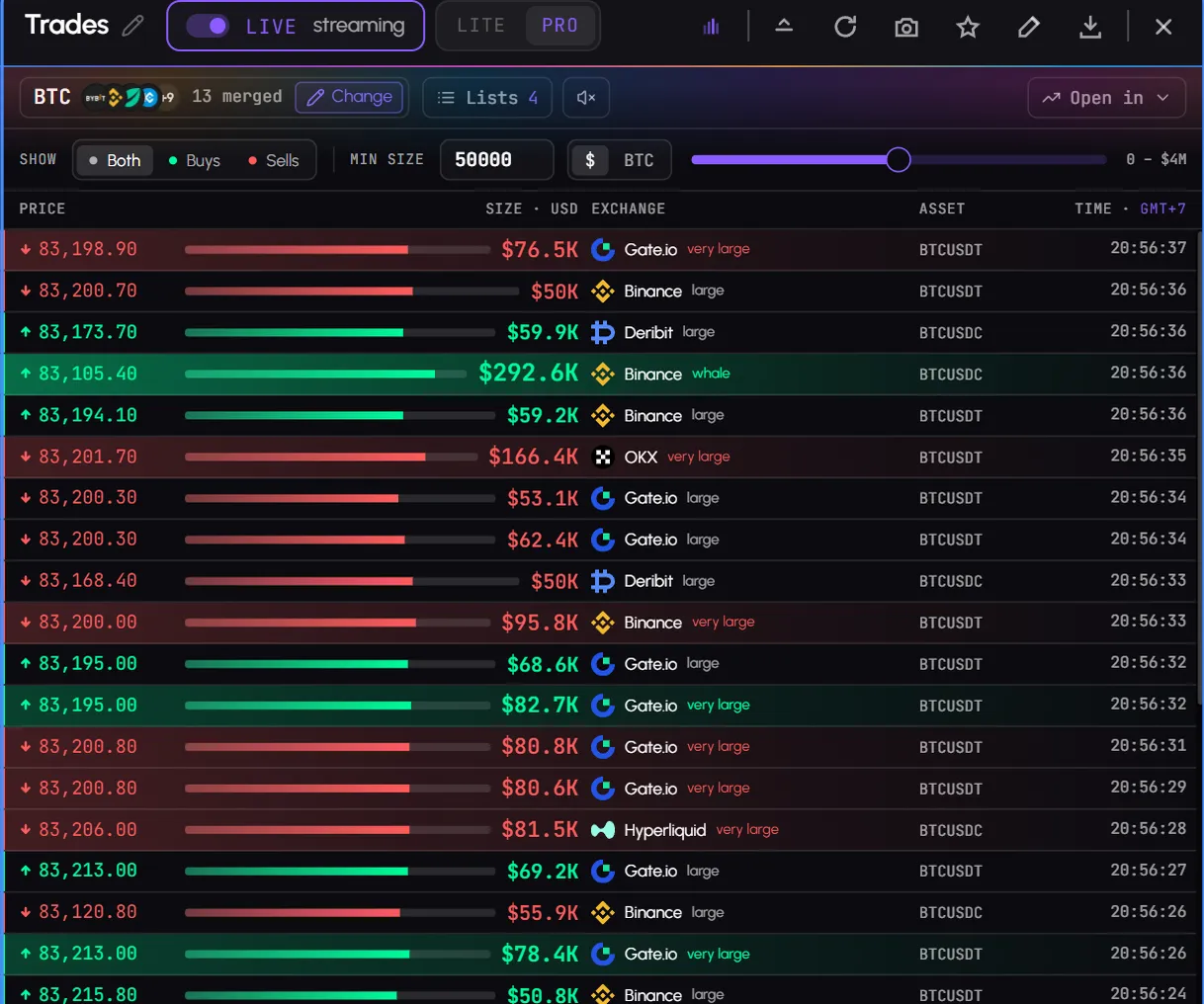
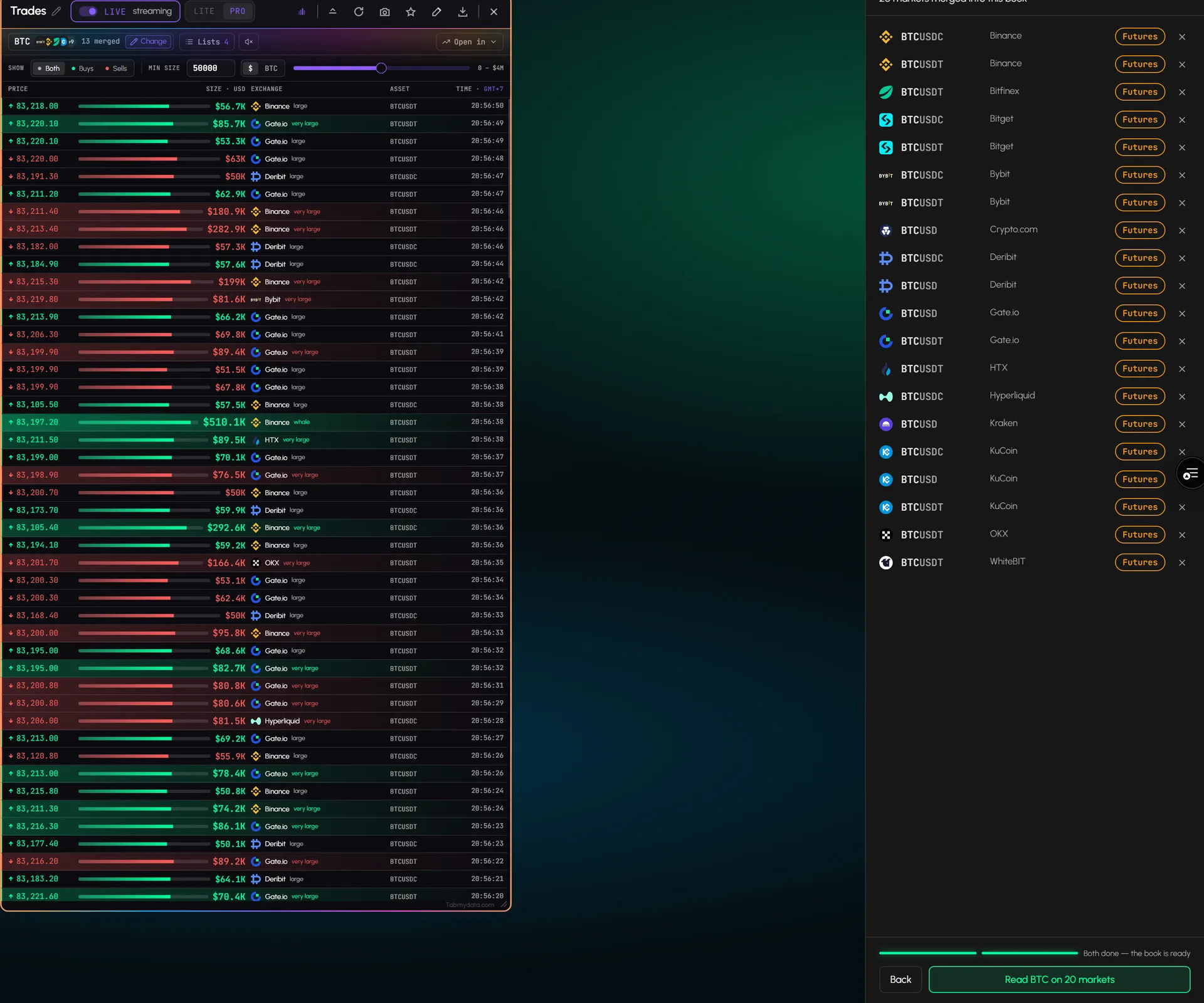
Press Change, pick a coin and review the markets that feed the tape. Prints from every market you selected land in one feed with price, size, exchange, asset and time. An arrow shows a buy or a sell, in green or red. Times follow your time zone.
- 02
Size filter in coin or dollars
Type a minimum size or drag the slider, and switch the unit between the coin and dollars. The slider runs in steps from 0 to $4M, and rows below the threshold disappear. Tiny prints carry a "dust" tag, bigger ones "large" or "very large", and prints from $50K up a whale tag.
- 03
Buys, sells or both
A SHOW switch has Both, Buys and Sells, so the tape matches the question you are asking.
- 04
A sound for big prints
Switch on the speaker button and the tab plays a sound on very large and whale prints.
- 05
Lists
Save a selection and load it again in one press. Lists show their type, age and how many markets and exchanges they hold.
- 06
Open in other tabs
The Open in menu hands the same coin to the Orderbook, the Orderbook Heatmap or Liquidations without picking it again.
- 07
Pause and refresh
Pause the feed while you read, then resume. Refresh reloads it.
Use cases
How traders use it
- 01
Reading the tape during a scalp
Keep Live Trades beside the order book and set a minimum size so only larger prints show.
- 02
Watching a level you already marked
Watch for large prints as price trades near a level you noted on the chart.
- 03
Big prints only
Set the minimum size to $50K and see which exchange prints each large trade.
Who it's for
- Scalpers and short-term traders who read the tape beside the order book.
- Traders who watch a level and want to see large prints as price trades near it.
- Derivatives traders who want the large futures prints, exchange by exchange.
How to use it
- Open the Live Trades tab and press Change to choose the coin and the markets. Step by step: how to choose coins and exchanges.
- Review the futures markets that feed the tape, then read it.
- Set a minimum size, and switch the unit between coin and dollars. See how to filter live crypto trades by size.
- Pick a side: both, buys or sells.
- Read the tape. Large prints stand out the moment they happen.
- Put it beside the order book to see which levels get hit, or beside liquidations on the same coin.
Related tools
- Multi-exchange order book: bids and asks beside the tape.
- Liquidation tracker: forced closes on the same coin.
- Charts: candles next to the tape.
- Help: how to use the Trades tab.
FAQ
Live Trades FAQ
What is time and sales?
A running list of executed trades with price, size and side. Live Trades shows it as one tape across the exchanges you pick.
How do I see large crypto trades as they happen?
Open Live Trades and set a minimum size in coin or dollar terms. The tape then keeps to the larger prints, and the speaker button can play a sound on very large ones.
Which exchanges are in the feed?
The futures exchanges you select. You add and remove markets in the Change panel, and the tape lists every print from them.
Can I filter out small trades?
Yes. Set a minimum trade size in coin or dollar terms. See how to filter live crypto trades by size.
Can I see Bitcoin trades live?
Yes. Pick Bitcoin as the coin and the futures markets you want, and the tape streams its trades. Free during Alpha.
Is a large print a signal to buy or sell?
No. It shows what other traders did. What you do with it is your decision.
Free during Alpha.
Live crypto trades from the exchanges you pick print here as one time and sales tape, and you can set a minimum size to see the large ones. Show buys, sells or both, and set a minimum size so the small trades drop away. Free during Alpha.
Sign up free