Workspace customization
Customize your trading workspace
Help: How to use Workspace & Tab Settings
Customize your trading workspace with a background, skins for each tab, colours and sizes, the same way in LITE and PRO. Switch between Dark and Light. Each workspace can look different. Free during Alpha.
Free during Alpha.
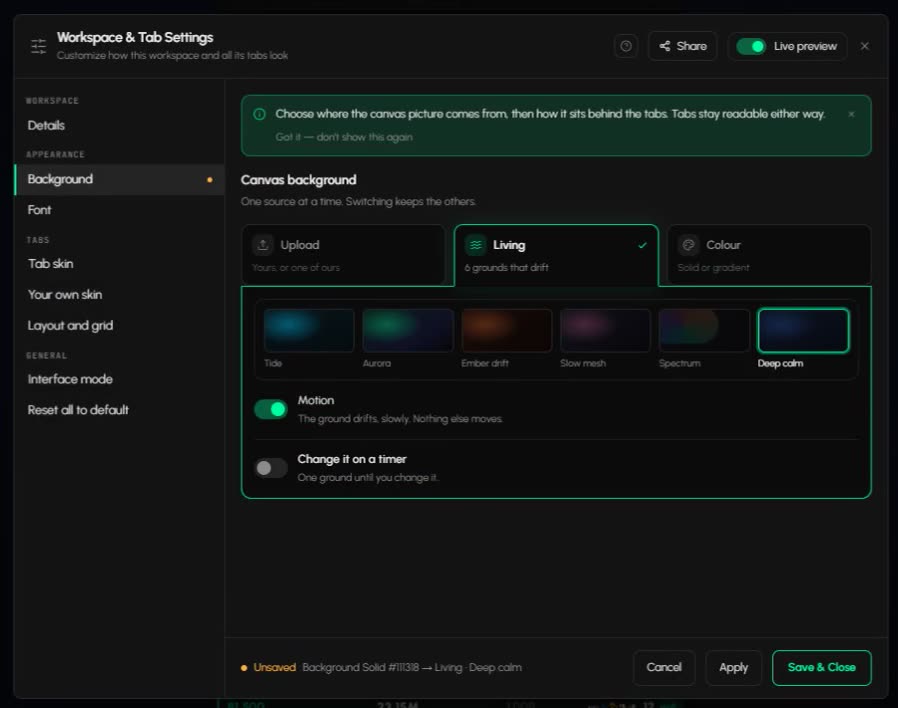
What's happening
Switch the background source
Open the settings and switch the background between Upload, Living and Colour.
Product tour
What you can do in the Workspace customization tab
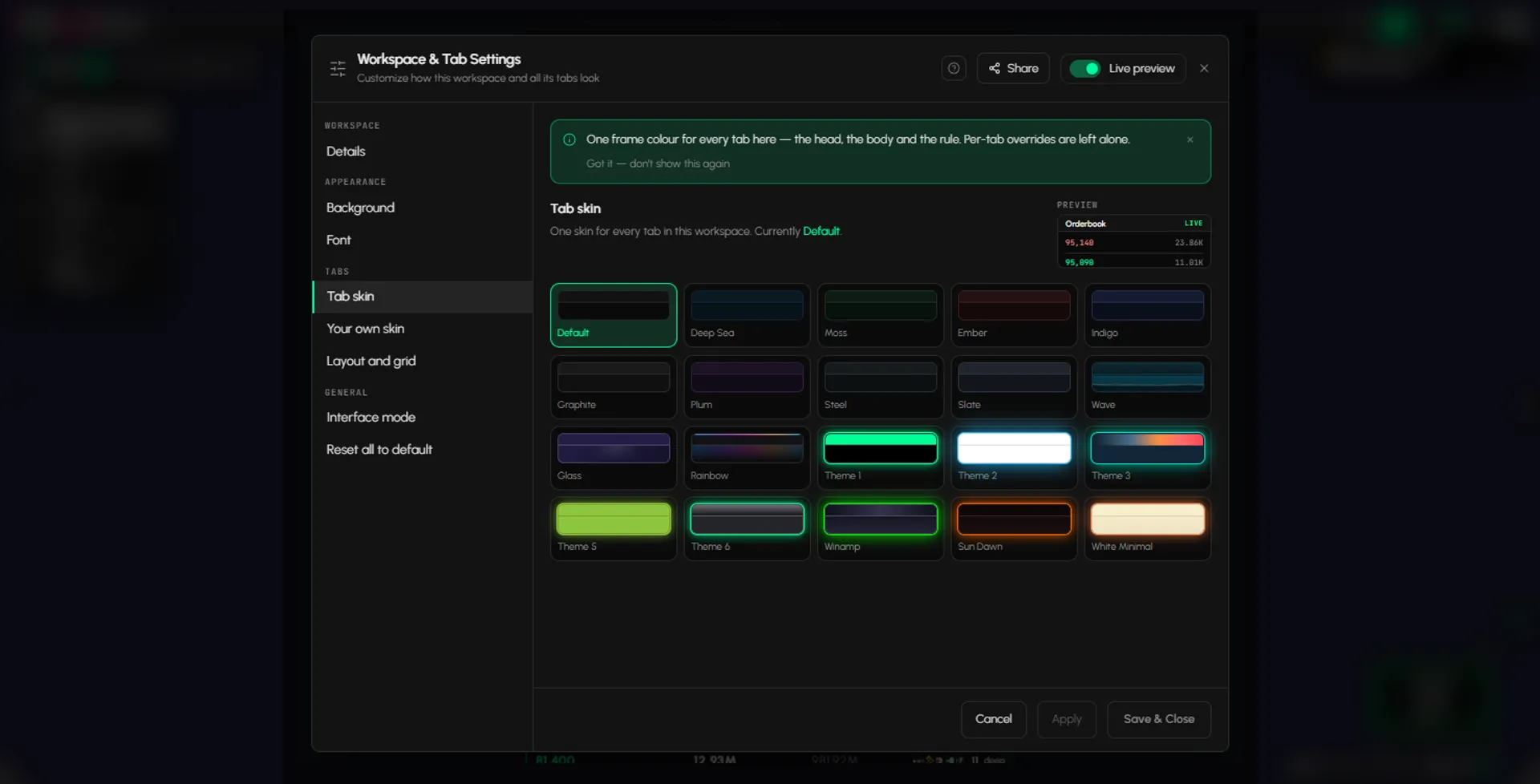
You may spend hours a day in a workspace, so it should look the way you want. Everything lives in one dialog, Workspace & Tab Settings, which you open from the gear on the canvas toolbar or the Canvas chip in the bottom bar. Set a background, put a skin on your tabs, colour their parts in solid fills or gradients and choose a font. A Live preview switch shows the change before you save it. The settings belong to a workspace, so each one can look different.
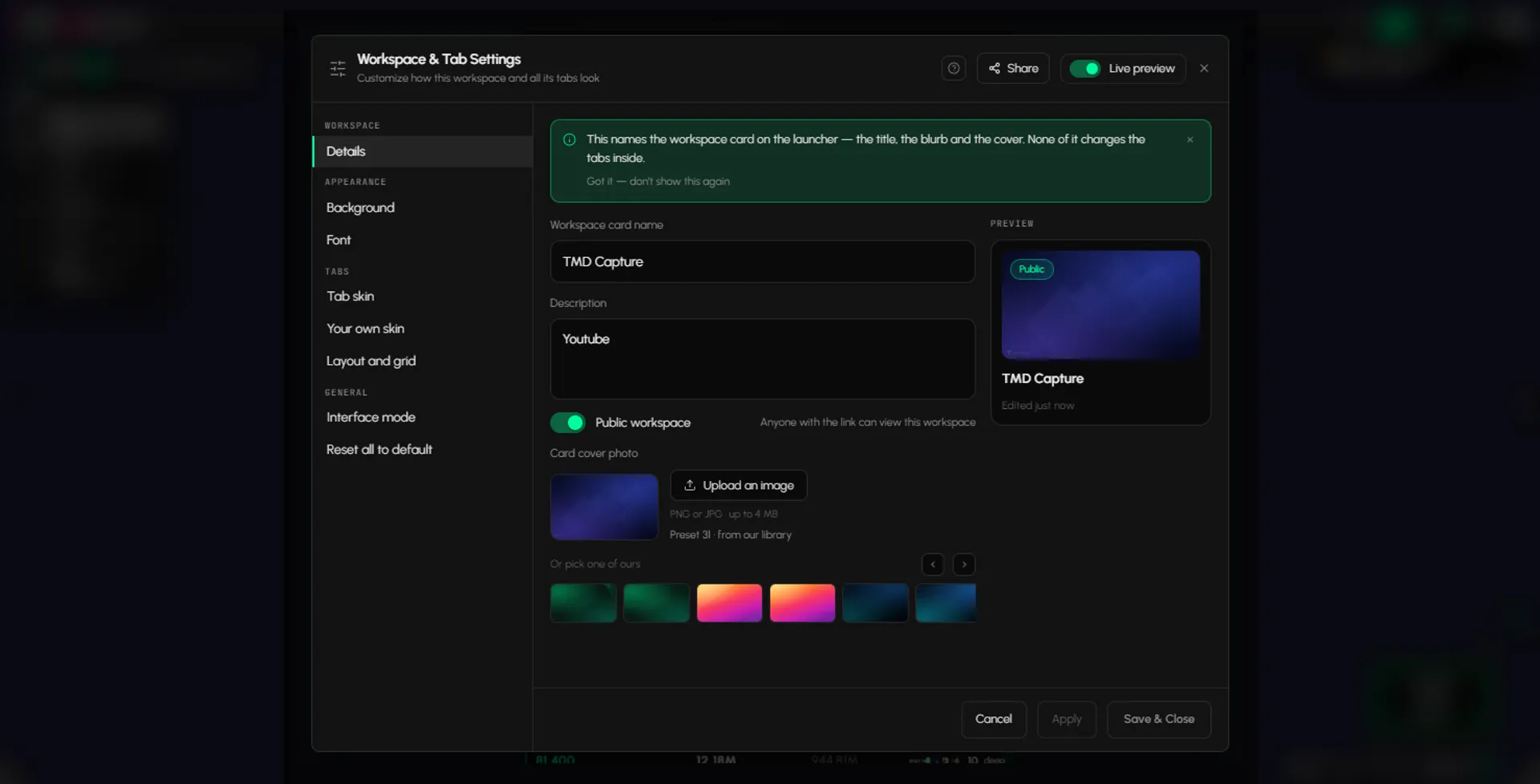
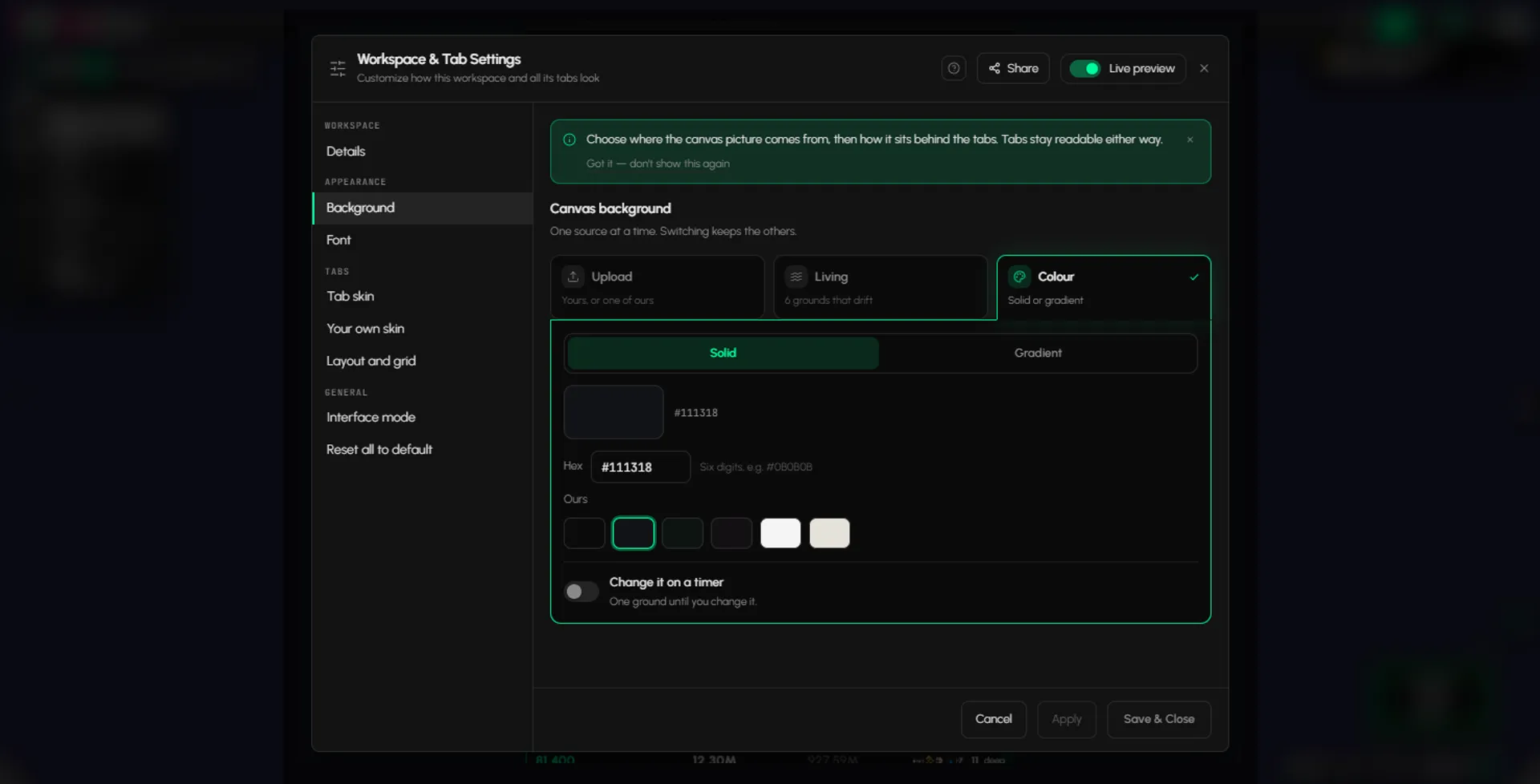
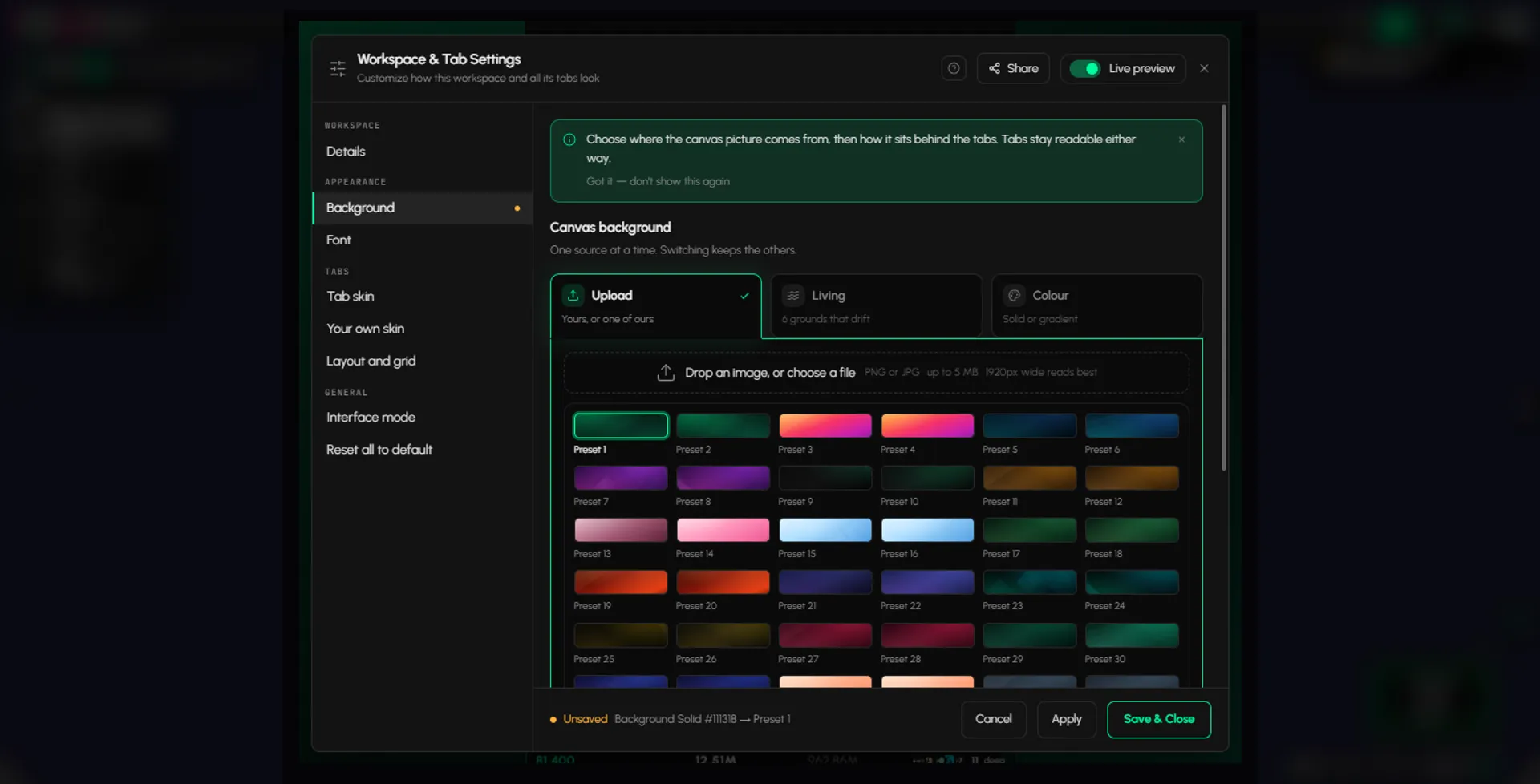
Features
- 01
Backgrounds
Three sources, one at a time. Upload your own image (PNG or JPG, up to 5 MB, 1920 px wide reads best) or pick a preset, or upload your own image and choose how it fits (Cover, Contain or Repeat). Living gives six grounds that drift: Tide, Aurora, Ember drift, Slow mesh, Spectrum and Deep calm. Colour gives a solid colour or a two-colour gradient.
- 02
Skins for every tab
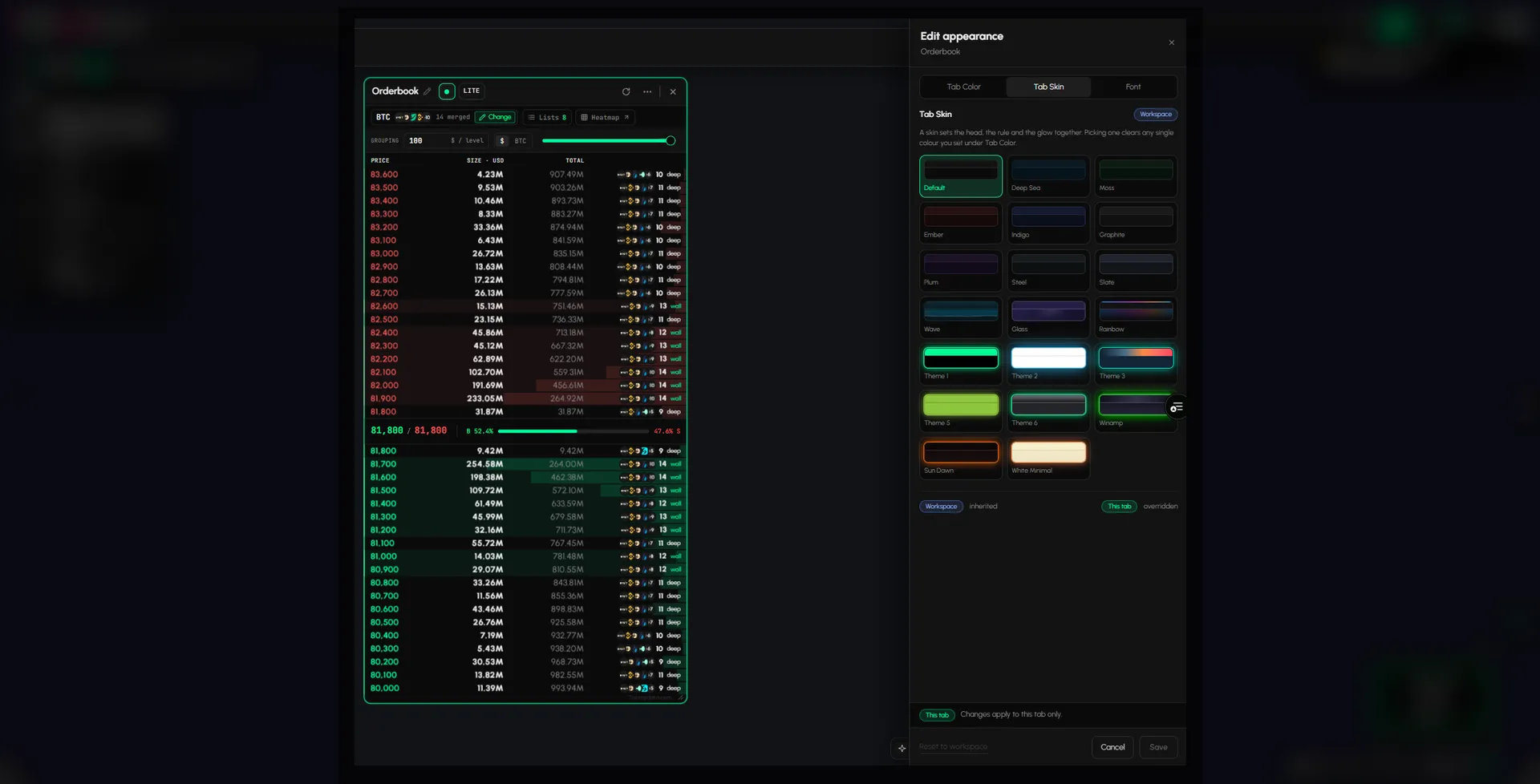
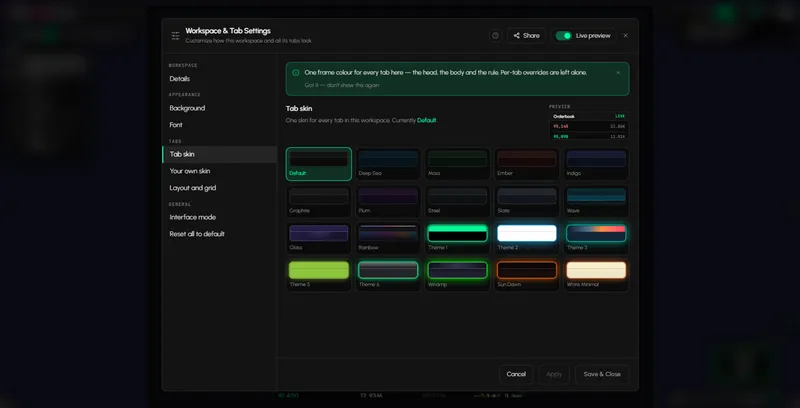
Pick one skin for every tab in the workspace from twenty, such as Deep Sea, Ember, Graphite, Glass, Rainbow or White Minimal. A tab you have set yourself keeps its own look until you clear the overrides.
- 03
Colour any part of a tab
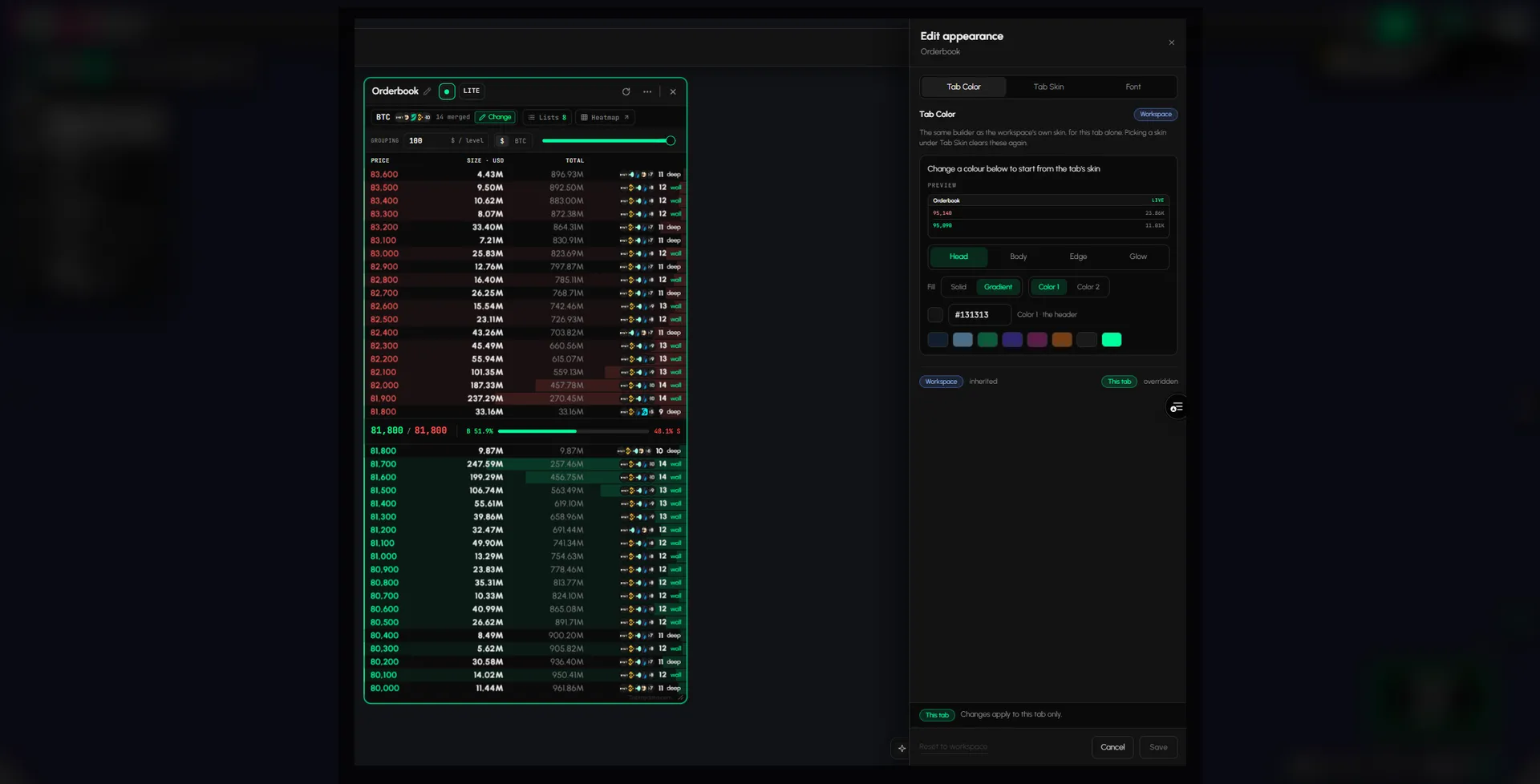
Open a tab's More menu and choose Edit appearance. Tab Color sets the Head, Body, Edge and Glow of that tab, each in a solid colour or a gradient. Tab Skin and Font sit in the same panel. Save applies it to that tab only, and Reset to workspace removes it. The settings dialog also has Your own skin, which colours every tab the same way.
- 04
Fonts and text size
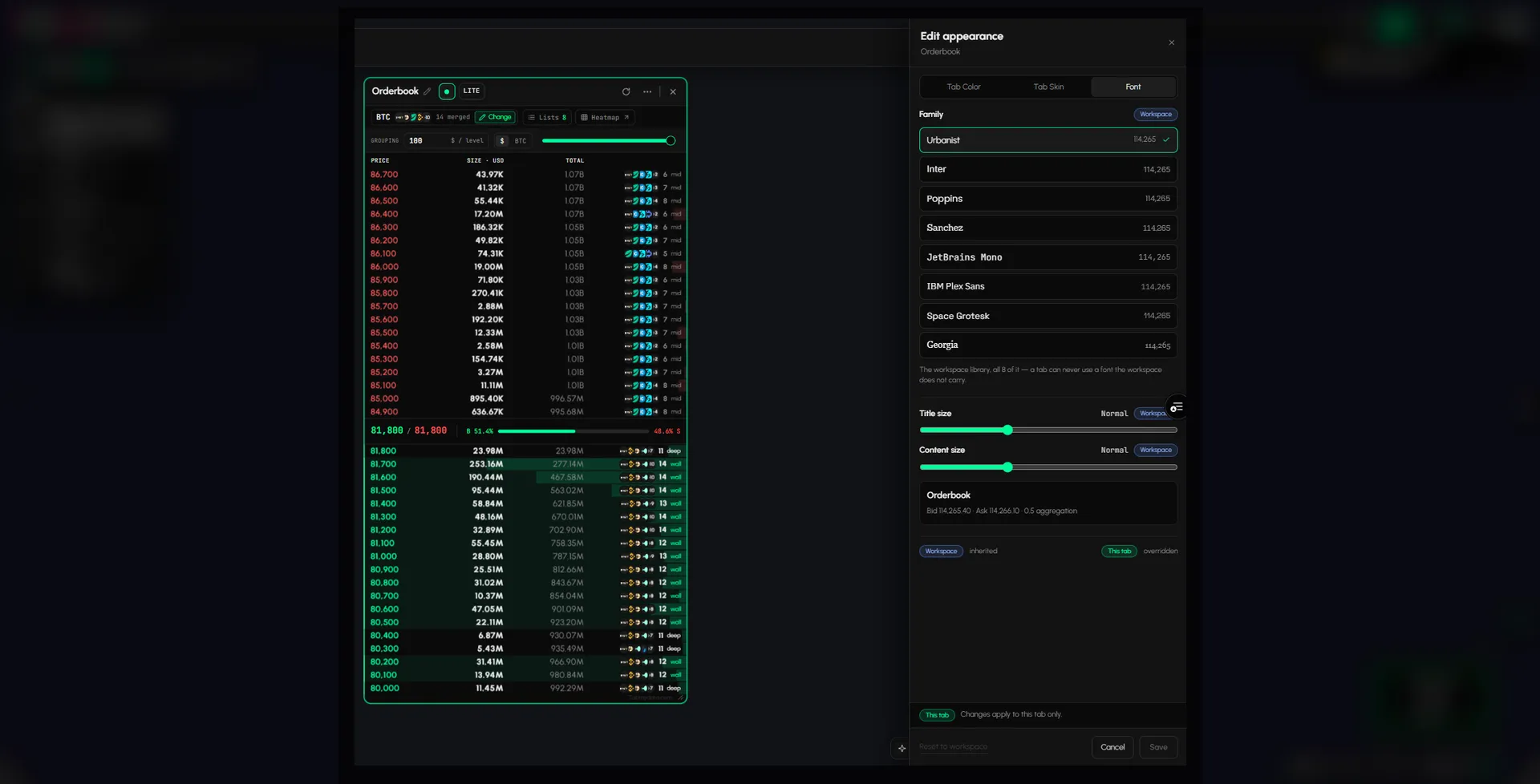
Choose a typeface for the workspace: Urbanist, Inter, Poppins, Sanchez, JetBrains Mono, IBM Plex Sans, Space Grotesk or Georgia. The title size and the content size each run from Small to XL, and new tabs inherit them.
- 05
Name and cover
Name each workspace (up to 64 characters), add a description and a cover photo (PNG or JPG up to 4 MB, or one from the library), so you know which one you are opening. The Public workspace switch decides whether anyone with the link can view it.
- 06
Dark or Light
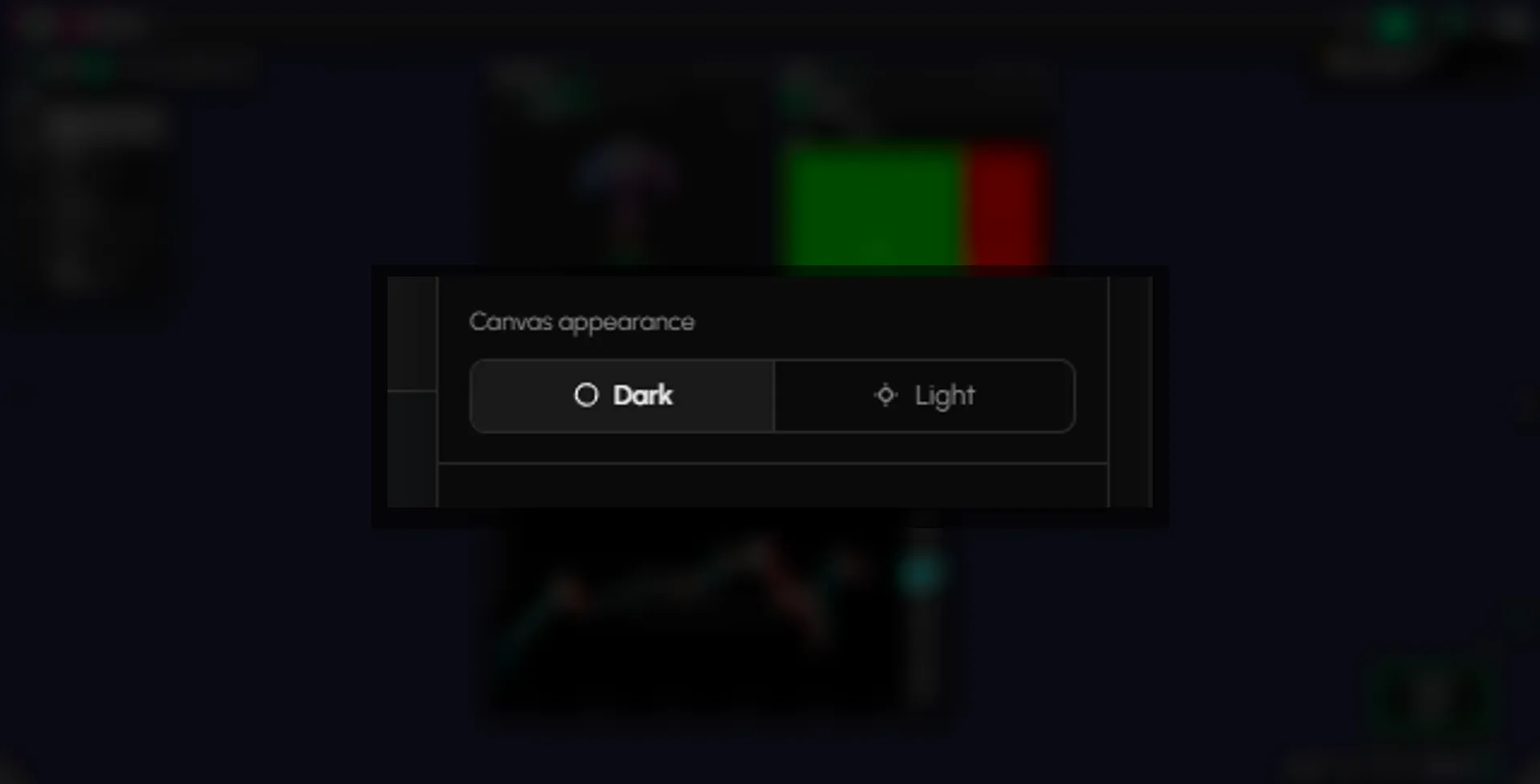
The moon switch in the top bar changes the page theme between Dark and Light. Canvas appearance in the user menu sets the canvas to Dark or Light on its own.
- 07
Reset
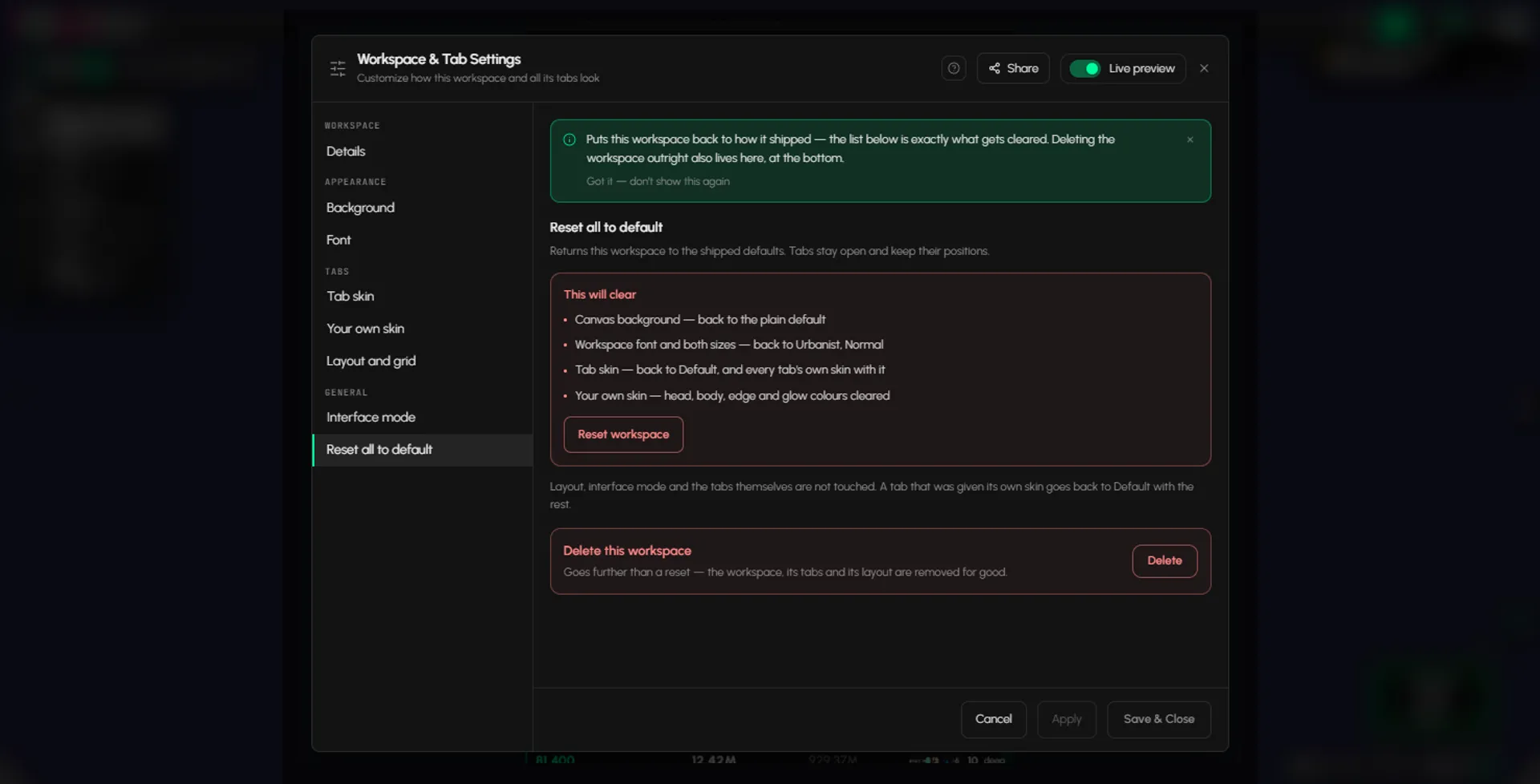
Reset workspace clears the canvas background, the workspace font and both sizes, tab skin (including each tab's own skin) and your own skin. Your layout, interface mode and tabs stay as they are.
Use cases
How traders use it
- 01
Easier long sessions
Pick a skin and colours that are easy on the eyes for a full day of screen time, or go Light in daylight.
- 02
One look per routine
Give the scalping workspace a dark gradient and the morning review a calm Living background, so you know at a glance where you are.
- 03
Their own backdrop
Upload your own image as the workspace background.
Who it's for
- Traders who spend long sessions on screen and want a look that is easy on the eyes.
- Traders with many workspaces who want each one to look different.
- Anyone who wants the screen to feel like their own, from a plain colour to an uploaded image.
How to use it
- Open Workspace & Tab Settings from the gear on the canvas toolbar or the Canvas chip in the bottom bar, and pick Background.
- Choose a source: Upload an image or a preset, a Living ground, or a solid colour or gradient.
- Open Tab skin and pick one for every tab, or build your own from the Head, Body, Edge and Glow colours.
- Set the font, the title size and the content size.
- Fine-tune one tab from its More menu and Edit appearance. Save applies it to that tab only.
- Press Save & Close. Press Escape and choose Discard to leave without saving. Repeat per workspace: each can have its own look.
Help: Color tabHelp: Workspace settingsHelp: Background customizationHelp: Light and dark themeHelp: Reset workspace
Related tools
- Workspaces: where the layout lives.
- Help: workspace settings, change a tab's colour, background customization, dark and light mode and reset a workspace.
FAQ
Workspace customization FAQ
How do I customize my trading workspace?
Open Workspace & Tab Settings from the gear on the canvas toolbar, then set a background, a skin, a font and the title and content sizes, and press Save & Close. Fine-tune one tab from its Edit appearance panel. See workspace settings and change a tab's colour.
What background options are there?
Upload your own image, pick a preset, choose one of six Living grounds, or use a solid or gradient colour. See background customization.
Can I give one tab its own look?
Yes. Open the tab's More menu, choose Edit appearance and change its Tab Color, Tab Skin or Font. It applies to that tab only, and Reset to workspace removes it.
Can I switch to light mode?
Yes. The moon switch in the top bar changes the page theme between Dark and Light, and Canvas appearance in the user menu sets the canvas to Dark or Light. See dark and light mode.
Can I turn off motion?
Motion comes from the Living backgrounds. For a still screen, pick an uploaded image, a preset or a solid or gradient colour.
Can I go back to the defaults?
Yes. Reset workspace clears the background, font and sizes, tab skin and your own skin, including each tab's own skin. Your layout, interface mode and tabs stay. See reset a workspace.
Does it cost anything?
No. Customization in Tabmydata is free during Alpha. No card needed.
Free during Alpha.
Customize your trading workspace with a background, skins for each tab, colours and sizes, the same way in LITE and PRO. Switch between Dark and Light. Each workspace can look different. Free during Alpha.
Sign up free