Workspaces & Tabs
How to use Workspace & Tab Settings
To change a workspace in Tabmydata, open Workspace & Tab Settings: click the gear on the tool rail or press ,. One dialog holds every setting of the workspace and all its tabs: name, privacy, background, font, skins, layout and interface mode. This page walks through each section.
On this page
- What you can do
- How do I open Workspace & Tab Settings?
- How do I preview, apply and save changes?
- How do I rename a workspace or make it public?
- How do I change the background?
- How do I change the font?
- How do I pick a tab skin?
- How do I build my own skin?
- How do I arrange tabs and start from a desk?
- How do I switch between LITE and PRO?
- How do I reset the look of a workspace?
- How do I delete a workspace from here?
- Frequently asked questions
- Related
What you can do
- Rename a workspace, describe it and set a cover for its card.
- Make a workspace public or keep it private.
- Change the canvas background: your own image, a slow-moving ground, or a colour.
- Set the font, font size and content font size for every tab.
- Pick a skin for every tab, or build your own with four colours.
- Arrange open tabs and start from a ready-made desk.
- Switch between LITE and PRO.
- Reset the look of the workspace, or delete the workspace.
How do I open Workspace & Tab Settings?
- From the Workspaces list or the Dashboard, hover a workspace card and click Settings.
- Or, inside a workspace, click the gear on the tool rail (key ,), or click the Canvas chip (Canvas appearance) in the bottom bar.
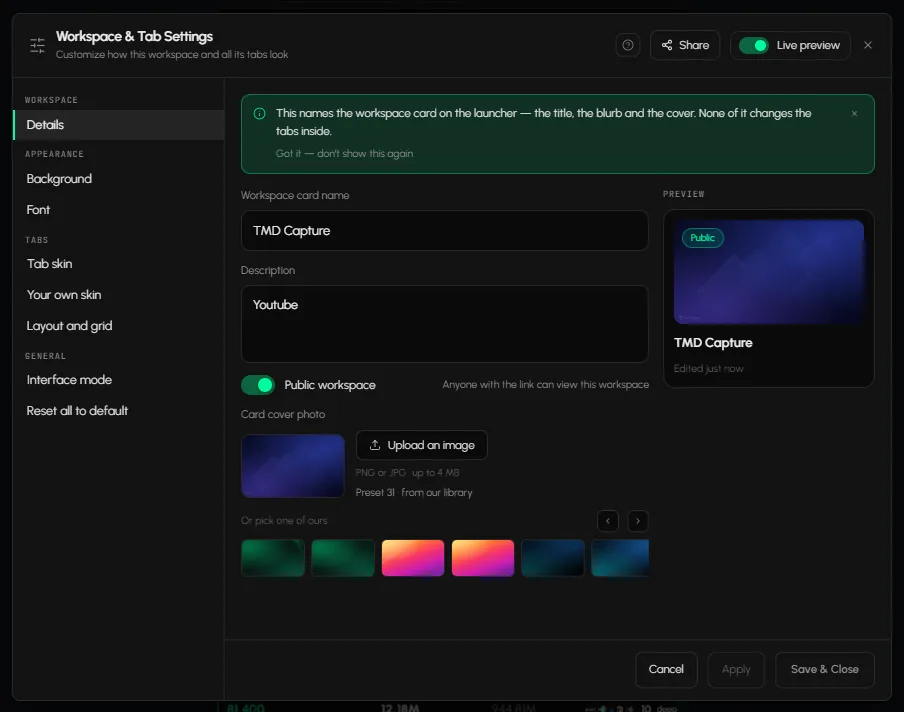
The dialog reads "Workspace & Tab Settings: customize how this workspace and all its tabs look". The left menu has Details, Background, Font, Tab skin, Your own skin, Layout and grid, Interface mode and Reset all to default.
How do I preview, apply and save changes?
- Switch Live preview on (top of the dialog) to see changes on the canvas as you make them.
- Click Apply to keep the changes and stay in the dialog, or Save & Close to keep them and leave. A line such as "Unsaved - Background <old> -> <new>" shows what is still waiting.
- If you close with unsaved changes (press Esc), the box "Keep your changes?" offers Discard or Keep editing.
- The help icon in the header opens help for the dialog.
Some sections show an info banner. Click Got it - don't show this again to hide it.
How do I rename a workspace or make it public?
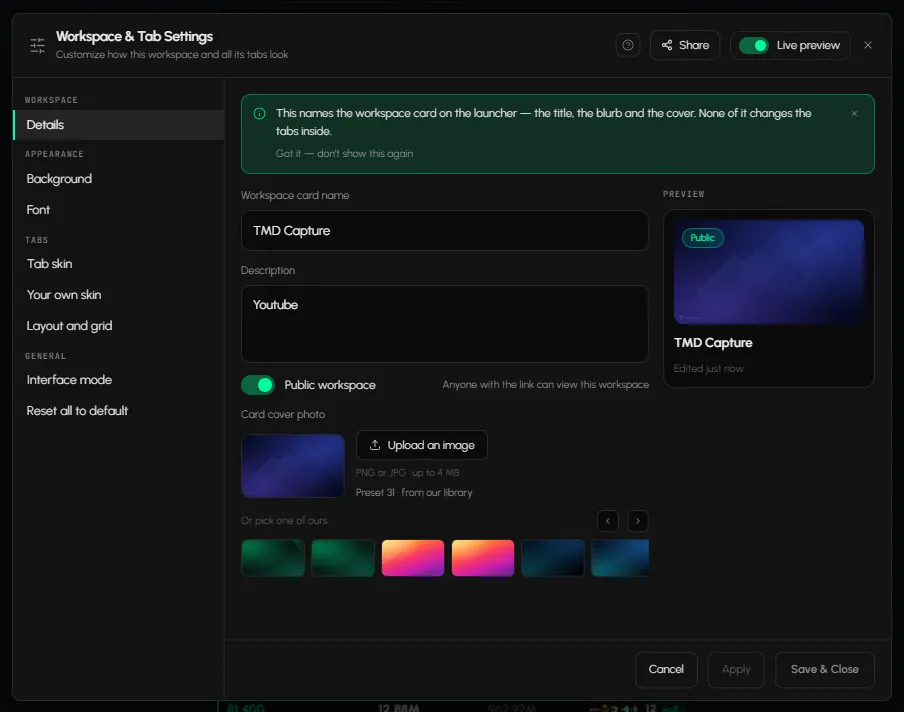
Open Details.
- Workspace card name: the name shown on the card and in the switcher (up to 64 characters).
- Description: a line shown on the card.
- Public workspace: switch on to let anyone with the link view the workspace. When off, only you can open it. See Share a tab or workspace.
- Card cover photo: click Upload an image (PNG or JPG, up to 4 MB), or pick one of the presets.
- Check the PREVIEW of the card on the right.
When someone likes a public workspace, you get a "Workspace likes" notification. See Read and clear your notifications.
How do I change the background?
Open Background. You pick one source at a time, and switching keeps the others.
- Upload: drop an image or choose a file (PNG or JPG, up to 5 MB, 1920 px wide reads best), or pick a preset. For your own image, choose Fit, Cover, Contain or Repeat.
- Living: six grounds that drift slowly: Tide, Aurora, Ember drift, Slow mesh, Spectrum, Deep calm. Only the background moves.
- Colour: Solid or Gradient. Type a hex code such as #0B0B0B.
- Change it on a timer: switch on and pick 15 min, 30 min, Hourly, 6 hr, Daily or a custom interval. A random image from the list is picked each time. A tab with its own background is not touched.
See Change your workspace background.
How do I change the font?
Open Font. This is the default for the workspace. New tabs inherit it, and so does every tab without its own font.
- Pick a typeface: Urbanist, Inter, Poppins, Sanchez, JetBrains Mono, IBM Plex Sans, Space Grotesk or Georgia.
- Set Font size: Small, Normal, Large or XL.
- Set Content font size: Small, Normal, Large or XL.
How do I pick a tab skin?
Open Tab skin. One skin applies to every tab in the workspace.
- Click a skin: Default, Deep Sea, Moss, Ember, Indigo, Graphite, Plum, Steel, Slate, Wave, Glass, Rainbow, Theme 1, 2, 3, 5, 6, Winamp, Sun Dawn or White Minimal.
- Check the live preview card.
- If some tabs have their own skin, a note says so, for example "3 tabs have their own skin". Click Clear overrides to apply the workspace skin to all.
See Tab skins and colours for a single tab.
How do I build my own skin?
Open Your own skin.
- Pick the part: Head, Body, Edge or Glow.
- Choose Fill: Solid or Gradient.
- Set Color 1 and, for a gradient, Color 2, with a hex code or a swatch.
The skin applies to every tab in the workspace.
How do I arrange tabs and start from a desk?
Open Layout and grid. It moves the tabs that are already open. Nothing is closed.
- Click Tidy, Columns, Rows, Lead and support, Two-up or Sidebar.
- Or pick a ready-made desk. It opens its tabs and arranges them, and keeps your open tabs.
- With no tabs open, the section reads "Nothing is open - a layout needs tabs to arrange."
See Arrange tabs.
How do I switch between LITE and PRO?
Open Interface mode.
- Pick LITE or PRO.
- LITE keeps what a tab does on its own: read, refresh, pause, skin, close. PRO adds Send to workspace to every title bar, for a second workspace of yours.
The dialog says it plainly: nothing here changes what data you get or what it costs. See LITE and PRO modes.
How do I reset the look of a workspace?
Open Reset all to default.
- Click Reset workspace.
- This clears the canvas background, the workspace font and sizes, the tab skin (and every tab's own skin) and your own skin.
- It does not touch the layout, the interface mode or your tabs. Tabs stay open and keep their positions.
See Reset a workspace.
How do I delete a workspace from here?
Under the reset button, Delete this workspace goes further: the workspace, its tabs and its layout are removed for good. Click Delete and confirm.
Frequently asked questions
Where is the time zone setting?
Not here. Time zone is set in the Market Clock and the Calendar. See Set your time zone.
Does a workspace setting change every tab?
Yes, as the default. A tab with its own skin, colours or font keeps them until you click Clear overrides or Reset to workspace in that tab.
Can I undo a change?
Before saving, close the dialog and choose Discard when asked "Keep your changes?". After saving, change the setting again, or use Reset all to default to clear the look.
Where do I change the language or clock format?
Not in this dialog. There is no time zone, clock format or language setting here.
Does Reset workspace close my tabs?
No. It clears the look only. Your tabs, layout and interface mode stay as they are.