Workspaces & Tabs
How to check a coin's market cap and supply in Coin Info
Coin Info shows a coin's price, 24-hour volume, market cap, fully diluted valuation (FDV) and supply in one card.
On this page
- What you can do
- How to add the Coin Info tab
- How do I pick the coin?
- How to scroll and resize the tab
- How to read the header
- How to change the price chart
- Which exchange does the price come from?
- How to read the Market block
- How to read the Supply block
- How to see where a coin trades
- How to read About and open links
- How to read the latest news and jump to other tabs
- Settings
- States
- Frequently asked questions
- Related
Product overview: coin info.
What you can do
- Pick a coin in one step.
- Read price, rank and change over 1h, 24h, 7d and 1Y.
- Chart the price over 24H to ALL.
- Read market cap, FDV, volume, range, ATH and ATL.
- Read circulating, total and max supply.
- See where it trades and each venue's share of volume.
- Read About and open the website, explorer and social links.
- Jump to Charts, the Orderbook or the News tab.
How to add the Coin Info tab
- Click + (Add a tab), or press T.
- Under Market data, click Coin Info (badge AUTO), or press Alt + 2.
How do I pick the coin?
- Click the coin button in the header, for example "Bitcoin / BTC" ("Choose the coin this tab is about").
- A side panel opens: "BTC · Coin Info, Choose the coin". It has 24 coin tiles, one market each.
- Click a tile, then Read BTC. Cancel closes the panel.
- For any other coin, use More coins (PRO): "Search every listed coin and pick the exact market".
In LITE this is a single step: the panel applies your pick and closes.
In PRO the panel is the full picker ("Choose the coin, or one venue to read it from"):
- Use the Futures / Spot filter and tick or clear exchanges (Clear all unticks them).
- Type in "Search a coin or pair", or click a coin tile. A tile picks that coin's first market.
- Pick a market from the list, then click the button at the bottom, for example "Read ETH on Binance Spot only".
Tip: if you switch the filter to Futures, the coin goes back to BTC, so pick the coin after you set the filter.
How to scroll and resize the tab
The page inside the tab is longer than the tab. Roll the mouse wheel over the page to scroll it, not to zoom the canvas. Roll it over the title bar to zoom the canvas. The page starts at the top after every reload. To see more at once, drag the bottom-right corner, where a bar reads "Drag to change the tab height".
How to read the header
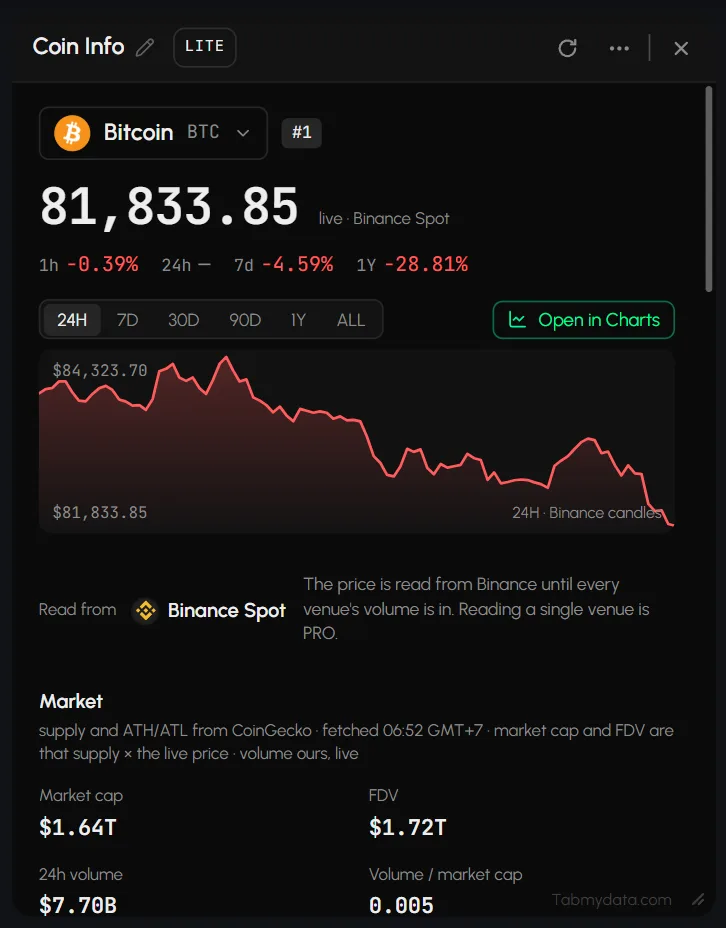
The header shows the name, symbol and rank (for example #1), the live price with its source (for example "live · Binance Spot"), and change chips for 1h, 24h, 7d and 1Y.
How to change the price chart
- Click 24H, 7D, 30D, 90D, 1Y or ALL.
- Candles are 15m for 24H, hourly for 7D, 4h for 30D, daily for 90D and 1Y, and weekly for ALL.
- The chart shows the high and low. A caption reads for example "24H · Binance candles".
- Click Open in Charts above the chart for a full chart.
The chart range is not kept when you reload the page. It starts on 24H again.
Hover the 1Y change chip for its tooltip: it is worked out from the daily candles loaded for the venue, and it stays blank when they cover less than a year.
Which exchange does the price come from?
By default the tab reads the venue with the most volume for the coin, for example "Read from Binance Futures". The Read from line under the chart says which. To read one exchange instead (PRO), click Change venue, pick a market and confirm. The price then reads for example "live · Binance Spot", and the line says "Price, change and volume are Binance's own prints". Click All venues to go back to the default.
How to read the Market block
| Item | What it shows |
|---|---|
| Market cap | Supply times live price |
| FDV | Fully diluted valuation: total supply times live price |
| 24h volume | Volume as measured by Tabmydata, across the markets that report comparable volume (hover for the count) |
| Volume / market cap | The ratio of the two |
| 24h range | Low to high |
| ATH | Date and % from here |
| ATL | Date and multiple |
Supply and ATH/ATL come from CoinGecko. Volume is ours. Hover a value to see it at full precision.
How to read the Supply block
It shows Circulating, Total and Max supply, and a line such as "95.7% of the maximum supply is in circulation, about 903K BTC still to come."
How to see where a coin trades
- Find Where it trades, for example "13 venues · 12 Spot · 8 Futures".
- Each row shows the venue, whether it lists Both, Spot or Futures only, its share of 24h volume, and that venue's own price.
- Click "+5 more" to show the rest, then Show fewer to fold the list.
- Labels such as "Futures only" have a tooltip. For example, an exchange that also lists Spot but has no comparable Spot volume counts as Futures only.
- A note under the list explains comparable volume. Clicking a venue row does not open anything. To compare order books side by side, use the Orderbook tab.
How to read About and open links
- About shows the CoinGecko description (long text is cut short), category chips (for example Layer 1, Proof of Work) with a "+N" chip for the rest, and the launch date.
- The link buttons are Website, Explorer, GitHub, X, Reddit and Forum. Each opens in a new browser tab. Only links that exist for the coin appear.
- For token coins, a Contract addresses list shows the chain, the address and a Copy button, with "+N more chains". Coins such as BTC and ETH have no list.
How to read the latest news and jump to other tabs
- Latest news shows up to 4 items from the News feed that name the coin, each with its time, source tag and headline. The number varies by coin. Click See all in News to open the News tab.
- Jump buttons: Charts, BTC full history and Orderbook, BTC merged. The Open in dropdown lists Live Trades, Liquidations and Orderbook Heatmap.
Header buttons: Refresh, LITE | PRO, Minimize, Edit appearance, the More menu and Close. Click the tab title to rename the tab. See Tab controls.
Settings
| Setting | Options | Scope |
|---|---|---|
| Coin | 24 tiles, or More coins (PRO) | This tab |
| Chart range | 24H, 7D, 30D, 90D, 1Y, ALL | This tab |
| Price source | Venue with the most volume, or one venue (PRO) | This tab |
States
- A venue is slow or down: the screen still loads. The venue's row may be missing.
- LITE and PRO: the density is shared by every Coin Info tab. LITE offers 24 coin tiles. Searching every coin and reading a single venue are PRO.
Frequently asked questions
How do I check a coin's market cap and supply?
Pick the coin. The Market and Supply blocks show both.
What is FDV?
Fully diluted valuation: the total supply times the live price.
Where do the numbers come from?
Supply and all-time high/low come from CoinGecko. Market cap and FDV are supply times the live price. Volume is measured by Tabmydata.
Where is the official website?
In About, the Website button.
Which exchange sets the price?
By default the venue with the most volume for that coin. In PRO you can read one exchange instead, and click All venues to go back.
What is the difference between circulating, total and max supply?
Circulating is what is in the market now. Total is what exists. Max is the cap, and a coin with no cap shows "No max".
Can I check a coin other than Bitcoin?
Yes. Click the coin button and pick another tile, or search any coin in PRO.
Does this tab give advice?
No. It shows facts about a coin.