Workspaces & Tabs
How to use the Tracking page
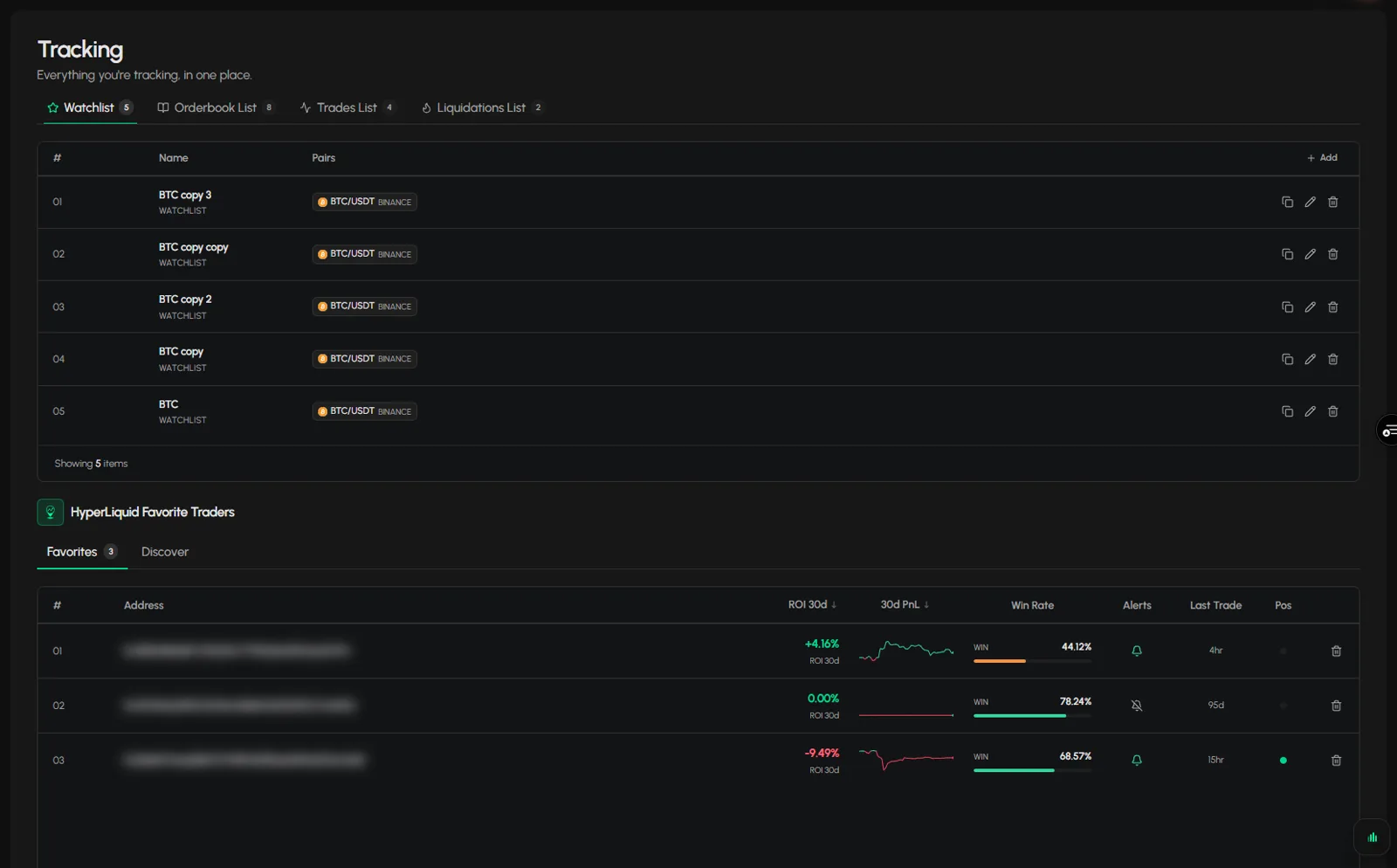
The Tabmydata Tracking page, opened from Tracking in the sidebar, keeps everything you follow in one place: your saved Watchlist, Orderbook, Trades and Liquidations lists, and the Hyperliquid traders you follow with their 30-day ROI, PnL and win rate. Add, duplicate, edit or delete lists, and manage the traders you follow.
On this page
What you can do
- See all your saved lists by type, with their pairs.
- Add a list, duplicate it, edit it or delete it.
- See the Hyperliquid traders you follow with their 30-day ROI, 30-day PnL, win rate and last trade.
- Sort the traders and remove a trader.
- Open the Discover tab for more traders.
How do I open the Tracking page?
Click Tracking in the sidebar.
How do I read my saved lists?
- Click a chip: Watchlist, Orderbook List, Trades List or Liquidations List. The number on the chip is how many lists you have of that type.
- The table has #, Name and Pairs. Pairs shows the first 5 pairs, then "+N" for the rest.
- The footer reads "Showing N items".
How do I add, duplicate, edit or delete a list?
- Click Add (top right of the table) to add a list of the type you have open.
- On a row, click the copy icon to duplicate, the pencil to edit, the bin to delete. For a Watchlist list, the pencil opens the Edit Watchlist dialog: the name, the pair picker, Spot or Futures and the exchanges, with Cancel and Update.
Tip: lists are made inside the tabs. In Orderbook, Trades and Liquidations, a "Keep this selection as a list?" dialog saves your selection. The same lists also show on your profile.
How lists are made in a tab: Save and load coin lists.
How do I read the Hyperliquid Favorite Traders table?
Under the lists you see HyperLiquid Favorite Traders.
- Favorites shows the traders you follow. The number is how many. Discover opens a search page headed "Follow the wallets that actually print", where you look for traders to follow.
- The columns:
- Address: the trader's wallet address.
- ROI 30d: return over 30 days, with a small trend line.
- 30d PnL: profit and loss over 30 days.
- Win Rate: share of winning trades, with a bar.
- Alerts: a bell for that trader's alerts.
- Last Trade: how long ago the trader last traded.
- Pos: the trader's position status.
- Click ROI 30d or 30d PnL to sort.
- Click the bin at the end of a row to stop following that trader.
- The footer shows the average ROI 30d of the list.
These figures describe past activity of other accounts. They are not advice.
Frequently asked questions
Where do I add a trader to Favorites?
In the Hyperliquid Whale Tracker tab. See Follow Hyperliquid wallets and get alerts.
Where are the alerts for these traders?
On the Alerts page and in the bell in the top bar.
What is the difference between Tracking and the Watchlist tab?
Tracking is a page for managing your saved lists. The Watchlist tab shows prices in a workspace. See Watchlist tab.