Financial Calendar
Economic calendar for crypto: macro events in your time zone
Help: How to use the economic calendar in the Calendar tab
The Financial Calendar is an economic calendar for crypto traders: CPI, FOMC, NFP and other macro releases, each in your time zone. Add your own events to the same grid and keep it beside your chart. Free during Alpha.
Free during Alpha.
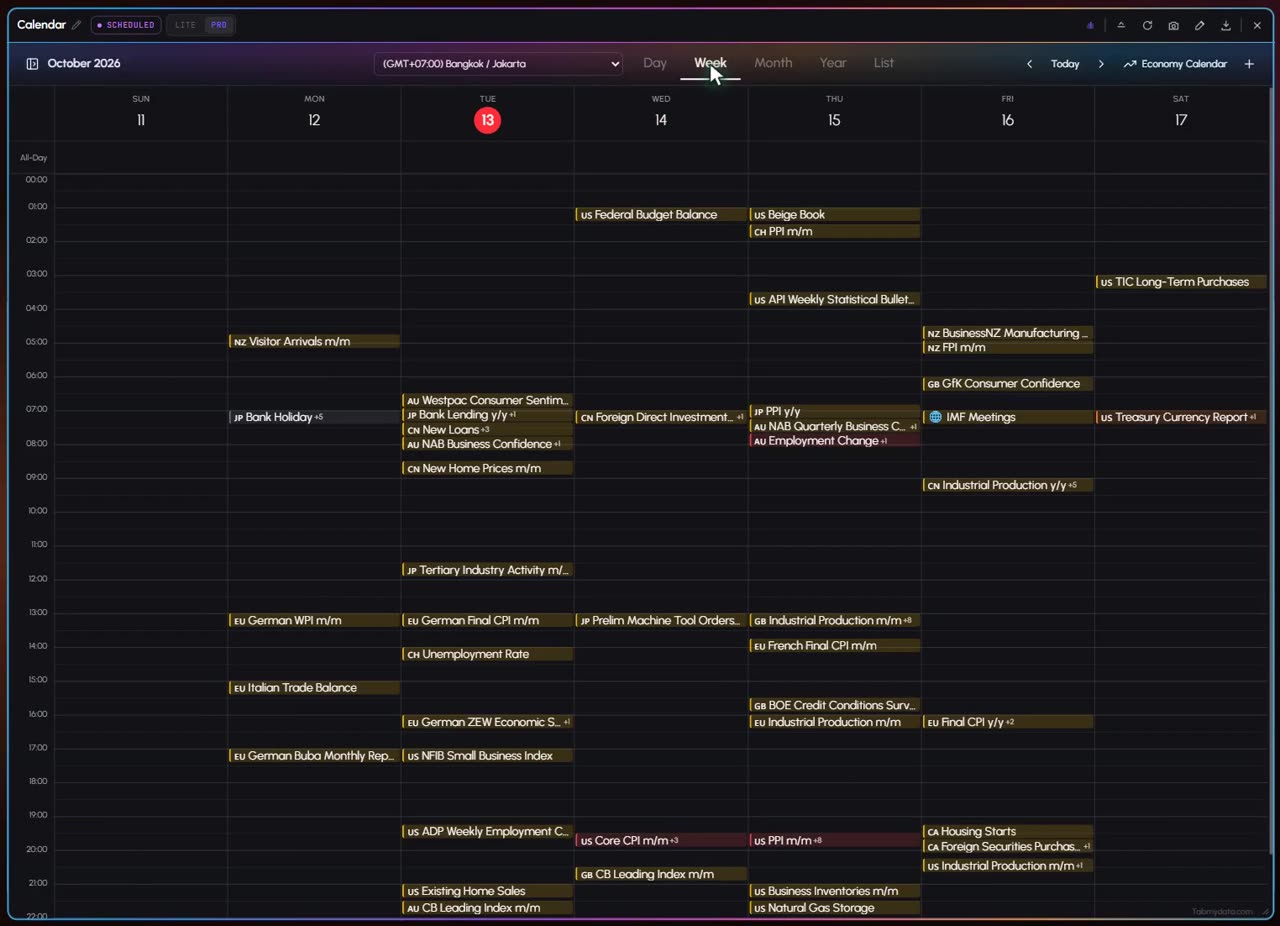
Product tour
What you can do in the Financial Calendar tab
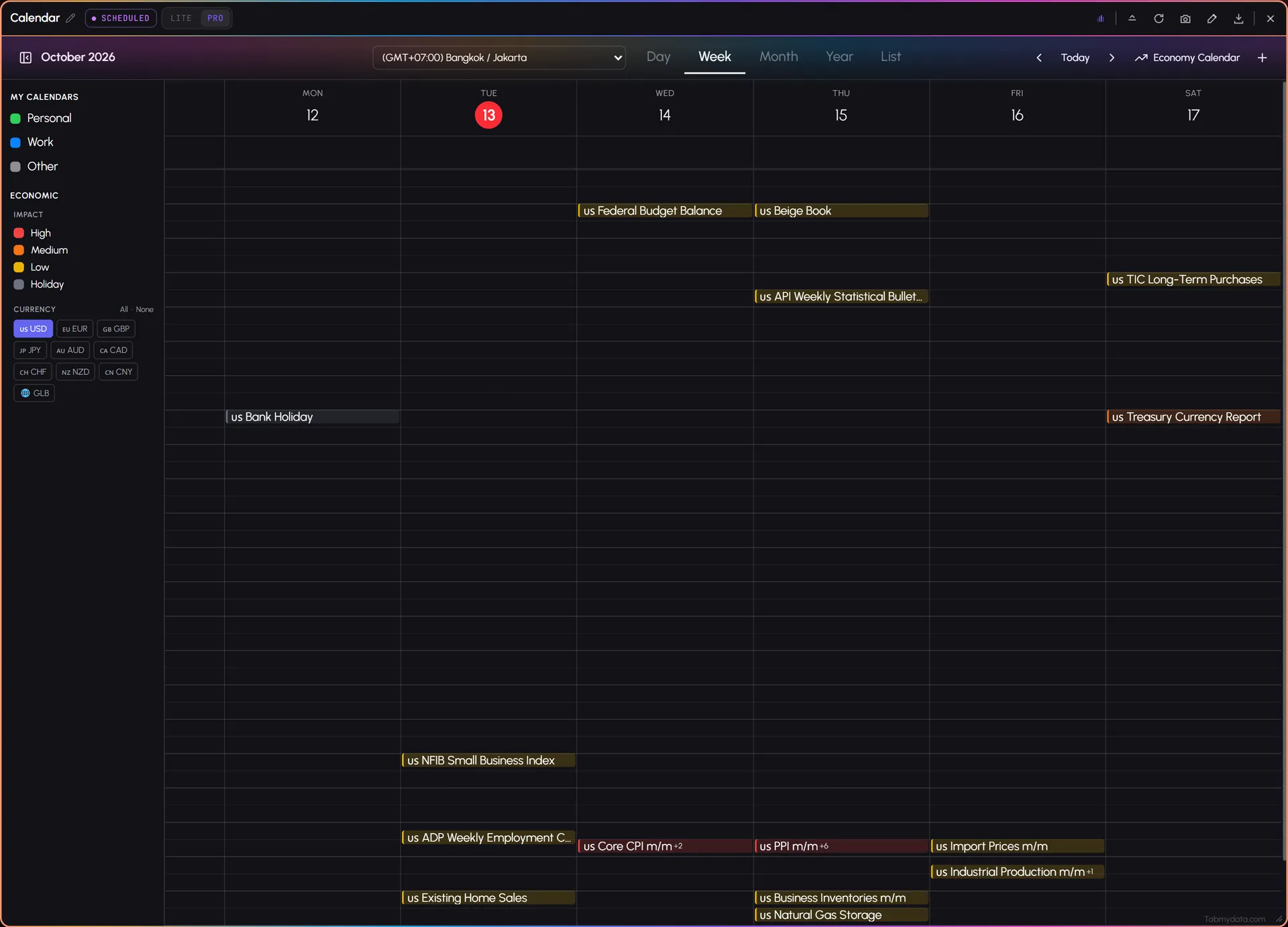
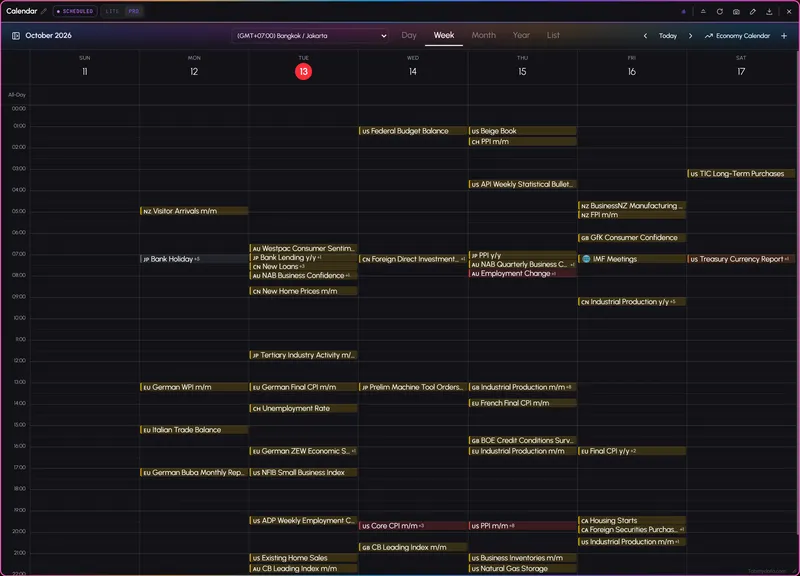
The Financial Calendar is an economic calendar for crypto traders. It lists scheduled releases such as CPI, FOMC rate decisions and the NFP jobs report, in the time zone you pick. Filter by impact and currency, open an event for its forecast and previous figure, and the actual once it prints. Add your own events to the same grid, and keep it all in your workspace beside the chart.
Features
- 01
Events in your time zone
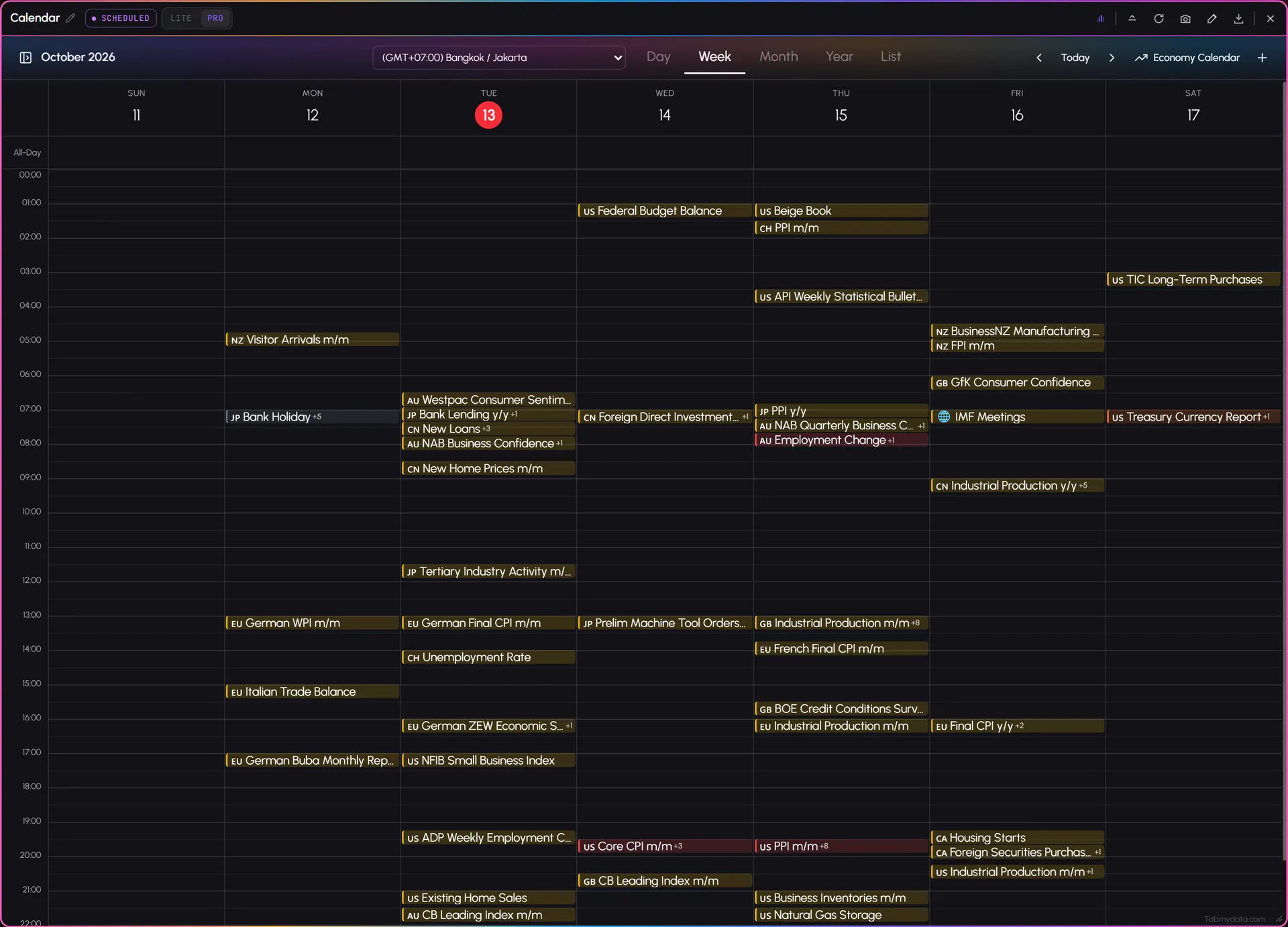
A dropdown at the top sets the zone, and every time in the grid follows it. The tab has 12 zones, and each tab keeps its own. Check the market hours beside it. How to: change your time zone.
- 02
Forecast vs actual
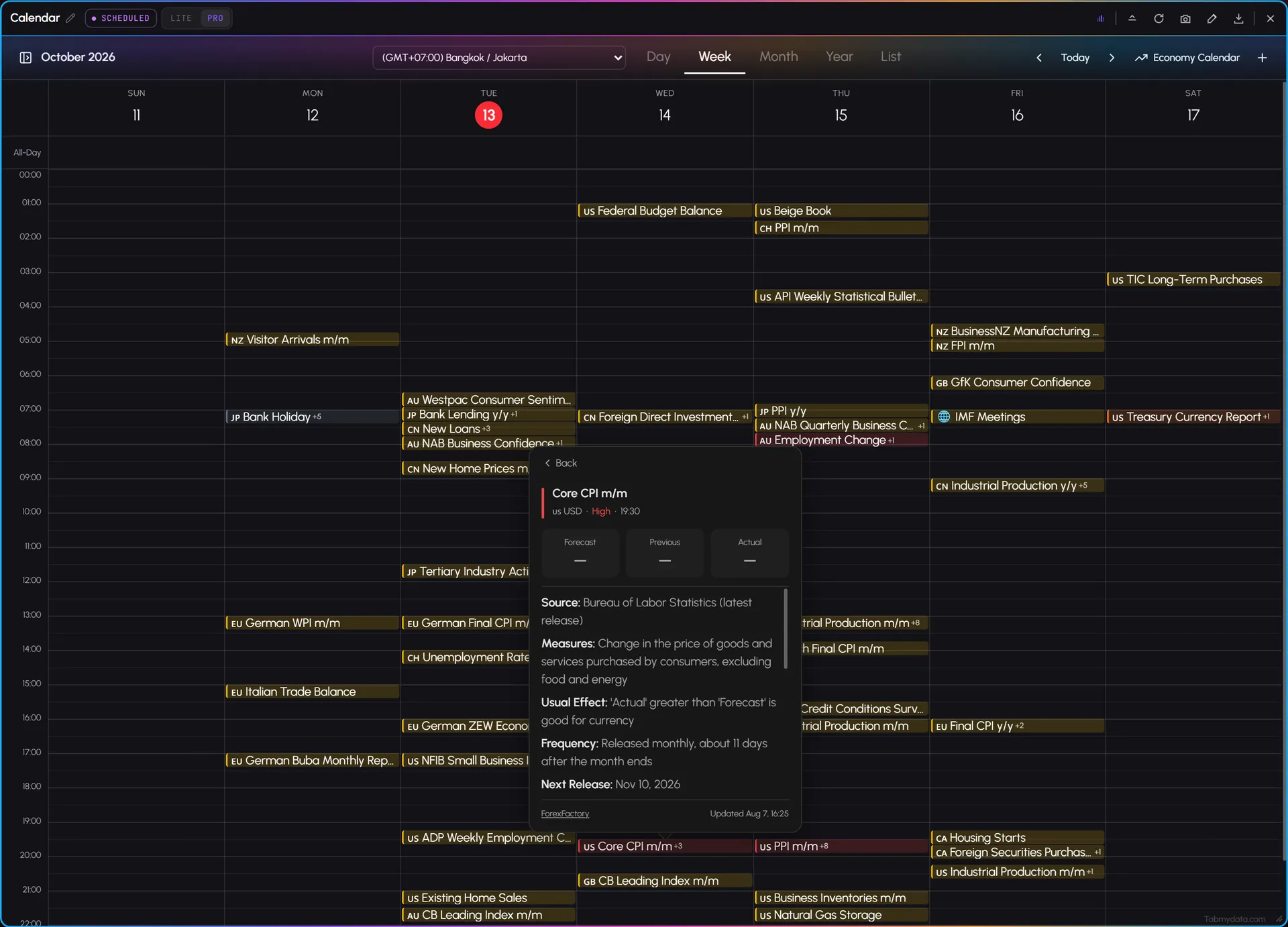
Forecast vs actual is the comparison most traders check first. Click an event for its name, currency, impact and time, with Forecast, Previous and Actual boxes. Actual stays empty until the figure prints. The popover also shows the source, what the release measures, its usual effect, how often it repeats, when the next one is due and why traders care, with the source and update date named.
- 03
Impact and currency filters
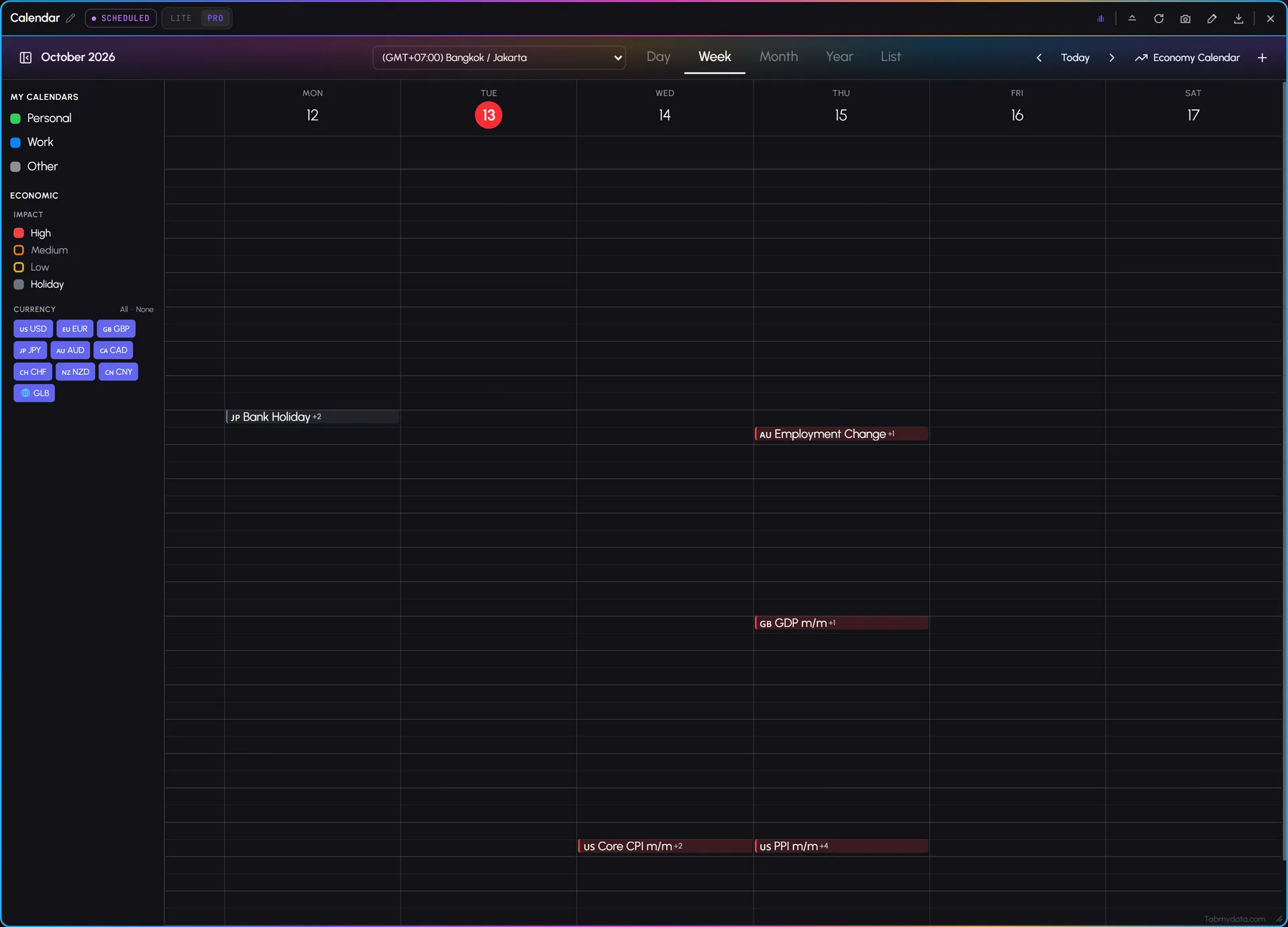
Show High, Medium or Low impact events, or holidays. Narrow by currency: USD, EUR, GBP, JPY, AUD, CAD, CHF, NZD, CNY, or GLB for global events that belong to no one country.
- 04
Day, Week, Month, Year and List
Switch the view. Arrows and Today move you in time, and a red line marks now. A "+N" chip folds busy slots.
- 05
Your own events
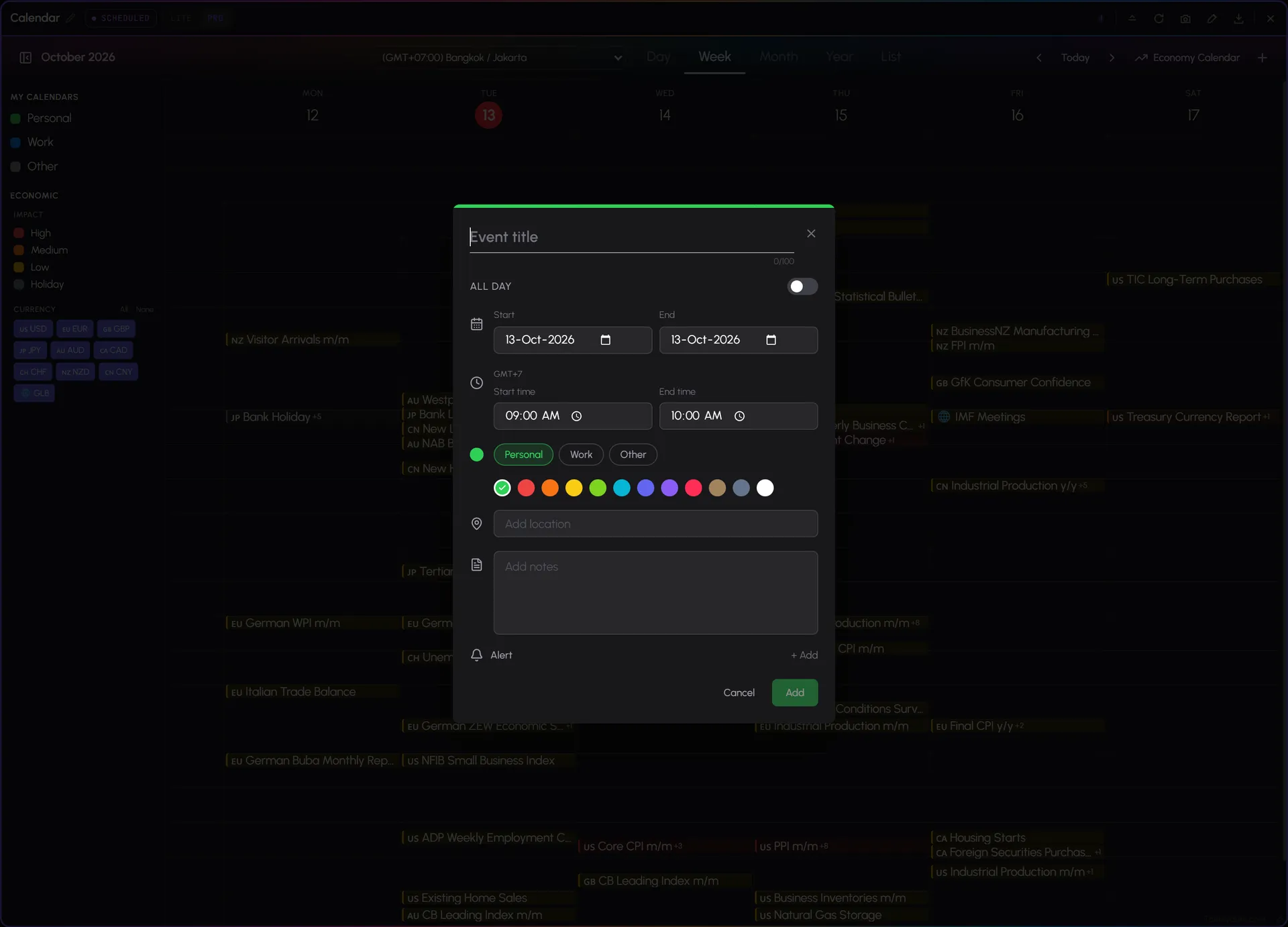
Press "+" to add an event: a title, dates and times, a calendar (Personal, Work or Other), a colour, a location and notes. They are notes for you. Show or hide each calendar from the sidebar.
- 06
Events on your charts
In Charts, the Events layer is for scheduled releases and listings on the time axis, so you can read macro and price on one timeline.
Use cases
How traders use it
- 01
Planning the week
Check the week's rate decisions and inflation data before planning your sessions.
- 02
Before a volatile open
Check what's due today before the US session.
- 03
After a release
Compare the actual figure with the forecast as soon as it lands, then check the news feed and the liquidity before and after CPI.
CPI, FOMC and NFP: what the three names mean
- CPI is the consumer price index, a measure of inflation. A CPI event shows its forecast, its previous figure and, once it prints, the actual.
- FOMC is the US Federal Open Market Committee. Its meeting ends with an interest rate decision, so a rate decision on the calendar is an FOMC event.
- NFP is the US non-farm payrolls report, the monthly jobs data.
All three appear in the grid with their time in your zone and an impact level. Open one and the popover also shows what the release measures, its usual effect, when the next one is due and why traders care. That is a description of the release, not a prediction of the move. For the steps, see how to use the economic calendar, and use market hours to see which sessions are open at the release. The glossary has an economic calendar entry.
Who it's for
- Crypto traders who trade around macro releases such as CPI, rate decisions and jobs data.
- Capital-markets traders who follow tokenized stocks, ETFs and gold and want the week's events beside market hours.
- Planners who map the week's events before choosing which sessions to trade.
How to use it
- Open the Financial Calendar tab next to your chart.
- Check the time zone. Pick yours at the top of the tab. See how to change your time zone.
- Scan the week for rate decisions, inflation and jobs data. Filter by impact or currency.
- Click an event for its forecast, previous and actual figures.
- Add your own events for anything you want on the same calendar.
- Check the clock. Open Market Clock to see which markets are open when the release lands.
Related tools
- Market Clock: market hours and sessions in your time zone.
- Orderbook Heatmap: where liquidity sat around a release.
- News: headlines beside the release.
- Fear & Greed: the sentiment reading beside the releases.
- Tokenized stocks and ETFs and gold liquidity heatmap: the capital-market side of the same workspace.
- Help: how to use the economic calendar.
FAQ
Financial Calendar FAQ
Which economic calendar works for crypto traders?
One that sits next to your chart and shows events in your time zone. The Financial Calendar lists rate decisions, inflation and jobs data in your time zone, with forecast, previous and actual values, inside your workspace.
When is the next CPI release?
Open the Financial Calendar. It lists scheduled releases such as CPI in the time zone you pick, so the time you see is the time where you are. Click an event to see when the next release is due.
What time is the FOMC decision in my time zone?
Pick your time zone at the top of the tab and every event follows it. Each Calendar tab keeps its own zone. Find the FOMC rate decision in the grid, or click the event to see when it is due.
What is the difference between forecast and actual on the calendar?
The forecast is the figure analysts expected before the release. The actual is the figure that was published. The actual stays empty until the release prints, and then you can compare the two. The calendar shows what was scheduled and released, not how price will react.
Is there an NFP calendar?
Yes. The jobs report is a scheduled release. It appears in the Financial Calendar like any other event, in your time zone, with its impact level and its forecast, previous and actual figures.
Is the economic calendar free?
Yes. Tabmydata is free during Alpha. Sign up with no card needed.
Free during Alpha.
The Financial Calendar is an economic calendar for crypto traders: CPI, FOMC, NFP and other macro releases, each in your time zone. Add your own events to the same grid and keep it beside your chart. Free during Alpha.
Sign up free