Market Heatmap
Crypto market heatmap: the whole market on one screen
Help: How to read the crypto market heatmap in the Market Heatmap tab
A crypto market heatmap shows the whole market on one screen: each coin is a tile sized by market cap and coloured by its move. Filter by sector, from Layer 1 to AI, and hover a tile for its price and rank. Free during Alpha.
Free during Alpha.
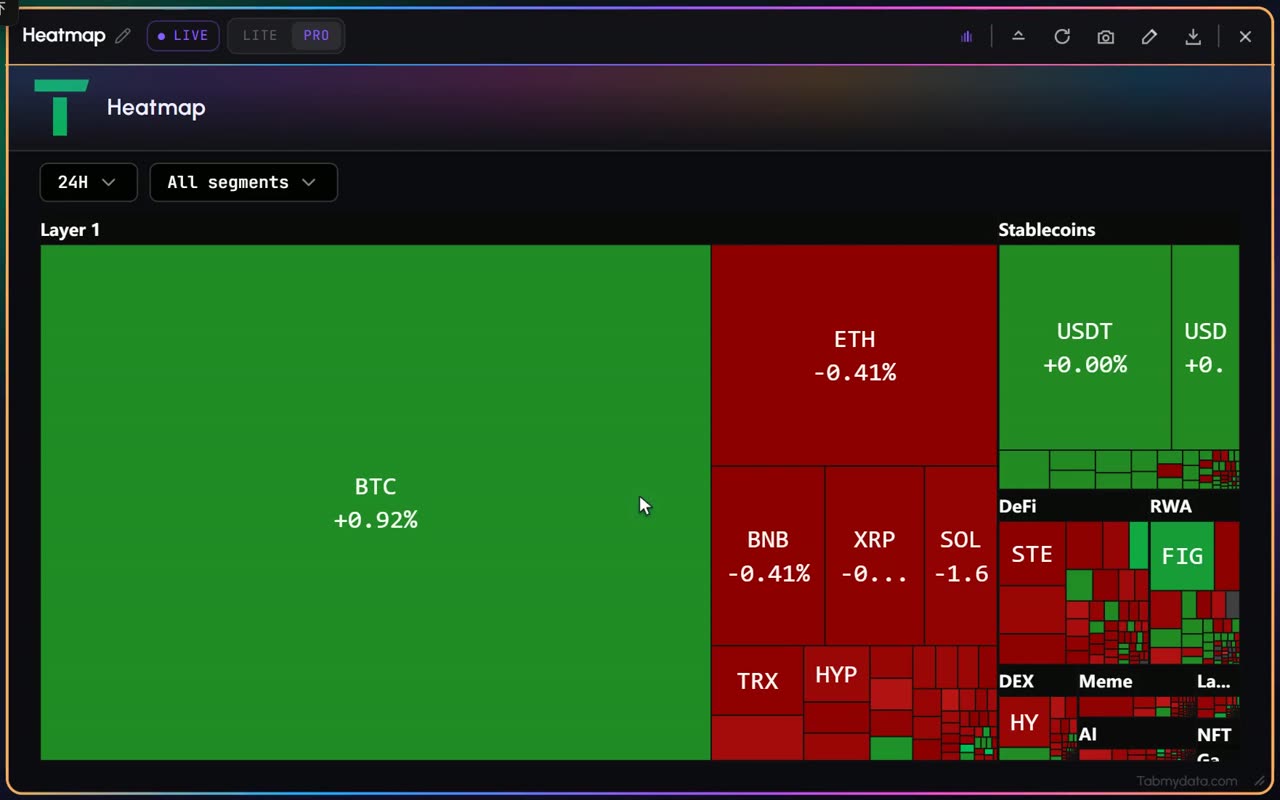
What's happening
The market at once
Coins are tiles, sized by market cap and coloured by their price change.
Product tour
What you can do in the Market Heatmap tab
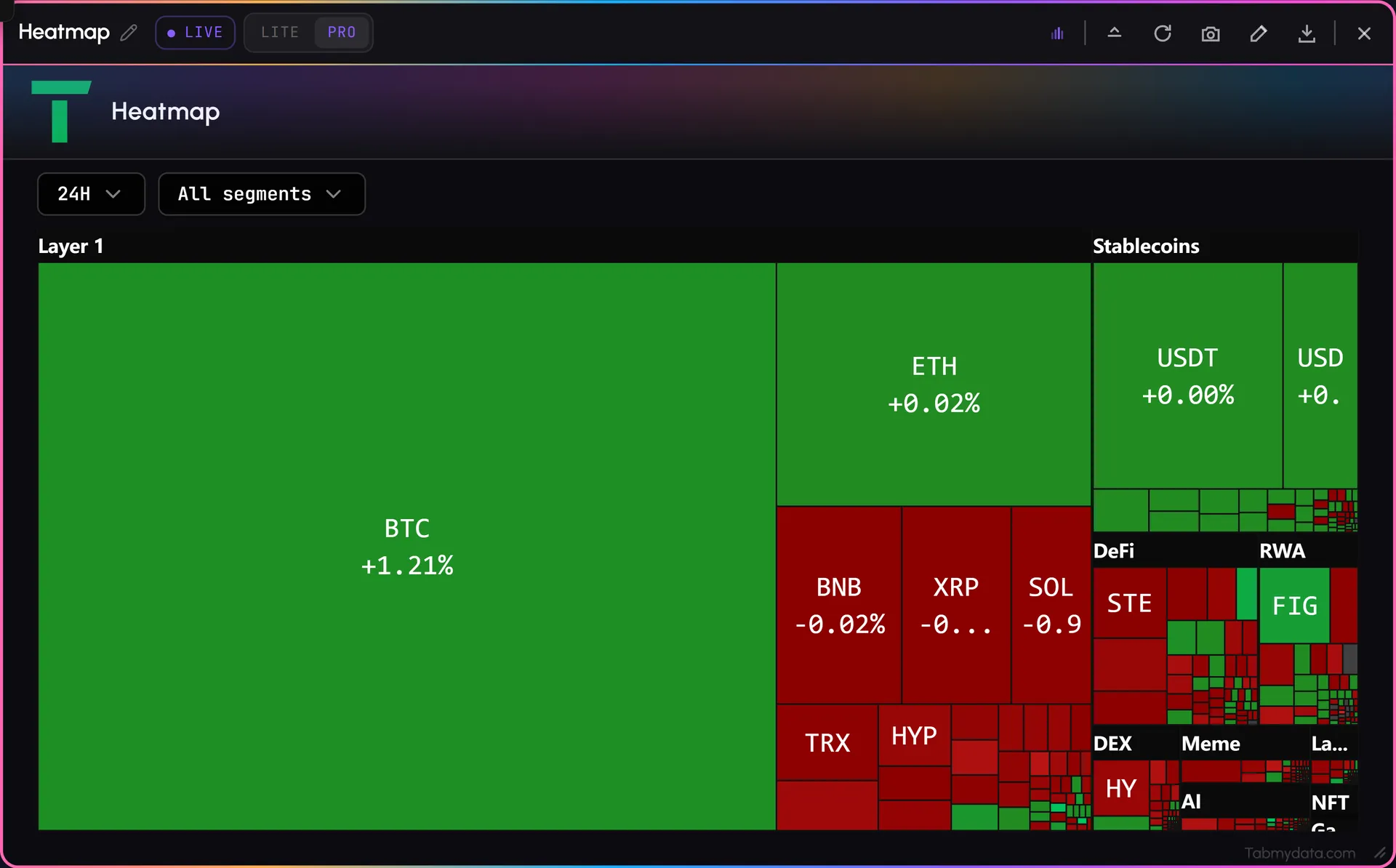
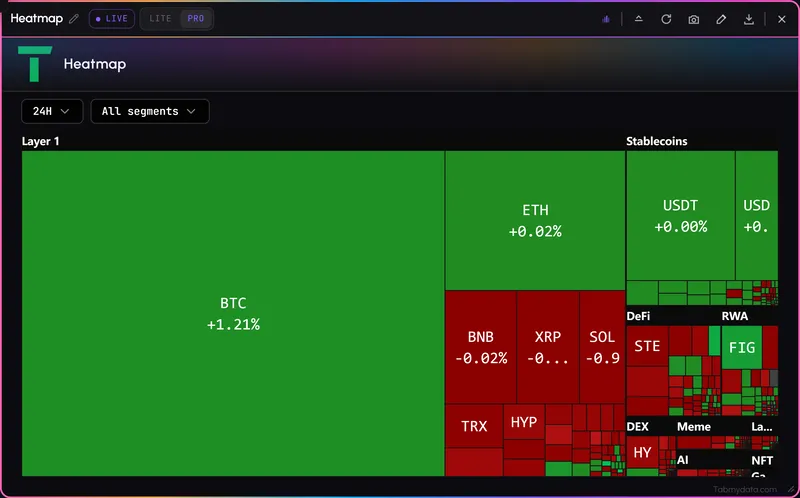
Market Heatmap is a crypto market heatmap (in the app it is the Heatmap tab): the crypto market on one screen. Each coin is a tile sized by market cap, so the weight of the market is visible at a glance. Colour is the price change over the range you pick: green is up, red is down. Tiles sit in sector blocks such as Layer 1, DeFi and Meme. Hover or click a tile for its price, change, market cap and rank.
Features
- 01
The market on one screen
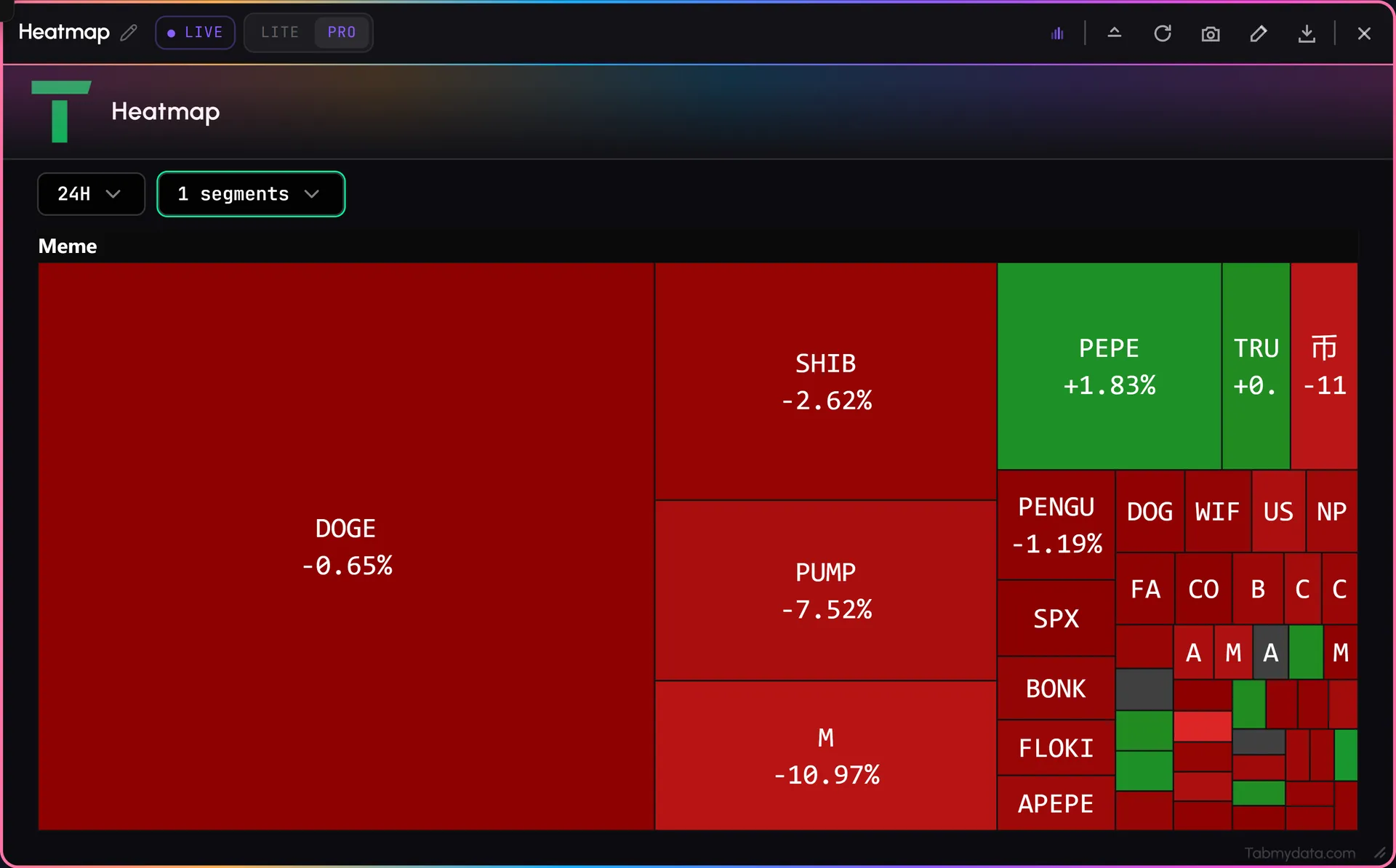
Coins are tiles, sized by market cap. Large coins take more space. Each tile shows the symbol and the percentage change.
- 02
Price-change colour
Green or red is the price change over the time range you pick. It shows a move that already happened.
- 03
Sector blocks
Tiles are grouped into blocks: Layer 1, Layer 2, DeFi, NFT, Gaming, DEX, Meme, RWA, AI and Stablecoins.
- 04
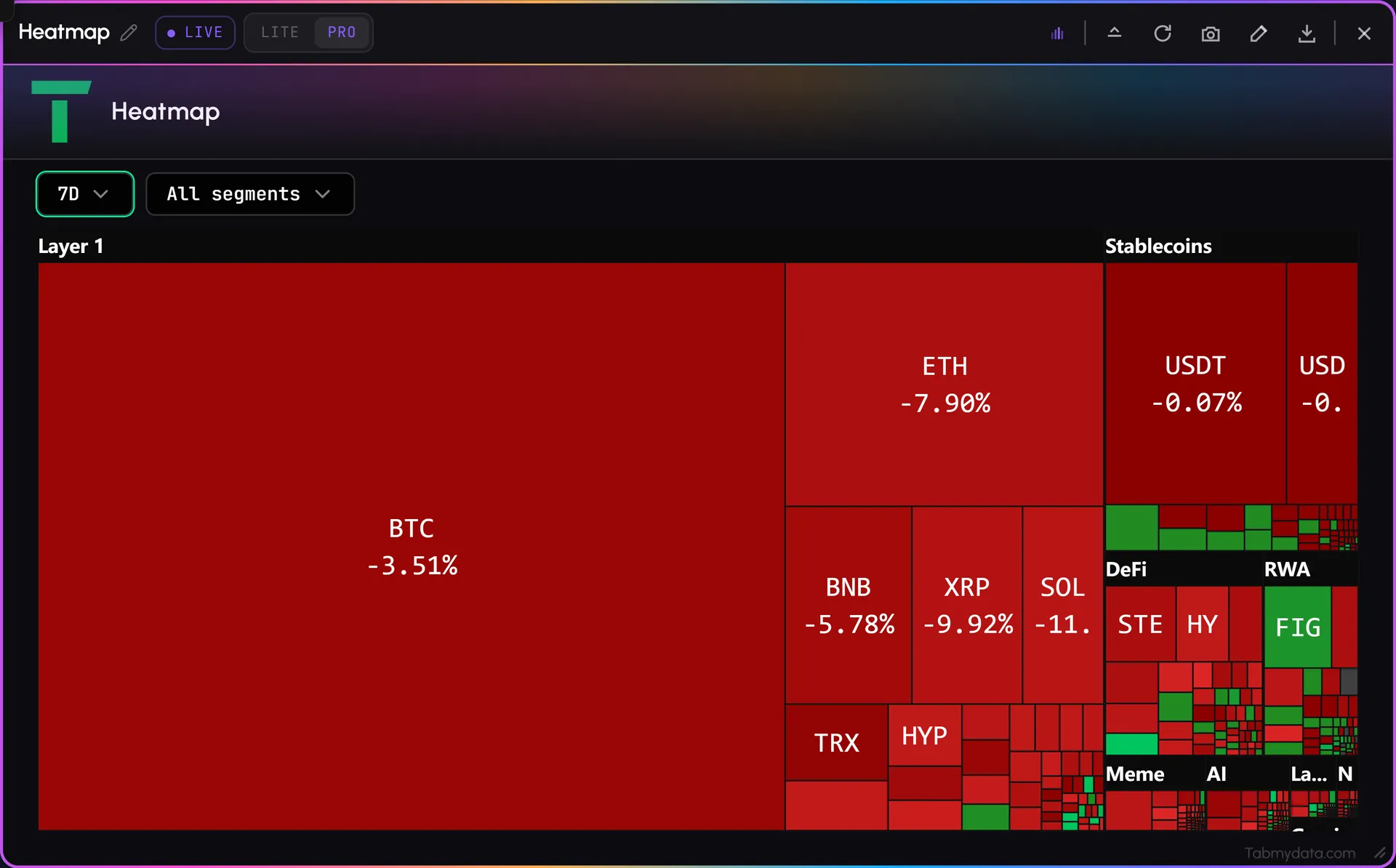
Time ranges
Pick 1H, 24H, 7D or 30D and the map recolours for that window.
- 05
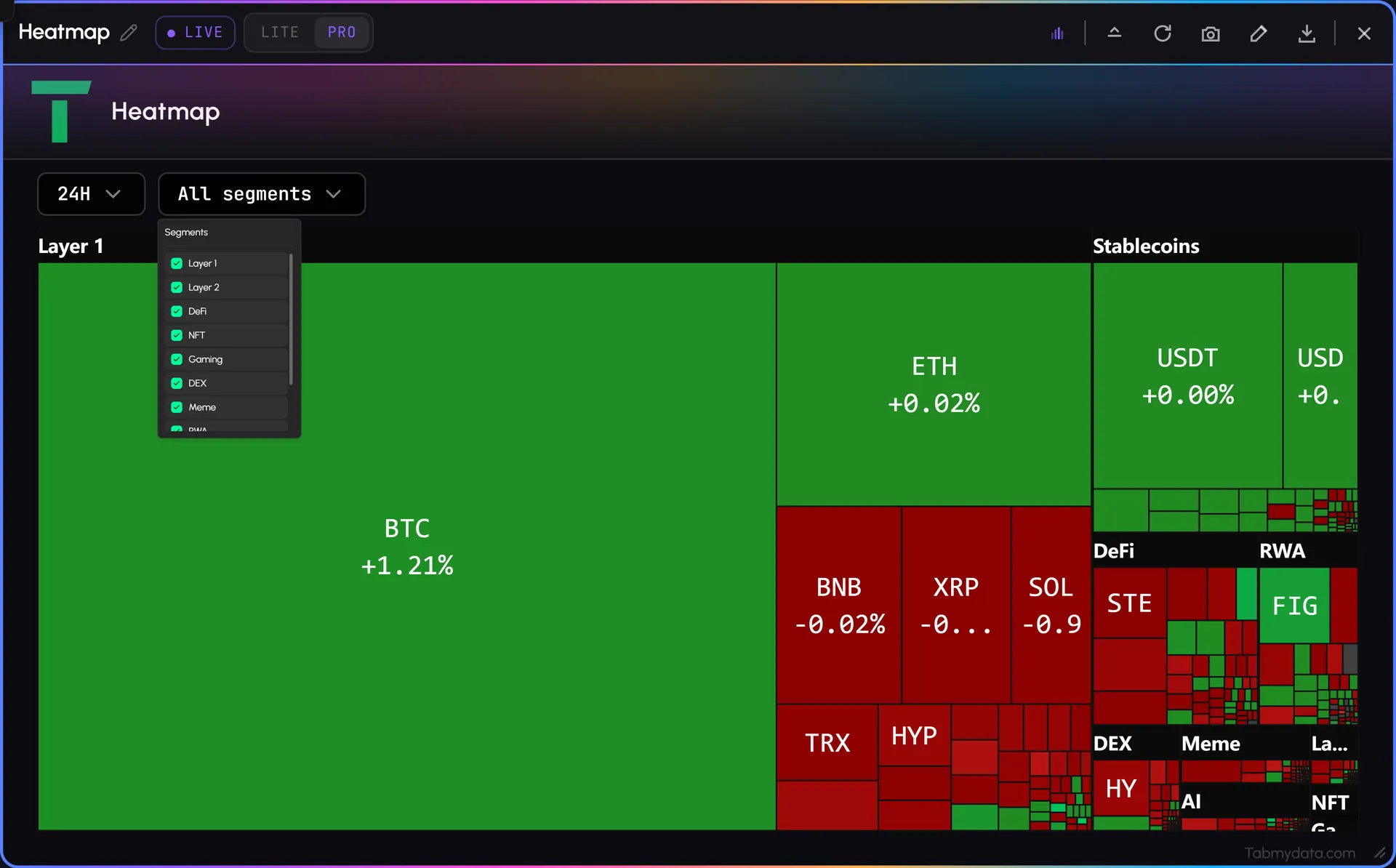
Segment filter
Open the segments menu and tick the sectors you want. The map redraws with the ones you keep. The sector choice is not kept after a reload.
- 06
Tile detail
Hover or click a tile and a popup shows the coin's name, symbol, price, change, market cap and rank.
- 07
Same frame as every tab
Refresh it, rename it, take a screenshot or restyle it from the header. Minimise it to a card, resize it from the corner or arrange it with a Layout preset.
Use cases
How traders use it
- 01
First look of the day
Open the map at the start of a session to see what is rising and what is falling.
- 02
Spotting the large movers
Hover or click a tile for its price, change, market cap and rank, then open the coin in Coin Info or a chart tab.
- 03
Building a shortlist
Add the coins that stand out to your watchlist. How to read the tiles: how to read the crypto market heatmap.
Who it's for
- Traders who start the day with a market overview and want to see what is rising and falling.
- Traders looking for coins to follow, who spot a large tile moving and open its details.
- Newer traders who want the market's shape on one screen before opening any chart.
How to use it
- Open the Heatmap tab. The market appears as tiles.
- Read size and colour. Size is market cap. Green or red is the move over your range.
- Pick a range (1H, 24H, 7D or 30D) and the sectors you want.
- Hover or click a tile for its price, change, market cap and rank.
- Open the coin in Coin Info for its full numbers, or in a Charts tab.
- Add the coins that stand out to your watchlist.
- Go deeper. Open the Orderbook Heatmap on a coin to see where liquidity sat.
Related tools
- Watchlist: keep the coins you follow in one list.
- Coin Info: key figures for one coin.
- Orderbook Heatmap: liquidity, not price moves.
- Fear & Greed Index: a sentiment reading beside the map.
- Help: how to read the crypto market heatmap.
FAQ
Market Heatmap FAQ
What is a crypto heatmap?
A map of the market where each coin is a tile. In Tabmydata it is the Heatmap tab, also called Market Heatmap. Tile size is market cap and colour is the price change over the range you pick.
How do I read a crypto market heatmap?
Size is market cap. Green is up and red is down over the range you choose: 1H, 24H, 7D or 30D. Hover or click a tile for the numbers. Step by step: how to read the crypto market heatmap.
Can I filter the crypto heatmap by sector?
Yes. Open the segments menu and tick the sectors you want: Layer 1, Layer 2, DeFi, NFT, Gaming, DEX, Meme, RWA, AI and Stablecoins. The map redraws with the ones you keep. The sector choice is not kept after a reload.
How is this different from the Orderbook Heatmap?
Market Heatmap shows how coins moved. The Orderbook Heatmap shows where order-book liquidity sat for one instrument.
Is a green or red tile a signal to buy or sell?
No. It shows a move that already happened. It says nothing about what comes next. The decision is yours.
Is there a free crypto market map I can use live?
Yes. Tabmydata's Market Heatmap is a tab in your workspace, free during Alpha. Sign up with no card needed.
Free during Alpha.
A crypto market heatmap shows the whole market on one screen: each coin is a tile sized by market cap and coloured by its move. Filter by sector, from Layer 1 to AI, and hover a tile for its price and rank. Free during Alpha.
Sign up free