Workspaces & Tabs
How to set your time zone
Set the time zone in the Market Clock and the Calendar so times read in your own hours.
On this page
Two tabs show times that depend on a time zone: Market Clock and Calendar. Each has its own time zone dropdown in the tab.
How to set the time zone in the Market Clock
- Add the Market Clock tab if it is not open yet. See How to use the Market Clock tab.
- Open the Display timezone dropdown.
- Pick your zone. Options include Local, New York (ET), London (GMT/BST), Frankfurt (CET), Dubai, Mumbai (IST), Singapore, Tokyo (JST), Sydney and UTC.
- The big clock shows the time in that zone. The session map and each market's next open follow it.
How to set the time zone in the Calendar
- Open the Calendar tab. See How to use the Calendar tab.
- Open the time zone dropdown in the toolbar.
- Pick the zone closest to you, for example New York/Toronto, Paris/Frankfurt, Israel/Cairo, India or Tokyo/Seoul.
- Event times show in that zone.

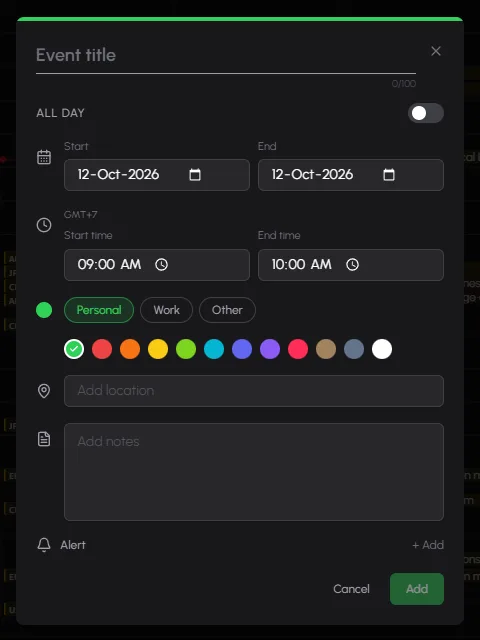
How to see the time zone when you add an event
- In the Calendar, click New event.
- Set Start time and End time.
- The times are shown in the GMT offset of the zone you picked.
Frequently asked questions
Why are event times in the calendar different from my local time?
The Calendar uses its own time zone dropdown. Set it to your zone in the toolbar.
Does the Market Clock follow the Calendar?
No. Each tab has its own time zone dropdown, so set the Market Clock and the Calendar separately.
Can I use a 24 hour clock?
The Market Clock and Workspace & Tab Settings do not have a 12 or 24 hour switch.