Workspaces & Tabs
How to see which markets are open now in the Market Clock
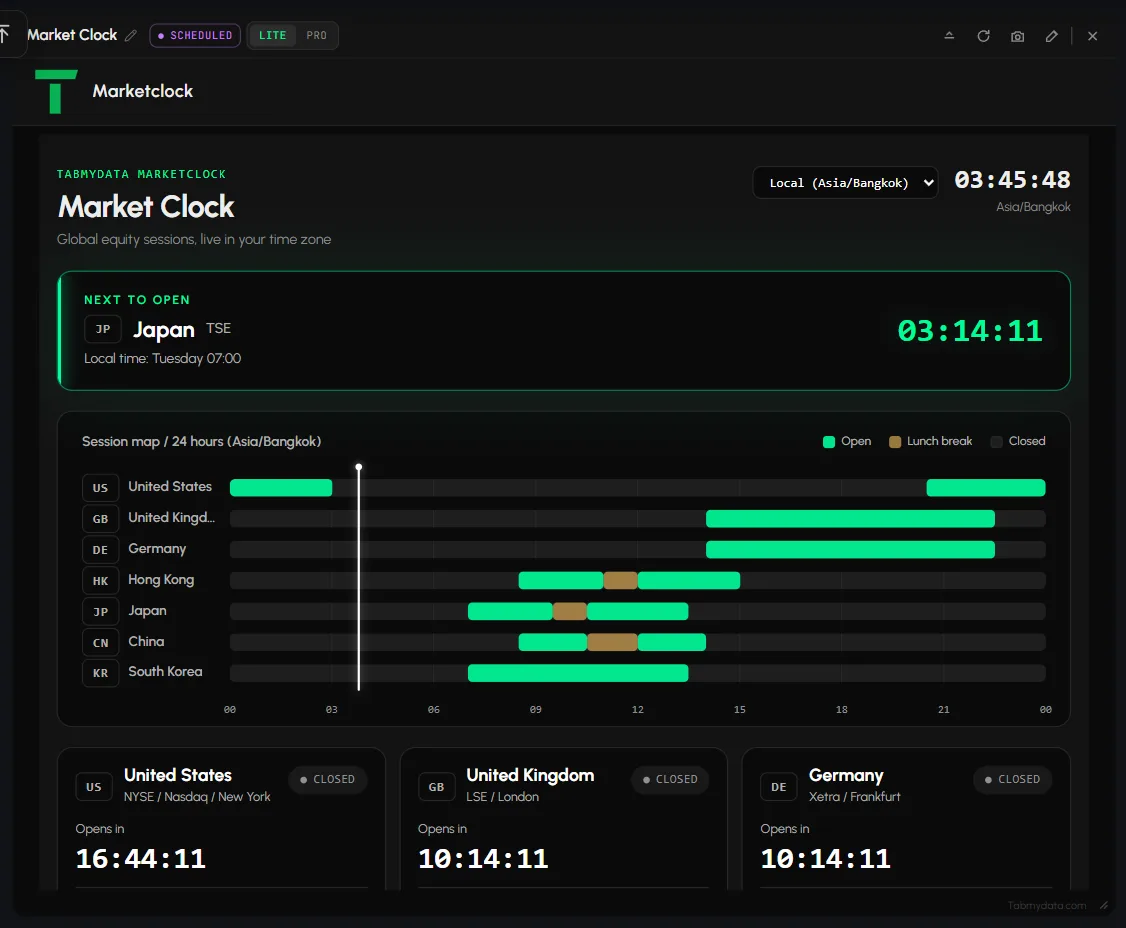
The Market Clock shows which markets are open now, when each one opens next, and all sessions on one 24-hour map in your time zone.
On this page
Product overview: Market Clock.
What you can do
- Read a live clock in your zone.
- Choose the display time zone.
- See which market opens next, with a countdown.
- Read all sessions on one 24-hour map.
- Read a card per market: Open or Closed, countdown, local time, next open.
How to add the Market Clock
- Click + (Add a tab) on the tool rail.
- Open News and events and click Market Clock (shortcut Alt+6).
How do I see market hours in my time zone?
- Open Display timezone.
- Pick Local (your browser's zone), UTC, or a city: New York, Chicago, Los Angeles, Sao Paulo, London, Frankfurt, Zurich, Moscow, Dubai, Mumbai, Bangkok, Shanghai, Hong Kong, Singapore, Tokyo, Seoul or Sydney. There are 19 options.
- The clock and its zone name, the Next to open time, the map label and each card's Market time and next open update. This setting belongs to this tab and stays after a reload. It is not the account clock format (Time zone and clock format).
Which market opens next?
The Next to open block names the next market, its country and exchange, the local time of the open (for example "Wednesday 07:00") and a live countdown.
When do market sessions overlap?
Use the session map: where two bars are both Open at the same hour, the sessions overlap.
How to read the session map
- The Session map is 24 hours in your zone, with hour ticks from 00 to 21.
- Each market has one bar. The legend: Open, Lunch break, Closed.
- Hovering a bar shows nothing extra, so read the green blocks against the hour ticks.
How to read a market card
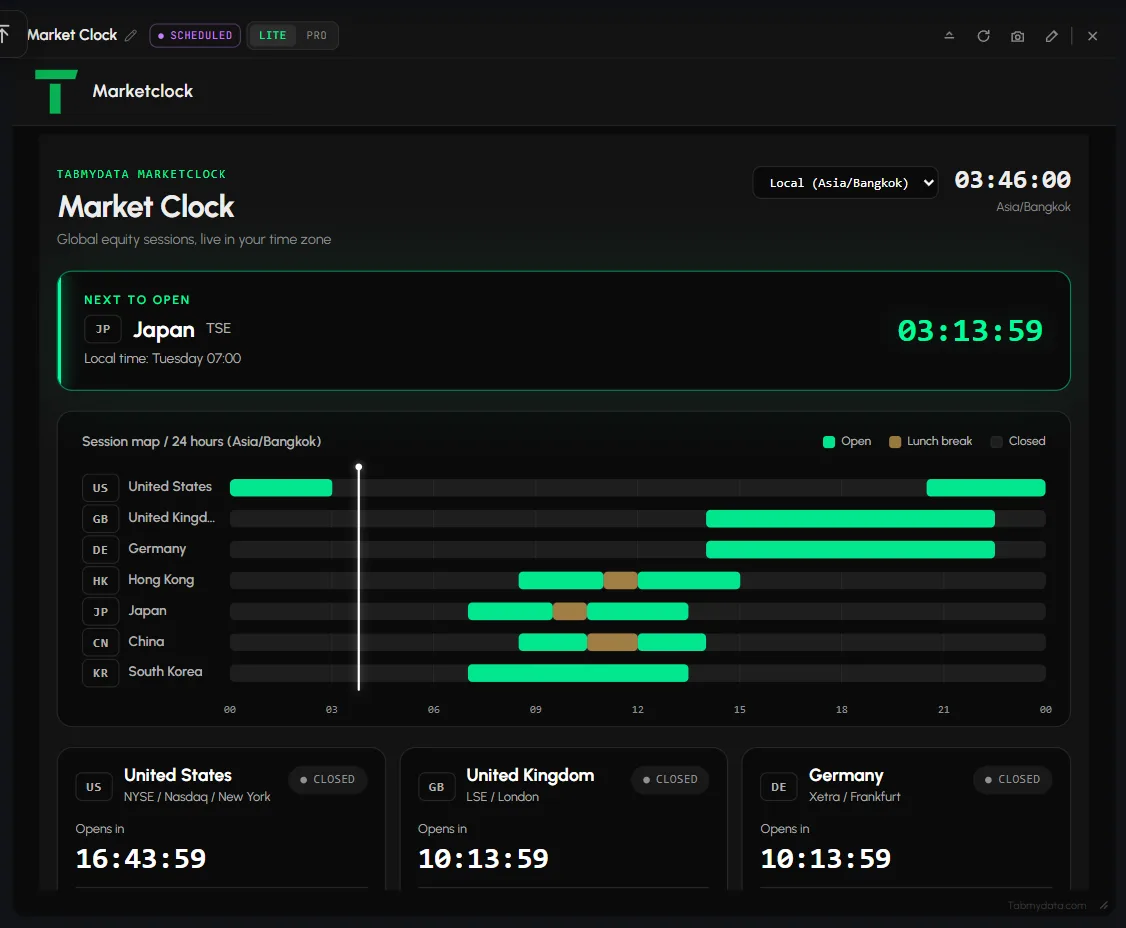
There is one card per market, for example US (NYSE and Nasdaq), GB (LSE), DE (Xetra), HK (HKEX), JP (TSE) and CN (SSE and SZSE). Scroll the tab to reach the last card. Each card shows the market, its exchanges and city, Open or Closed, a Closes in or Opens in countdown, the market's own Market time, and the next open in your zone.
Tab controls
The header has the title (click to rename), a SCHEDULED badge, LITE | PRO, Ask Tami (PRO), Minimize, Refresh, Screenshot, Edit appearance, Share and Close. See Tab controls.
Settings
Display timezone belongs to the tab. It is the only setting. There are no filters.
States
- Loading: while the tab's data loads, it shows the letter T (the Tabmydata logo) bouncing slowly in a loop, like a ball, until the data arrives.
- A closed market shows an Opens in countdown and its next open. If the clock service is slow, the clock still loads.
Frequently asked questions
Which markets does it cover?
Seven equity markets: US, GB, DE, HK, JP, CN, KR.
Does it follow my time zone?
Yes. Pick it under Display timezone.
Does clicking a card open more detail?
No. Cards are for reading.
Does it show holidays or early closes?
No. The tab shows the regular session and does not give holiday or early-close reasons.
Can I filter the markets or add one?
No. The tab has no filters, and its only setting is the time zone.
Is the Market Clock free?
Tabmydata is free during Alpha. The Market Clock is part of it.
Does the account clock format change this tab?
No. This tab has its own time zone.