Workspaces & Tabs
How to read the crypto Fear and Greed Index in the Fear & Greed tab
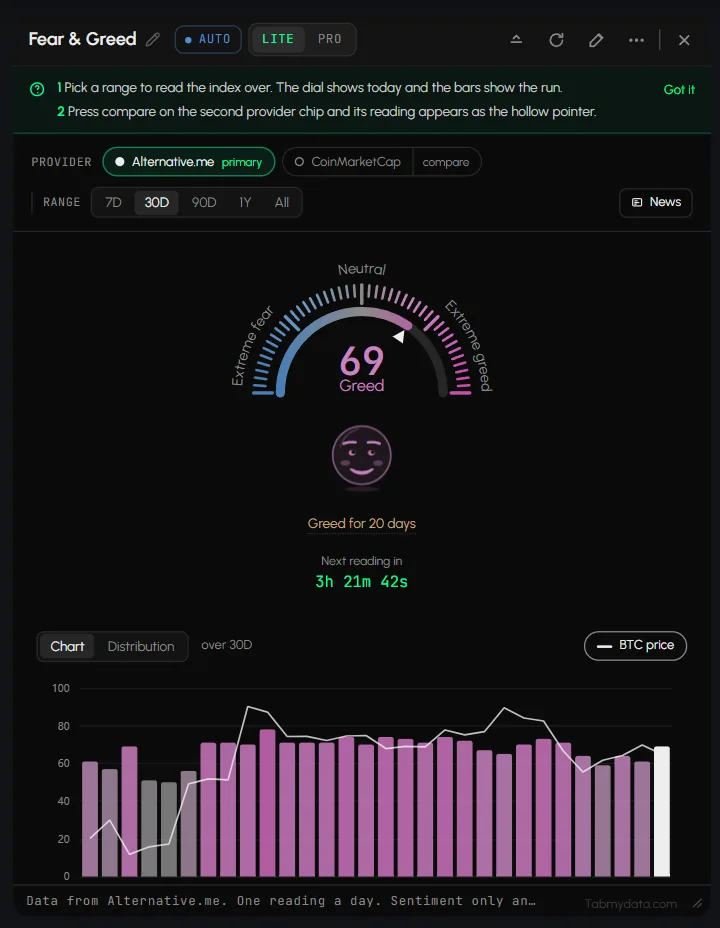
The Fear & Greed tab shows the crypto Fear and Greed Index as a daily reading, with its history and BTC price on the same chart. A dial shows today's value from Extreme fear to Extreme greed, and a chart sets it against the BTC price. The readings come from Alternative.me and CoinMarketCap. There is one reading a day. It is a sentiment reading, not a signal or financial advice.
On this page
- What you can do
- How to add the Fear & Greed tab
- How do I read today's value?
- How do I change the provider?
- How do I compare the providers?
- How to choose a range
- How to switch between Chart and Distribution
- How to show or hide the BTC price line
- How to open the News tab beside it
- Header controls
- Settings
- States
- Frequently asked questions
- Related
Product overview: crypto Fear & Greed Index.
What you can do
- Read today's value on a dial, with its label and streak.
- Pick the primary provider and compare the other one on the same dial.
- Choose a range: 7D, 30D, 90D, 1Y or All.
- Switch between a Chart (index against BTC price) and a Distribution.
- Show or hide the BTC price line.
- Open a News tab beside it.
How to add the Fear & Greed tab
- Click + (Add a tab), or press T.
- Under Market data, click Fear & Greed (badge SCHEDULED), or press Alt + 3.
- The tab opens on today's reading.
How do I read today's value?
- Find the dial. It runs from Extreme fear to Extreme greed, with a pointer.
- Read the value and label, for example "69 Greed".
- Read the streak, for example "Greed for 20 days".
- Read the countdown, for example "Next reading in 11h 58m". There is one reading a day.
- When the tab is wide enough, the dial sits in a left column with a Recent days list: today and the six readings before it (PRO). Hover a row for its date and reading.
- Hover the face icon next to the value for a one-line description of the mood. It repeats the dial's reading and adds nothing more.
How do I change the provider?
- Click a provider chip: Alternative.me (primary) or CoinMarketCap.
- The tooltip on the other chip reads "Make CoinMarketCap the primary". The primary drives the pointer, and the chips swap places.
- The choice is saved with the tab. Click the other chip to go back.
How do I compare the providers?
- Press compare on the second provider chip ("Compare with CoinMarketCap. One comparison at a time").
- The other provider's reading appears as a hollow pointer on the same dial. The chip reads "comparing" and its tooltip reads "Stop comparing".
- Click it again to stop.
Tip: the two readings are often within a point or two, so the hollow pointer can sit almost on top of the filled one.
In LITE, a hint callout with two tips shows on top of the tab. Click Got it to close it. It comes back the next time you open the tab.
How to choose a range
Click 7D, 30D (the default), 90D, 1Y (last 365 days) or All (every reading on record). The range, the view and the tab size are kept after you reload the page.
How to switch between Chart and Distribution
- Click Chart or Distribution.
- Chart shows the index against BTC price over the range. Hover a point for date, BTC price and index value, for example "22 Sep 2026, BTC $86.21K, Fear & Greed 78, Extreme greed".
- Distribution shows how many days the index spent in each band of the range, in 20 bands from 0 to 100. Hover a band for its count, for example "55 to 59 held 27 days". A sentence under it says where today sits and how long the reading has held that band.
How to show or hide the BTC price line
Click the BTC price switch. It draws or removes the BTC price over the index.
How to open the News tab beside it
Click News ("Open a News tab beside this one"). See How to use the News tab.
Header controls
The header has Refresh, LITE | PRO, Minimize, Edit appearance, a More menu and Close. Click the tab title to rename it. Refresh fetches the readings again. In PRO the header also has Ask Tami and Share. Screenshot is in both LITE and PRO. Minimize turns into Restore, which brings the tab back at its earlier size. See Tab controls. The footer reads: "Data from Alternative.me. One reading a day. Sentiment only and not a signal."
There is no alert control in this tab.
Settings
| Setting | Options | Scope |
|---|---|---|
| Provider | Alternative.me, CoinMarketCap | This tab |
| Compare | One other provider at a time | This tab |
| Range | 7D, 30D, 90D, 1Y, All | This tab |
| View | Chart, Distribution | This tab |
| BTC price line | On or off | This tab |
States
- Between readings: the countdown shows when the next one lands.
Frequently asked questions
How do you read the Fear & Greed Index?
The dial shows the latest value and label. The chart shows how it moved against BTC price. Distribution shows where today sits in the range.
Where does the index come from?
From Alternative.me and CoinMarketCap. The footer credits Alternative.me. Tabmydata does not calculate its own index.
What is the difference between the Fear and Greed readings of the two providers?
They can differ by a few points on the same day. Use compare to see both on one dial.
What does the Distribution view show?
How many days the index held each band, and where today sits.
How often does it update?
Once a day. The tab shows the countdown.
Can I compare two providers?
Yes. Press compare on the second chip.
Can I see BTC price next to the index?
Yes. Use the BTC price switch on the Chart view.
Is it a buy or sell signal?
No. It is a sentiment reading. How you use it is your decision.
Can I set an alert on it?
No. This tab has no alert control.