Alerts & Notifications
How to use the Alerts page
The Tabmydata Alerts page is a live feed of whale fills from tracked traders on Hyperliquid. Filter it by symbol, star a market to pin it, switch between All, Favorites and Whale, and pause the feed while you read. It is the full-page version of the alerts bell in the top bar.
On this page
Open it with Alerts in the sidebar. Inside a workspace, the Alerts tab shows alerts next to your charts. See Alerts tab.
What you can do
- Watch Hyperliquid fills as they land, with a Live chip.
- Switch between All, Favorites and Whale.
- Filter by symbol, and star a market to pin it.
- Pause the feed to read it.
- Open Alert Settings to set minimums, batching, quiet hours and delivery.
- See the same read state in the bell.
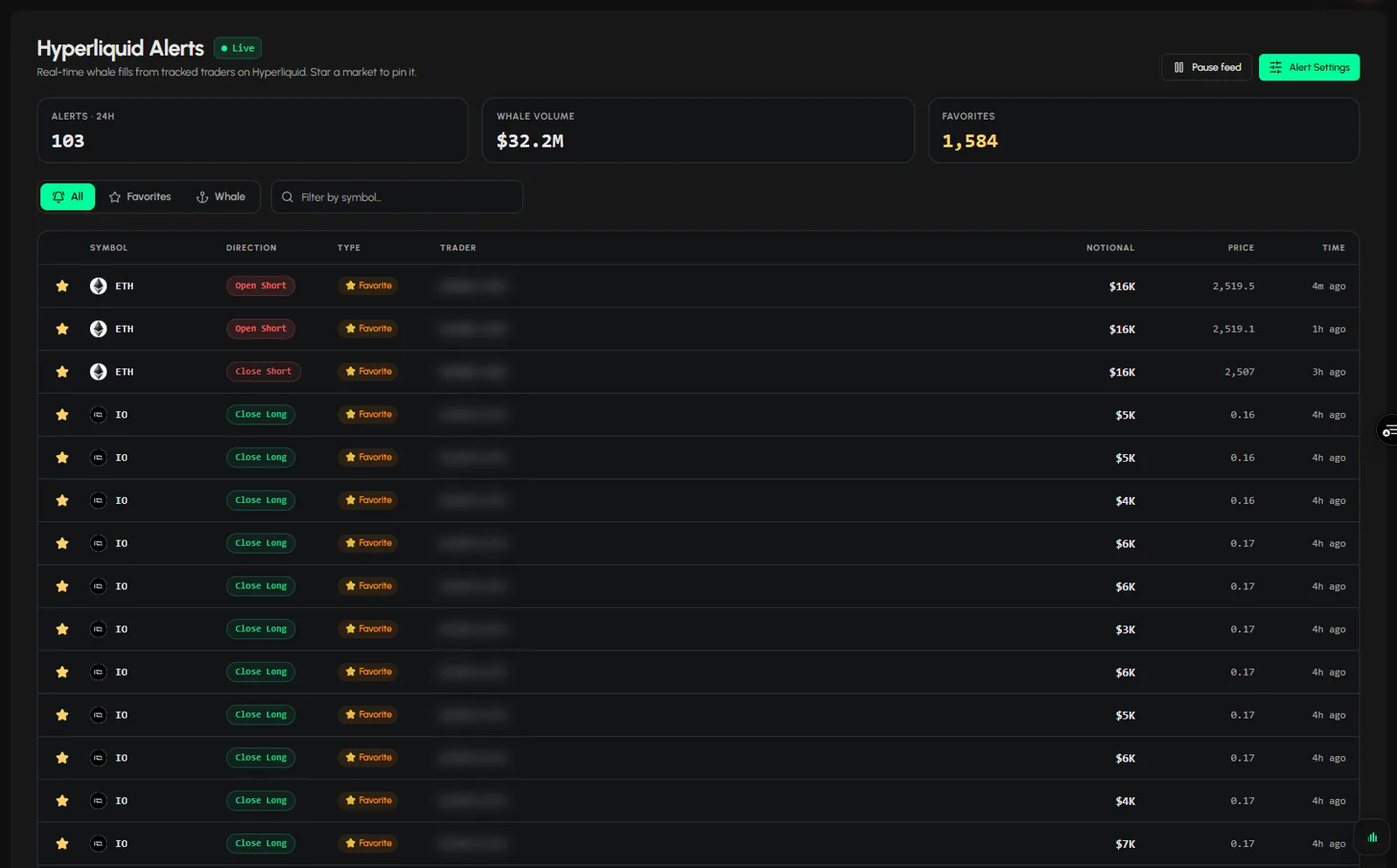
How do I read the Alerts page?
- The Live chip next to the title says the feed is running.
- Three stat cards sit on top:
- ALERTS 24H: how many alerts reached you in the last 24 hours.
- WHALE VOLUME: the total notional of whale prints in that period.
- FAVORITES: how many alerts of the Favorite type you have. It counts those alerts, not the wallets you follow.
- The table has SYMBOL, DIRECTION, TYPE, TRADER, NOTIONAL, PRICE and TIME.
- Direction is the action, for example Open Long, Close Long, Open Short or Close Short.
- Type says why you see it, for example Favorite for a trader you follow.
- Trader is the wallet address, shortened.
How do I switch between All, Favorites and Whale?
- Click All, Favorites or Whale above the table.
- All shows everything, Favorites shows the traders and markets you follow, Whale shows large prints. Each tab has its own settings. See Alert settings.
How do I filter by symbol?
Type in Filter by symbol... (for example ETH). The table shows only that symbol.
How do I star a market?
- Click the star at the start of a row.
- The market is pinned as a favourite. Click the star again to remove it.
To follow a trader, see Follow Hyperliquid wallets and get alerts.
How do I pause the feed?
- Click Pause feed (top right).
- The feed holds still so you can read.
How do the page and the bell connect?
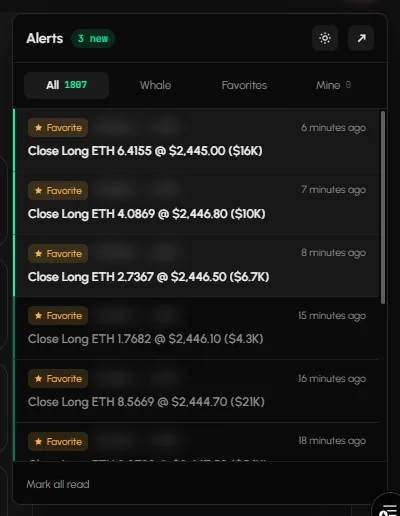
The bell in the top bar has the tabs All, Whale, Favorites and Mine, the recent fills and Mark all read. Mine shows alerts from rules you set yourself, so it is empty until you have some. An arrow in the panel opens the Alerts tab. What you read on the page counts as read in the bell, and the other way round. The gear in the bell panel opens Alert settings.
Frequently asked questions
Is the feed live?
Yes. The Live chip shows it.
What is a whale fill?
A large fill on Hyperliquid, above the size set in Alert Settings. See Whale alerts.
Why do I see rows I did not star?
All shows every alert that matches your settings.
Where do I choose how alerts reach me?
In Alert Settings. See Choose how alerts reach you.
What is the difference between this page and the Alerts tab?
The page is the full-screen feed. The Alerts tab sits inside a workspace next to your charts and has its own sub-tabs. See Alerts tab.
Are these alerts advice?
No. They describe what happened on Hyperliquid.