Messages
How to add and manage friends
In Tabmydata, open Messages and click Friends to see your friends, answer requests under Pending, add members with Add, and remove or block a friend from the three-dot menu on their row. Each friend shows as Online, Away or Offline.
On this page
Friends are the people you can message. If you do not want requests, turn them off in Social settings.
What you can do
- See all your friends with their status.
- Search your friends.
- Add a friend, and see requests waiting for an answer in Pending.
- Message a friend from their row.
- Remove or block a friend.
How do I open my friends list?
- Open Messages in the sidebar.
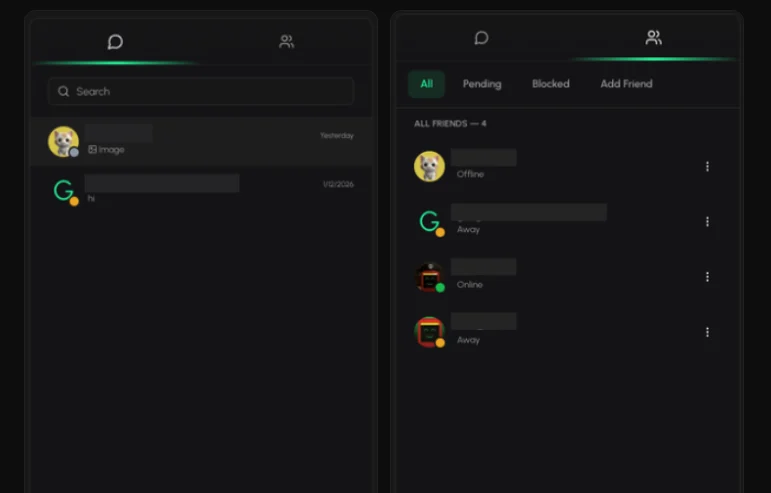
- Click Friends (top left). The number next to it is how many friend requests are pending.
- Under it you see four buttons: All, Pending, Blocked and Add.
How do I see my friends?
- Click All. The list reads "ALL FRIENDS" with the number.
- Each row shows the avatar with a presence dot, the name and the status: Online, Away or Offline.
- Type in Search friends... to filter the list.
- On a row, click Message to message the friend, or the three dots for more actions.
How do I add a friend?
- Click Add. A search box opens: "Enter a username or ID...".
- Type a member's username or ID to find them. The top-bar search also has a People filter.
How do I answer a friend request?
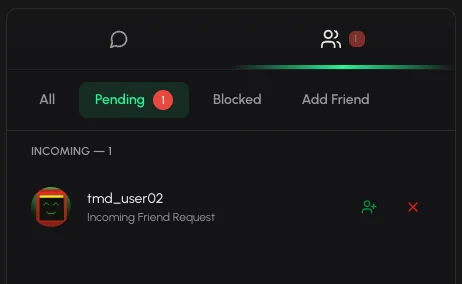
- Click Pending. The number shows how many are waiting.
- On a request you received, click Accept or Decline.
- Requests you sent show a Cancel Request button. Click it to withdraw the request.
- Friend news shows under the Friends filter in your notifications inbox.
How do I remove or block a friend?
- On the friend's row, click the three dots.
- The menu has View Info, Send Message, Remove Friend and Block User. Choose one.
Blocked members appear under Blocked. When nobody is blocked it reads "No blocked users". See Block and unblock a member.
Frequently asked questions
How do I find someone to add?
Click Add and type their username or ID.
Can I stop people from adding me?
Yes. Turn off Allow Friend Requests in Social settings.
Where do I see who is online?
Next to each friend: Online, Away or Offline.