Alerts & Notifications
How to use Whale Alerts
A whale alert in Tabmydata tells you when a very large buy or sell lands on Hyperliquid, above a minimum size you choose. Read them in the Alerts page, the Alerts tab or the bell in the top bar. They can also reach you by push, a toast, sound or your Discord webhook. A whale alert is information, not financial advice.
On this page
More on crypto alerts in Tabmydata.
What you can do
- See whale prints in the Whale tab of the Alerts page, or in the bell.
- Set the minimum size of a whale print.
- Set a default coin filter: All, BTC, ETH, SOL or HYPE.
- Batch small alerts and send whale alerts to Discord.
Where do I see whale alerts?
- Click Alerts in the sidebar and click the Whale tab. Or click the bell in the top bar and choose Whale.
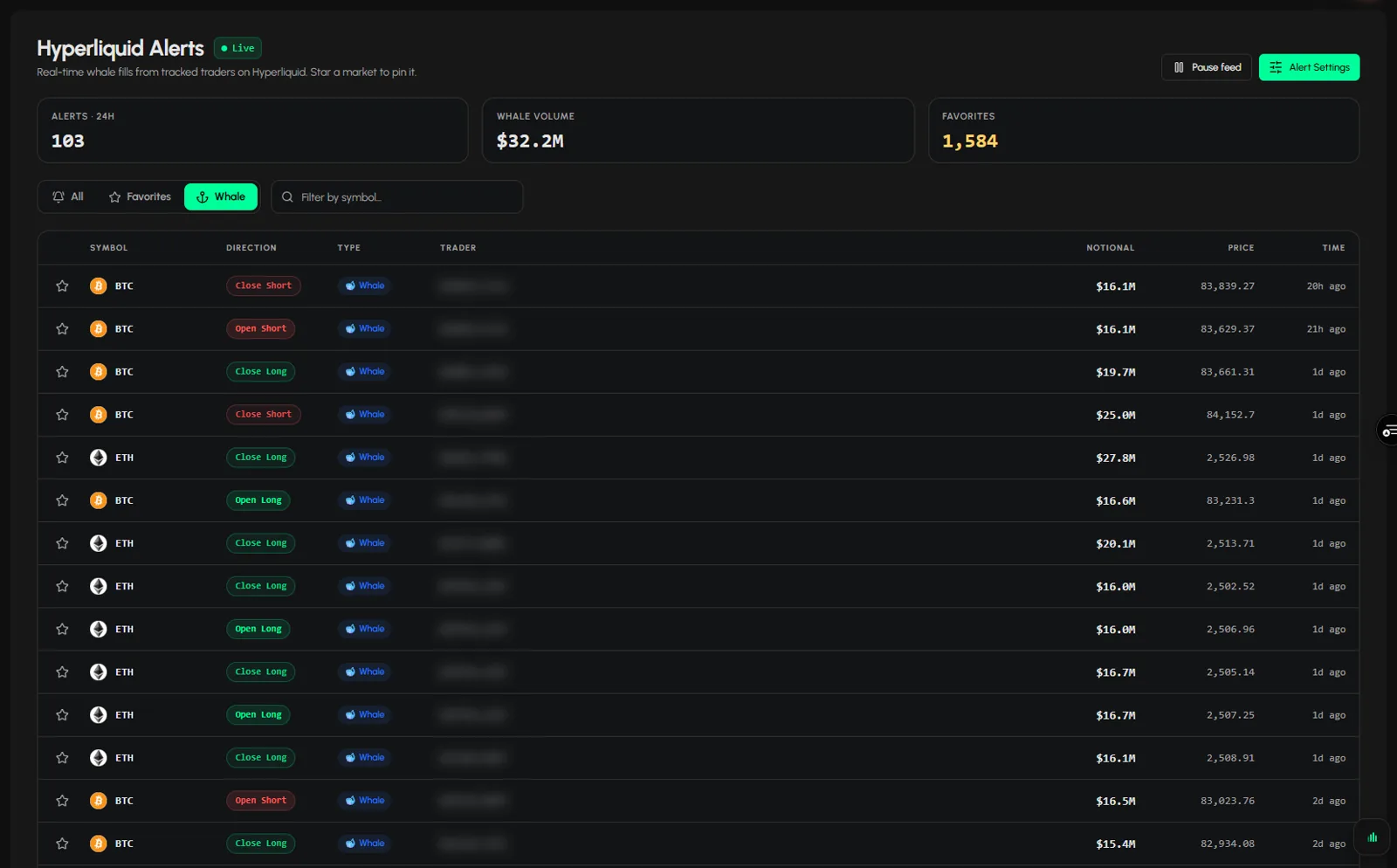
- Entries are listed newest first, with the symbol, direction, type, trader, notional, price and time. A Live chip shows the feed is running.
- Use Filter by symbol to narrow the list, or Pause feed to stop it moving while you read.
- In the bell, the tabs are All, Whale, Favorites and Mine, with Mark all read.
You can also use the Whale Alerts sub-tab inside the Alerts tab. It has a WHALE ALERTS switch (turn it off to stop receiving them altogether), a coin row (All, BTC, ETH, SOL or HYPE) and a size bar (All, $20M, $35M or $50M). Those two rows filter what you see in the feed. A counter shows how many match, and the SOURCES chips show Hyperliquid (live) and On-chain (later). See How to use the Alerts tab.
What is the minimum size of a whale alert?
- Click Alert Settings on the Alerts page, or the gear in the bell panel.
- On the Whale tab, set Minimum size.
- On the All tab, Minimum size for whale prints offers All, $20M, $35M and $50M. The drawer notes that whales start at $15M.
The settings save as you change them ("Live, nothing to save"). To cut noise from smaller prints, turn on Batch the small ones (Off, 5m, 15m or 1h). See Alert settings.
How to choose a default coin
- In Alert Settings, open the Whale tab.
- Pick Default coin filter: All, BTC, ETH, SOL or HYPE.
How do I send whale alerts to Discord?
Under ALL ALERTS in Alert Settings, switch on what you want: in the app, a toast, sound, push or the Discord webhook. Email is for wallets you follow only. Discord is for Hyperliquid wallets and whale alerts. Telegram is a public channel with market-wide alerts. It does not send your personal alerts. See Alert settings.
Frequently asked questions
What is a whale alert?
An alert for a very large print, above the minimum size you set.
Are whale alerts on-chain?
No. Whale alerts here come from Hyperliquid.
How is Whale Alerts different from following a wallet?
Whale alerts report large prints above your minimum size. Following a wallet alerts you on one account, whatever the size. See Follow Hyperliquid wallets.
Do I need the Alerts page open to get them?
No. Your settings keep running, and the bell counts what landed.
Is a whale alert advice?
No. It tells you something happened. It does not tell you what to do.
Are whale alerts free?
Tabmydata is free during Alpha. Whale alerts are part of it.
Where can I see which accounts hold large positions?
In the Hyperliquid Whale Tracker tab: use the Large accounts chip or the OPEN badge.