Workspaces & Tabs
How to use the Alerts tab
To manage crypto alerts in Tabmydata, open the Alerts tab. It holds every alert that reached you, your armed rules, the Hyperliquid wallets you follow and the whale alerts feed, and lets you choose the channels you read from. The bell in the top bar is the peek. This tab is the record. Nothing is armed until you arm it.
On this page
- What you can do
- How to add the Alerts tab
- How do I switch between My Alerts, Hyperliquid and Whale Alerts?
- How to read My Alerts
- How do I set up a crypto alert?
- How to follow a Hyperliquid wallet and read its moves
- How to read Whale Alerts
- How to choose how alerts reach you
- How to clear what you have read
- Tab controls
- Settings
- States
- Frequently asked questions
- Related
Product overview: crypto alerts and Hyperliquid wallet alerts.
What you can do
- Read what fired, by kind: Reminders, News, Wallets, Whales.
- See and cancel your armed rules.
- Arm a new alert from a short list of triggers.
- Follow Hyperliquid wallets and read their opens and closes.
- Read large Hyperliquid buys and sells, filtered by coin and size.
- Choose how alerts reach you, with quiet hours and repeat protection.
- Clear what you have read.
How to add the Alerts tab
- Click + (Add a tab), or press T.
- Under Tools, click Alerts (badge LIVE), or press Alt + 8.
- The first time, a hint reads "Nothing is armed until you arm it. Pick a trigger from New alert, or follow a wallet in Hyperliquid." and "Then choose where it reaches you. The gear sets it for every alert, and each rule can change its own from the Rules list." Click Got it or Don't show these again.
How do I switch between My Alerts, Hyperliquid and Whale Alerts?
- My Alerts ("What fired and what is armed").
- Hyperliquid ("Wallets you follow").
- Whale Alerts ("Large buys and sells").
Click a sub-tab to switch. The tab remembers the last sub-tab you used.
How to read My Alerts
- Cards show everything that fired, with a time (for example "Today 06:03 PM"), a USD value where it applies, and a Following tag for followed wallets.
- The kind chips Reminders, News, Wallets and Whales are toggles. Click one to hide or show that kind.
- The Rules button shows a count and lists your armed rules ("the 0 questions you left running").
- Click the bin on a card to cancel that alert ("Cancel this alert").
- The footer reads for example "Showing all 100, nothing filtered out" with Clear what I have read.
How do I set up a crypto alert?
- Click New alert. A panel opens: "Arm a new alert, pick what to watch and arm it right here".
- The search box asks "What do you want to be told about?". It filters the list of triggers. It is a search, not free text, so typing a full sentence such as a price rule into the box will not set an alert. To set a price alert, use New alert in the Alerts tab.
- Pick a ready trigger:
- Before a session opens or closes: Market Clock, your sessions, lead time.
- News publishes on a topic I follow: News, the article is linked on the alert.
- Wallets: follow a trader on Hyperliquid.
- Each one opens the matching tab or flow. Finish the setup there.
How to follow a Hyperliquid wallet and read its moves
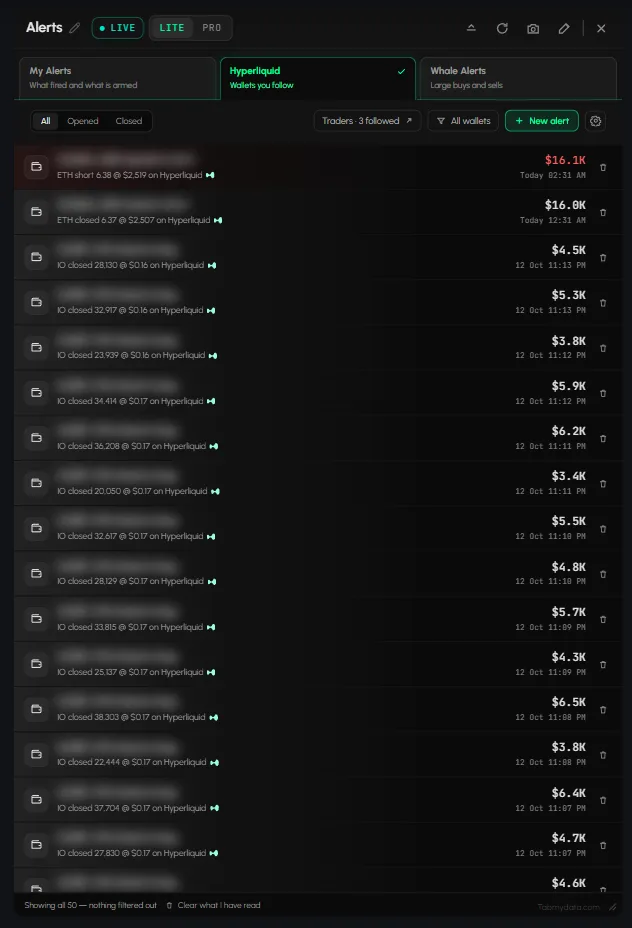
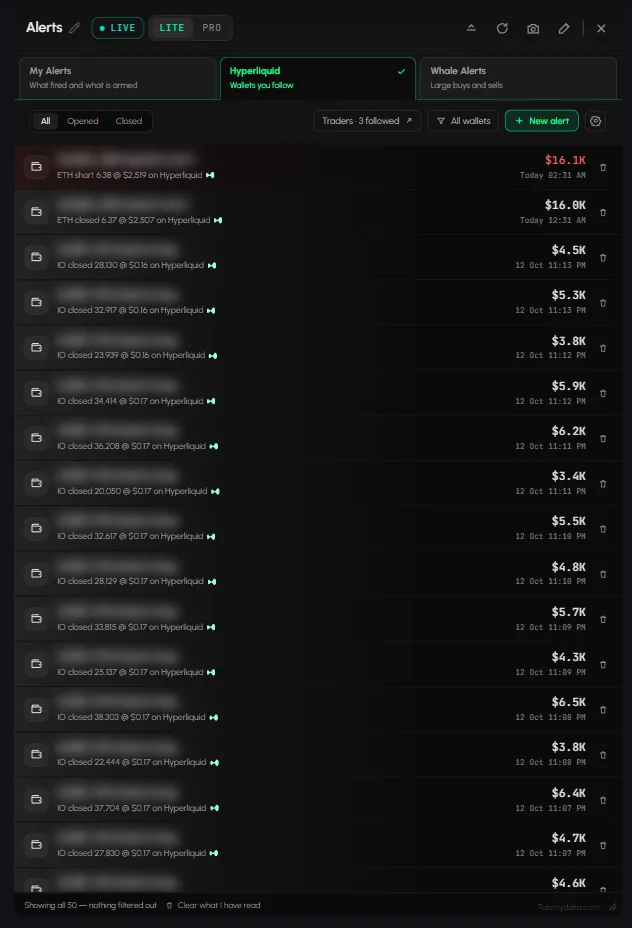
- Open the Hyperliquid sub-tab.
- Click Follow a trader (the button that is New alert on My Alerts). It opens the Hyperliquid Whale Tracker tab, where the follow list lives. See Follow Hyperliquid wallets.
- The feed shows each followed wallet's opens and closes, for example "0x12ab…9f0e closed a long, ETH closed 13.56 @ $2,553 on Hyperliquid, $34.6K".
- Filter with All, Opened or Closed.
- Traders · 3 followed (your count) opens the Hyperliquid Whale Tracker tab. All wallets lets you choose some wallets.
- Click the bin on a card to cancel it.
How to read Whale Alerts
- Open the Whale Alerts sub-tab.
- The WHALE ALERTS switch turns them on or off ("turn this off to stop receiving them altogether").
- Pick the COIN: All, BTC, ETH, SOL or HYPE.
- Pick the size: All, $20M, $35M or $50M. The tab notes whales start at $15M.
- A counter shows how many match, for example "50 of 50". The coin and size rows only filter what you see in the feed. To change what reaches you, use the gear (see below).
- SOURCES chips: Hyperliquid (live) and On-chain (later).
- A card reads for example "Large BTC buy filled, BTC 192.1 @ $83,839 on Hyperliquid, $16.1M".
See Whale alerts.
How to choose how alerts reach you
- Click the gear. A side panel "Settings" for the current sub-tab opens. Changes save instantly ("Live, nothing to save").
- My Alerts: Repeat protection Off, 30s, 2m or 10m. "When the same rule or the same wallet fires again within 30s it pings once. The feed still lists every card."
- Whale Alerts: Minimum size (All, $20M, $35M, $50M), Batch the small ones (Off, 5m, 15m, 1h) and a default coin filter.
- For every alert: the QUIET HOURS switch (23:00 to 07:00). The hours are fixed.
- HOW IT REACHES ME: In the app, Toast on the canvas, Sound, Email (wallets you follow only), Push, and Discord webhook (Hyperliquid wallets and whales only). News and reminders come by push and toast.
The footer reads: "Anything read here counts as read on the bell in the top bar, and the other way round." Full guide: Choose how alerts reach you.
How to clear what you have read
Click Clear what I have read in the footer of My Alerts.
Tab controls
The header has LITE | PRO, Minimize, Refresh, Screenshot, Edit appearance and Close. See Tab controls.
Settings
| Setting | Options | Scope |
|---|---|---|
| Repeat protection | Off, 30s, 2m, 10m | Account |
| Whale minimum size | All, $20M, $35M, $50M | Account |
| Batch the small ones | Off, 5m, 15m, 1h | Account |
| Default coin filter | All, BTC, ETH, SOL, HYPE | Account |
| Quiet hours | On or off, 23:00 to 07:00 (fixed) | Account |
| Channels | In the app, Toast, Sound, Email, Push, Discord webhook | Account, per rule overrides |
| Last sub-tab | My Alerts, Hyperliquid, Whale Alerts | This tab |
States
- Nothing armed: the onboarding hint above, and "the 0 questions you left running" on the Rules button.
Frequently asked questions
Does the tab arm alerts for me?
No. Nothing is armed until you arm it.
Can I type "BTC above 90000"?
No. The box searches a list of triggers, so typing a full sentence such as a price rule will not set an alert. To set a price alert, use New alert in the Alerts tab.
What reaches me by email?
Alerts about wallets you follow.
What reaches Discord?
Hyperliquid wallet alerts and whale alerts, by webhook.
Do alerts stop when the tab is closed?
Your rules keep running. The bell shows what landed.
Is an alert advice?
No. It tells you something happened.
Are alerts free?
Tabmydata is free during Alpha. Alerts are part of it.
Is there a Telegram channel?
There is a public Telegram channel that broadcasts alerts. It is not set up inside the app.
Does repeat protection apply to every sub-tab?
No. It is a setting of My Alerts. The Hyperliquid and Whale Alerts sub-tabs have none.
What happens when I click the bin on a card?
It cancels that alert ("Cancel this alert"). The Rules button lists your armed rules.
Where do I turn off whale alerts?
The WHALE ALERTS switch on the Whale Alerts sub-tab.