Workspaces & Tabs
How to choose coins and exchanges in a tab
Pick a coin, review the markets behind it, and apply. The tab reloads with your selection.
On this page
Data tabs read from the markets you select. Tabmydata connects 24+ exchanges. You choose which of them feed a tab.
How to change the coin in Orderbook
- Click Change in the Orderbook title area.
- In the side panel, click a coin in the grid.
- Check the Resolved line under the grid. It shows the markets and exchanges merged for that coin.
- Click Review N markets.
- On Check what goes into the book, click the x on any market you do not want.
- Click the final button (for example Read BTC on 19 markets). Use Back to go to the coin grid.
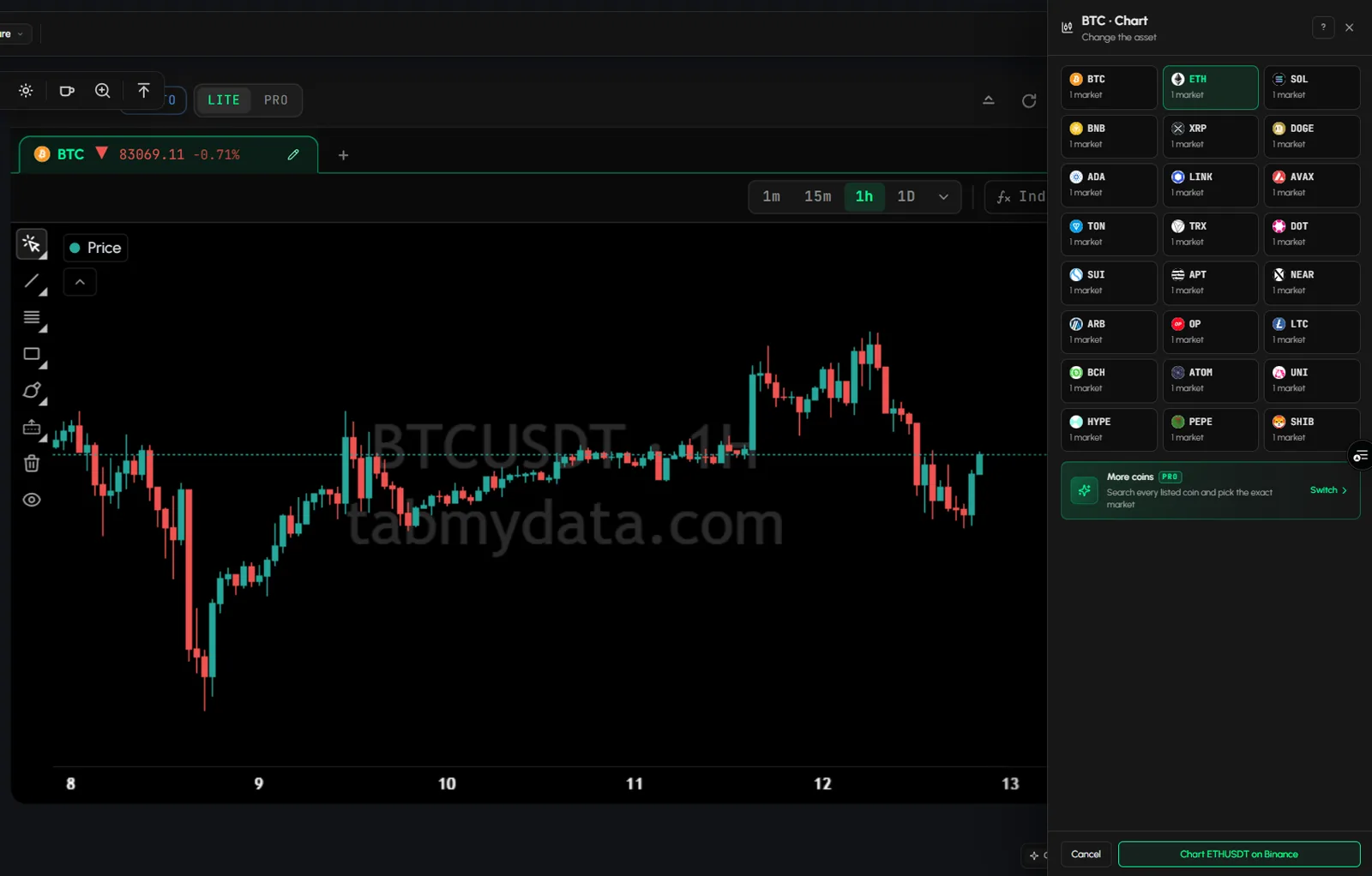
How to change the coin in Charts
- Click the coin at the top of the chart (Change the asset).
- Click a coin in the grid.
- Click the final button (for example Chart BTCUSDT on Binance).
How to use the full picker
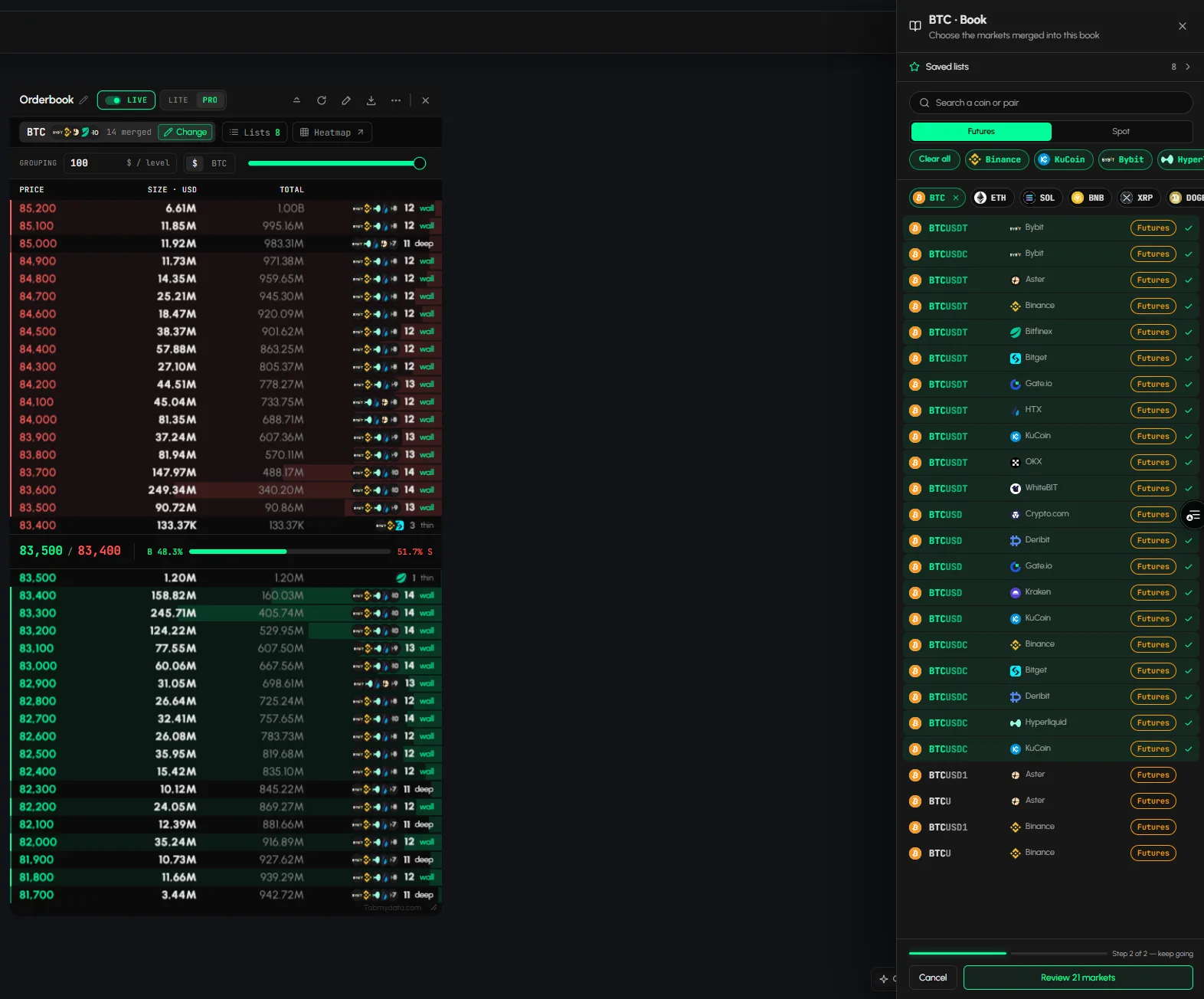
The grid shows popular coins. To go beyond it, click Switch on the More coins card.
- Type in Search a coin or pair.
- Choose Futures or Spot.
- Click exchange chips to narrow the list. Clear all resets them.
- Click coin chips, then tick the markets you want.
- Click Review N markets.
How to keep a selection for next time
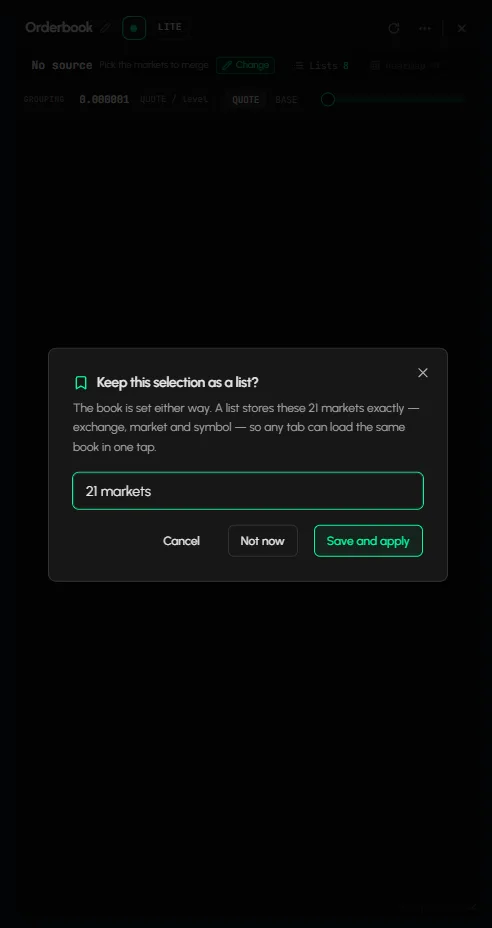
After you apply a change, a dialog asks Keep this selection as a list? A list stores the markets exactly (exchange, market and symbol), so any tab can load the same book in one tap.
- Type a name in the name field.
- Click Save and apply to keep it, or Not now to skip. Cancel closes the dialog.
The selection is applied either way. See How to save and load coin lists.
How to choose assets in Trades, Liquidations and Coin Info
These tabs use a Select Assets section.
- Choose Futures or Spot.
- Click the exchange tiles you want. Select All picks every tile.
- Search a pair in Search pairs..., then click Add.
- Check the table of Type, Exchange and Symbols/Tickers.
In Coin Info the section is Select Exchange & Asset.
Which tabs use which picker
- Orderbook and Charts: the side-panel picker above.
- Orderbook Heatmap: the symbol strip at the top. Use the Heatmap button to tick the exchanges merged into the field.
- Trades, Liquidations, Coin Info: Select Assets.
Frequently asked questions
How do I change the trading pair in a tab?
In Orderbook or Charts, open the side panel, click a coin and apply. In Trades, Liquidations and Coin Info, use Select Assets.
Can I combine many exchanges in one tab?
Yes. Orderbook merges the markets you keep in the review step.
How do I remove one exchange from an Orderbook?
Open Change, go to the review step and click the x on that market.
Is the coin picker different in LITE and PRO?
Yes. LITE shows popular coins. PRO adds the full picker. See LITE and PRO modes.