Workspaces & Tabs
How to track Hyperliquid wallets in the Hyperliquid tab
To track a Hyperliquid wallet, open the Hyperliquid tab, find the account in top traders or top positions, and star it. The tab lists public Hyperliquid accounts in one table. Open any account to see its positions, leverage and equity, star it to follow it, and get an alert when it opens or closes a position. It covers Hyperliquid only. Nothing from other venues is merged in. "Wallet" here always means someone else's public wallet.
On this page
- What you can do
- How to track a Hyperliquid wallet
- How to track Hyperliquid whales
- How to add the tab
- How to use the sub-tabs
- How to read the table
- What the columns mean
- How to narrow the list
- How to build your own filter
- How to add or hide columns
- How to switch between Table and Cards
- How to open an account
- How to follow an account and get alerts
- How to follow a wallet straight from the table
- How to copy an address
- Tab controls
- Settings
- States
- Frequently asked questions
- Related
What you can do
- Browse accounts in a sortable table or as cards.
- Switch between three built-in sub-tabs: Top traders, Top positions and Favourites.
- Narrow the list with result chips, quick filters and your own filters.
- Search by wallet or name.
- Add or hide columns.
- Open an account overview with PnL history, leverage and open positions, then open the full account as an extra card in the same tab.
- Star an account and switch on Opened and Closed alerts.
- Copy a wallet address.
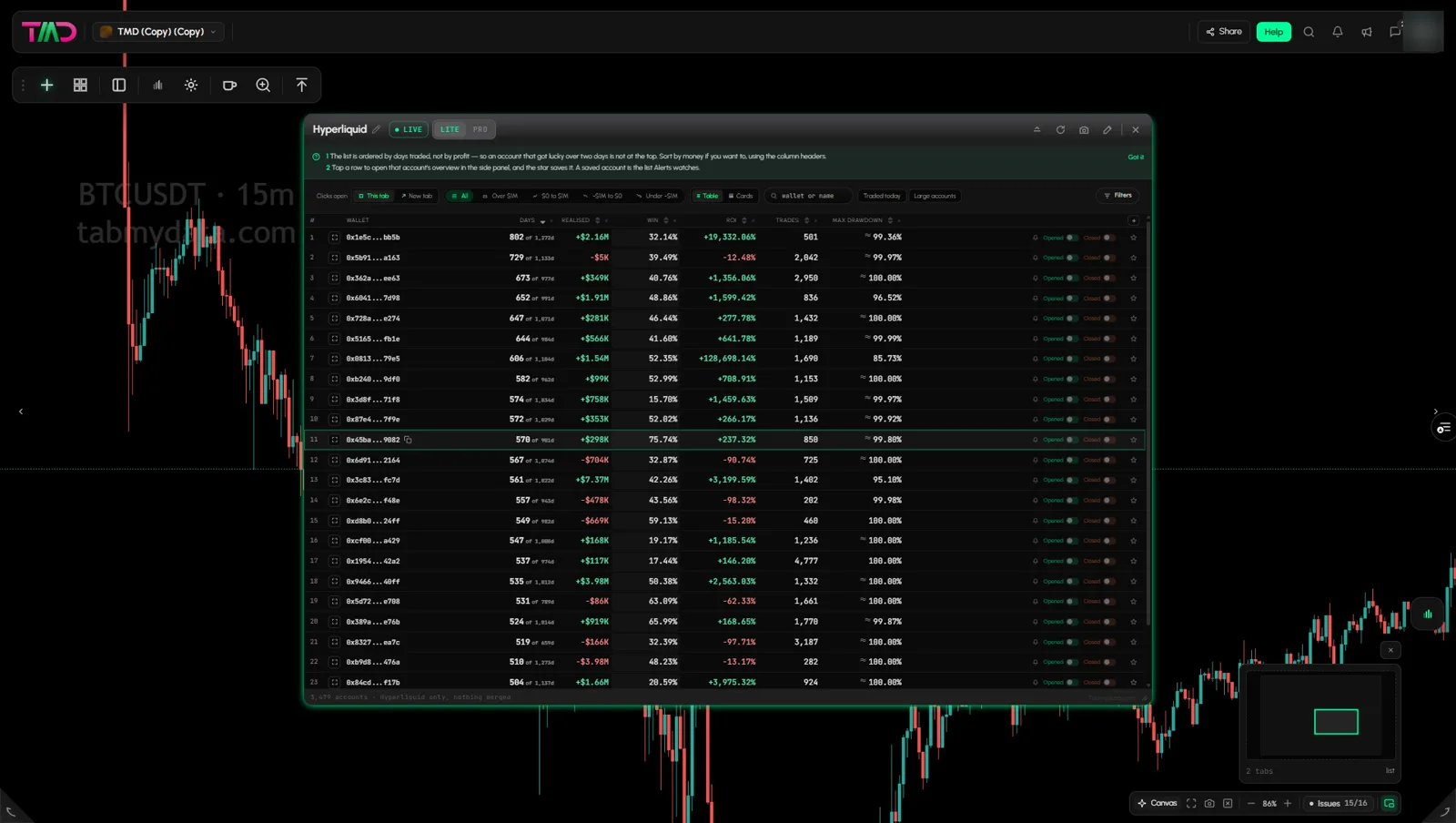
How to track a Hyperliquid wallet
- Add the Hyperliquid Whale Tracker tab (steps below).
- Type the wallet address, or a name, in the search field.
- Click the row to open the Trader overview.
- Click the star, or Add to favourites, to save the account.
- Under Tell me when it, switch Opens or Closes on to get an alert.
Your followed wallets then appear in the Alerts tab under Hyperliquid. For the full idea behind following wallets, read the Hyperliquid wallet tracking guide.
How to track Hyperliquid whales
To find large accounts, add the tab from the Top positions preset. It sorts by the largest open position and adds the Crowd and OPEN columns. Or use the Large accounts chip on the standard table. For large prints rather than accounts, switch on Whale Alerts in the Alerts tab.
How to add the tab
- Click + (Add a tab) on the tool rail.
- Open Charts and analysis and click Hyperliquid Whale Tracker (shortcut Shift+8, badge LIVE).
The Add a tab card shows three presets: Top traders, Top positions and Favorite traders. Top positions adds the Crowd and OPEN columns and sorts by the largest open position. The tab itself opens on Top traders, the default sub-tab, ordered by days traded.
How to use the sub-tabs
Three built-in sub-tabs sit under the tab's title bar. Click a name to switch.
- Top traders is the default. It shows the account count and "Ranked by days traded", and the table opens in that order.
- Top positions is "Ranked by open exposure". Each row shows the direction (SHORT or LONG), the coin, the leverage, a line such as "N positions largest $..M", realised and unrealised PnL, win and ROI.
- Favourites is "Only what you starred". It shows "N saved accounts" and "N of N compared". Star an account, with the star on a row or Add to favourites in the overview, and it appears here. You can also switch on Opened and Closed alerts for it (see below).
An account you open becomes an extra card next to them (see "How to open an account"). Close it with its X and click Top traders to go back.
How to read the table
- Columns: #, Wallet, Days, Realised PnL, Win %, ROI, Trades, Max Drawdown.
- A green OPEN badge next to a wallet means it has a position open now.
- The default order is by days traded, not by profit, so an account that got lucky over two days is not at the top. A first-open hint explains this. Click Got it to close it. It comes back each time you reload the page.
- Click a column header to sort. A fresh tab sorts by Days, highest first. On another column the first click sorts low to high and the second click high to low.
- Your sort and your result chip stay after you reload the page.
What the columns mean
Hover a column header for its tooltip. In short:
| Column | Meaning |
|---|---|
| Days | Distinct days traded, against days since the first trade |
| Realised PnL | Account-level PnL from Hyperliquid, including unrealised. It can disagree with Win |
| Win % | The share of closed round-trips that made money, net of fees |
| ROI | Return since the wallet's first deposit, against its peak capital |
| Trades | Completed round-trips |
| Max Drawdown | The largest peak-to-trough fall in account value. It shows ≈ when spot or vault moves blur it |
How to narrow the list
- Result chips: All, Over $1M, $0 to $1M, -$1M to $0, Under -$1M. Hover a chip to read what it covers, for example "Realised PnL of $1M or more". Over $1M also sorts by Realised, highest first. All goes back to Days, highest first. The count line reads "N accounts" with "Hyperliquid only, nothing merged" and drops when a chip or filter narrows the list.
- Quick filters: Traded today (opened or closed a position in 24 hours) and Large accounts (account value over $1M).
- Type a wallet or a name in the search field.
How to build your own filter
- Click Filters. It starts as "No filter on the list".
- Click Add a filter. Step 1 asks "Which one?": Active trading days, Account value, All-time PnL, Position status, Profit factor, Total trades, Max drawdown, Preferred asset, Wallet age, Direction bias, Trades per day, Last trade, Average hold time.
- Step 2 sets the value. For Position status: Any, Open now or Flat now. With Any, the column appears but nothing is dropped.
- Every filter becomes a column. Close its chip to remove the filter and the column.
- The footer shows how many accounts remain, for example "N of M". Click a filter chip to edit it (change the choices, Save, or Remove this filter). Reset all clears the filters. Done closes the panel. Your filters stay after you reload the page.
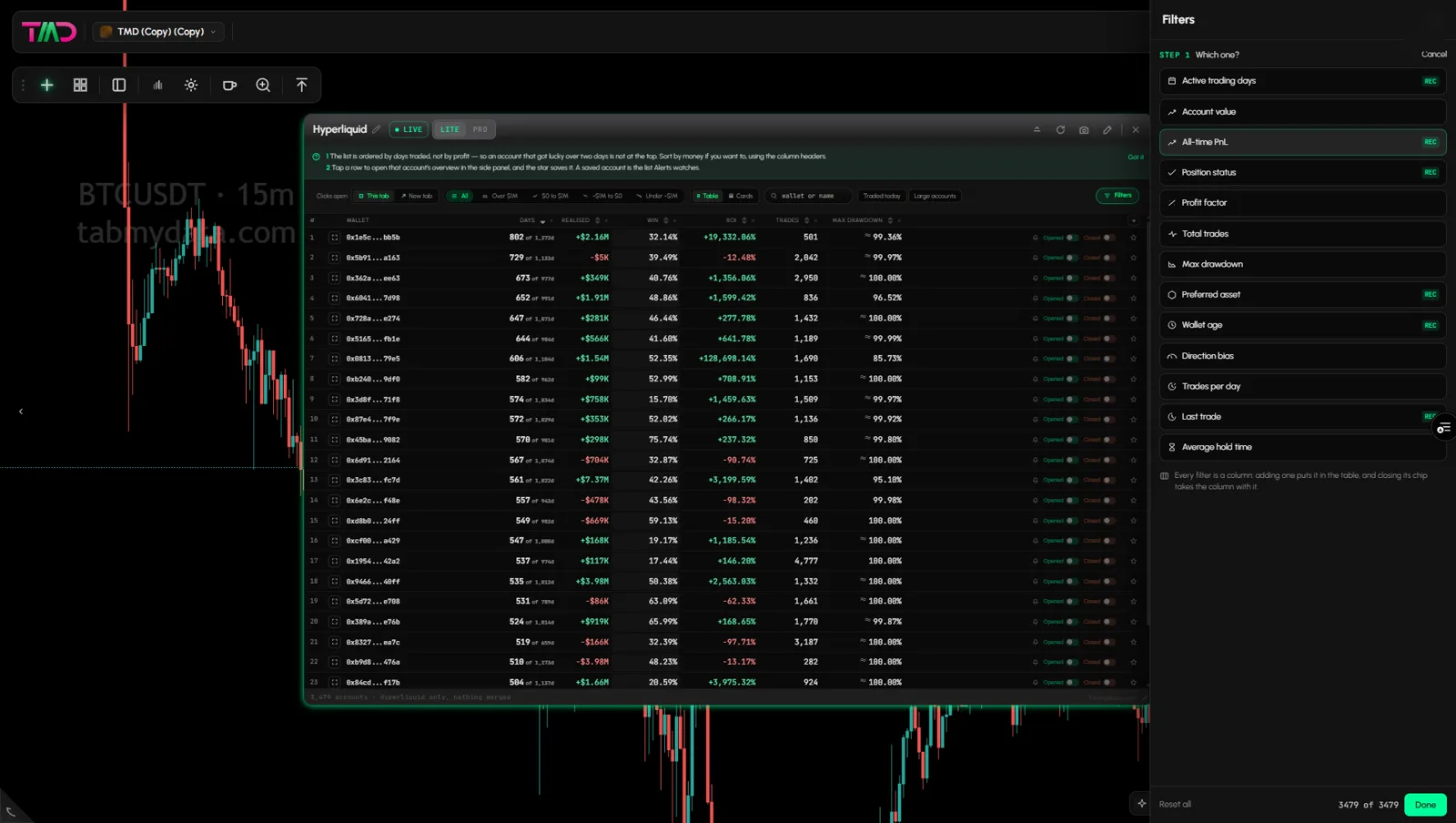
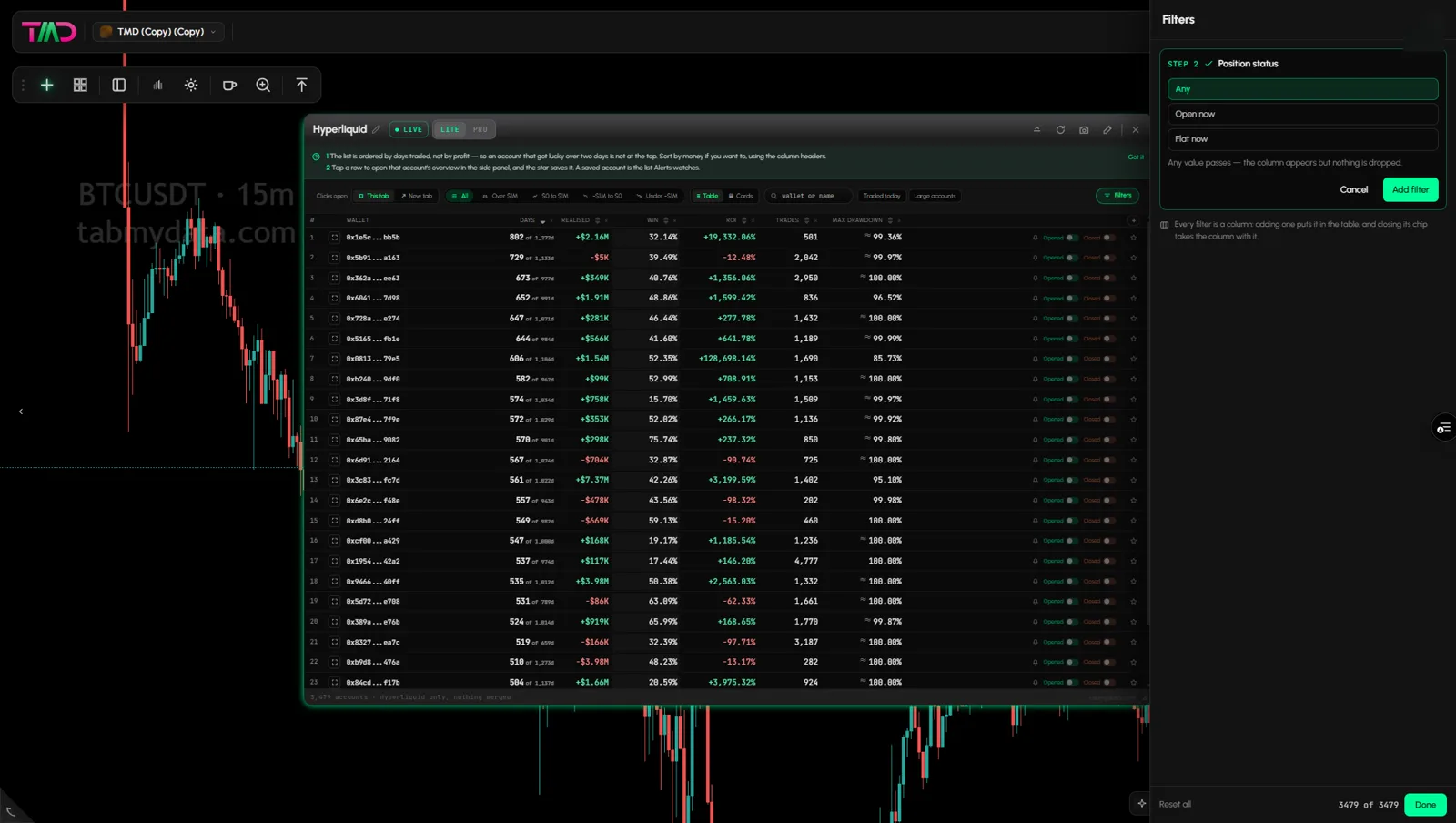
How to add or hide columns
- Click Hide this column on a header.
- Click + at the end of the header row ("Add a column"). It opens the same panel as Filters, because every filter is a column.
How to switch between Table and Cards
Click the Table / Cards toggle. A card shows the rank, the wallet, a days-traded band such as "250+ DAYS TRADED", and Realised, Win, PF, Days and Max DD. Your choice stays after you reload the page.
How to open an account
- Click a row. A Trader overview preview opens on the right. It shows the wallet address, a rank badge such as "#3 BY DAYS", Add to favourites and a green View full details button.
- The preview also shows long and short bias, all-time PnL (open and realised), a PnL history chart, where the account stands among all accounts, perp equity, free margin, position value, leverage and open positions.
- Click View full details, or the cube icon at the left of any row ("Open the whole account"), to open the full account.
- The account opens as an extra card in the same tab, next to the three sub-tabs. Its title reads "The account you are looking at". It has a name field, a note, Opened and Closed alert switches with Save, and the sections Positions, Recent PnL, Transactions, Open orders and Deposits & withdrawals. Close the card with its X.
How to follow an account and get alerts
- Click the star on a row, or Add to favourites in the overview. The star's tooltip reads "Save this account. Alerts can then watch it."
- In the overview, under Tell me when it, switch Opens or Closes on. The switch reads "Tell me when this account opens a position" or "closes a position". Switching one on also saves the account.
- Your followed wallets appear in the Alerts tab under Hyperliquid.
More: Follow Hyperliquid wallets · Whale alerts · Tracking page.
How to follow a wallet straight from the table
Each row has a star and two switches, Opened and Closed. Switch one on and you are told when that account opens or closes a position. Switching one on also saves the account. If you click the star of a saved account to remove it, a dialog titled "Remove from saved" asks you to confirm with Keep it or Remove. It says this is the wallet list the Alerts tab reads.
How to copy an address
Click the copy icon on a row.
Tab controls
The header has the title (click to rename), a LIVE badge, LITE | PRO, Ask Tami (PRO), Minimize, Refresh, Screenshot, Edit appearance, Share and Close. See Tab controls.
Settings
View (table or cards), filters, columns and Clicks open belong to the tab.
States
- Loading: while the tab's data loads, it shows the letter T (the Tabmydata logo) bouncing slowly in a loop, like a ball, until the data arrives.
- Filtering shows "N of N" accounts, for example "N of M".
- Your view (table or cards), chip, sort and filters stay after a reload. If you wonder why the list looks different, check them first.
Frequently asked questions
How do I track a Hyperliquid wallet?
Type the address or name in the search field, open the account and star it. Then switch Opens or Closes on so you hear when it acts. Followed wallets show in the Alerts tab under Hyperliquid.
How do I track Hyperliquid whales?
Start from the Top positions preset or the Large accounts chip, sort the table by the column you care about and open an account for a full breakdown. For large prints, turn on Whale Alerts in the Alerts tab.
Who are the top traders on Hyperliquid?
The tab shows public Hyperliquid accounts, ordered by days traded until you sort another column. The default Top traders sub-tab is the quick way in. Sort by any visible column to choose what "top" means for you. The tab shows how accounts traded. It is not a recommendation.
Whose accounts are shown?
Public Hyperliquid accounts.
How is the table ordered?
By days traded, until you sort another column.
Is there a Top positions or Favourites view?
Yes. The tab has three built-in sub-tabs: Top traders, Top positions (ranked by open exposure, with direction, coin and leverage) and Favourites (only the accounts you starred). The Add a tab card offers the same views as presets. Followed wallets show in Alerts under Hyperliquid. In any tab you can also use Position status: Open now and the OPEN badge.
Where do an account's full details open?
As an extra card in the same tab. Click View full details in the overview or the cube icon at the left of a row.
How do I find one wallet?
Type the address or a name in the search field.
Can I see which accounts have a position open?
Yes. Look for the OPEN badge, or filter on Position status: Open now.
Can I copy a trader's positions?
No. The tab shows what accounts hold. What you do is your decision.
Does it cover other exchanges?
No. Hyperliquid only.
Is the Hyperliquid Whale Tracker free?
Tabmydata is free during Alpha. The Hyperliquid Whale Tracker tab is part of it.
How do I refresh the data?
Click Refresh in the tab header.