Workspaces & Tabs
How to read a liquidation heatmap
To read a liquidation heatmap in Tabmydata, add the Liquidation Heatmap layer to a Charts tab. It draws modeled liquidation levels by price over time, behind the candles. The stronger a cell, the more estimated liquidations the model places at that price. These are estimates, not recorded events and not a forecast.
On this page
- How do I add the layer to a chart?
- What do the colours mean?
- How do I read the layer?
- What is a simple way to read the levels?
- How do I open the layer's settings?
- How do I change colors and theme?
- How do I change the model's parameters?
- How do I turn the layer off without losing my settings?
- How do I remove the layer?
- Frequently asked questions
- Related
Exchanges don't publish where leveraged positions would be liquidated, so this layer estimates it (see liquidation heatmap in the glossary). The layer's own description says it all: modeled levels from the candles, not recorded events. They are not real orders, not a signal and not a forecast.
The Liquidation Heatmap is its own tab and is also available as an indicator in the Charts tab. This article covers the Charts indicator. It is a separate thing from the Orderbook Heatmap tab, and the two are never combined. Liquidations are a futures topic, so use a futures market.
Product overview: crypto liquidation heatmap. For resting order-book liquidity, see How to use the Orderbook Heatmap.
How do I add the layer to a chart?
- Click + (Add a tab) on the tool rail and click Charts. Or open a Charts tab you already have.
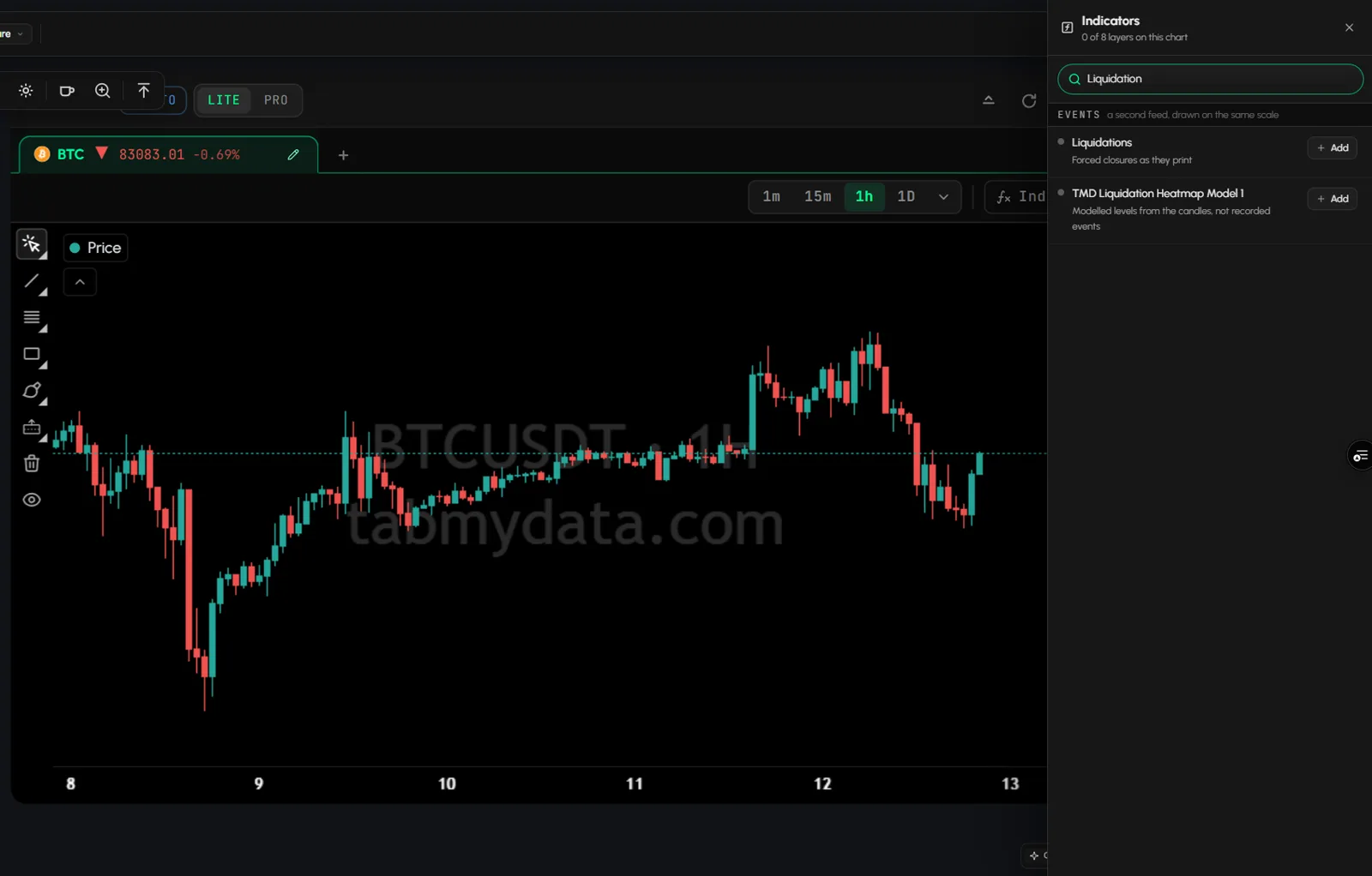
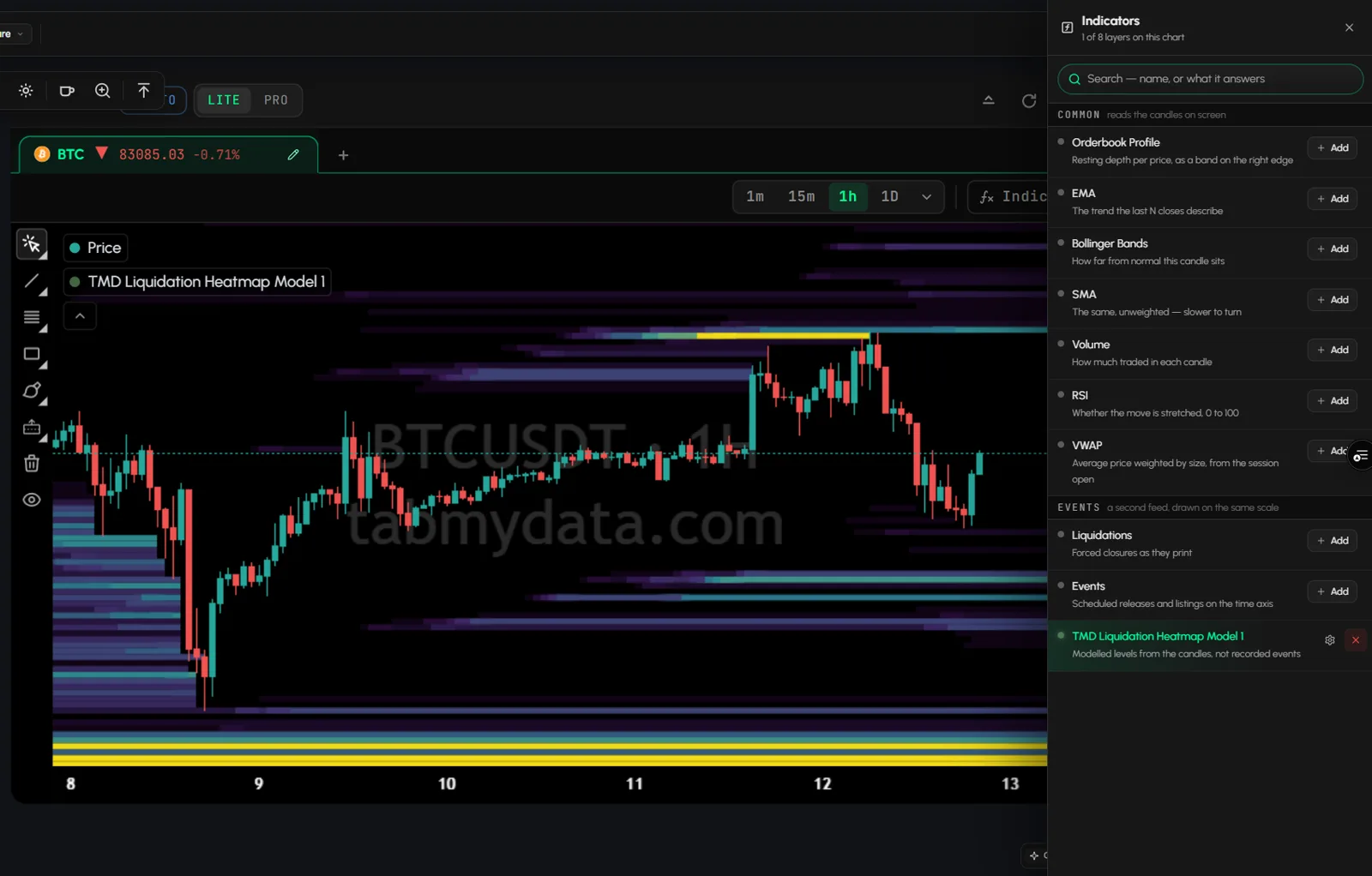
- Click Indicators. The panel opens with the title "Indicators · N of 8 layers on this chart".
- Find TMD Liquidation Heatmap Model 1 under the events group, or type its name in the search box.
- Click Add. The layer draws on the chart, on the same price scale as the candles. The panel stays open, so you can add more layers.
A chart holds up to 8 layers. At the limit the panel says "At the layer limit - remove one first".
Tip: for BTC, open a BTC chart first, then add the layer.
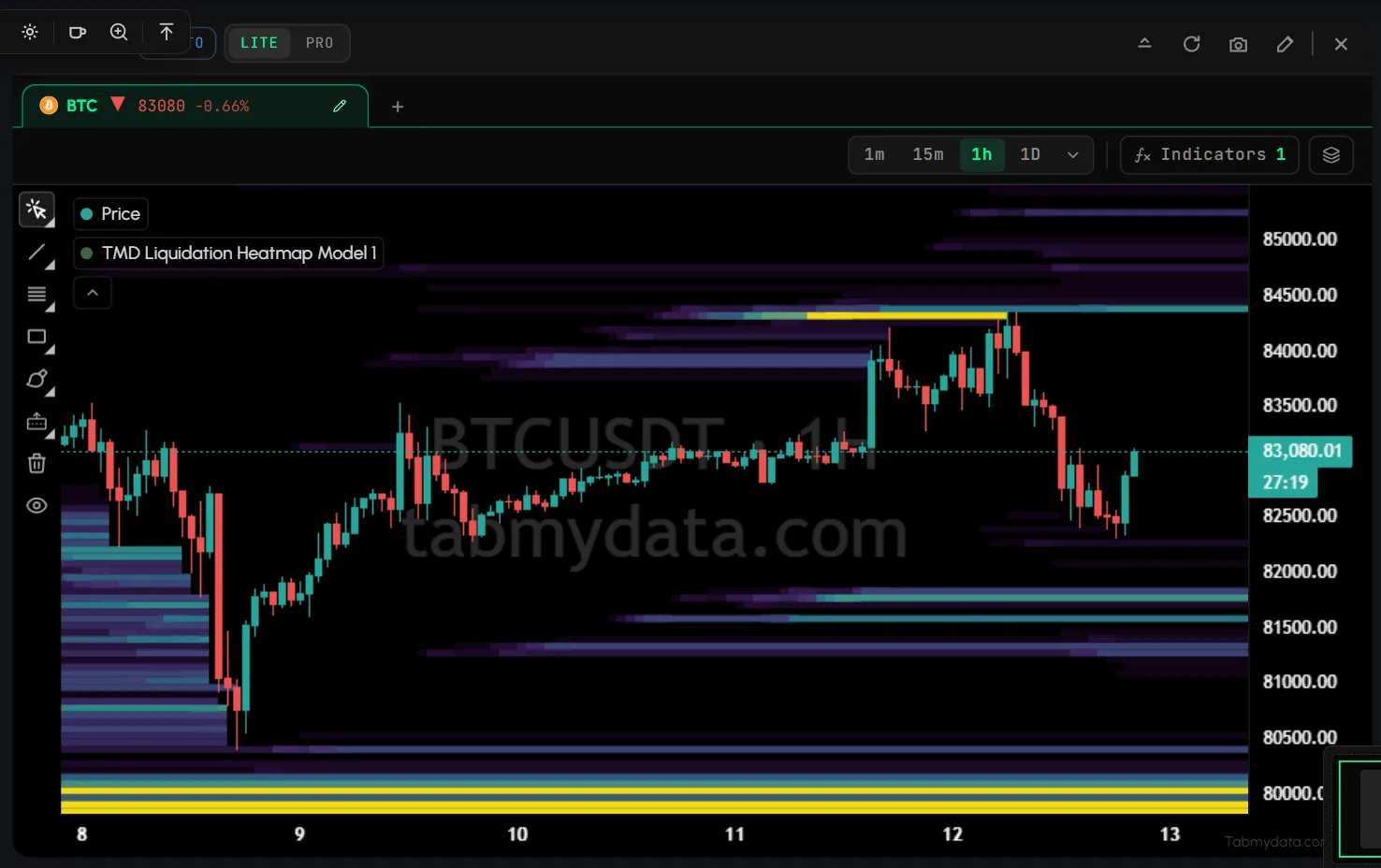
What do the colours mean?
Price is on the vertical axis and time on the horizontal axis, with candles on top. The cells run from a weak colour to a strong one. A stronger cell means the model puts more estimated liquidations at that price. A faint cell means fewer. The colours show relative size inside this picture. They are not an amount of money you can read off.
How do I read the layer?
- Price is on the vertical axis and time on the horizontal axis, with candles on top.
- Cells run from the weakest color to the strongest. A stronger cell means the model puts more estimated liquidations at that price.
- Treat each cell as a modeled level built from the candles. It is not a record of something that happened.
- To see forced closes that already happened, add the Liquidations layer, or open the Liquidations tab. The Liquidations layer draws a triangle per forced closure and has its own minimum size and exchange filter. On a spot chart it says "A spot market has no positions to force closed - switch this tab to futures to see liquidations."
What is a simple way to read the levels?
- Look at where the strongest cells sit above and below the current price.
- Note how far away each one is. A level close to price is a different picture from one far away.
- Check the Liquidations feed for the same coin. It shows forced closes that actually printed.
- Hold both views together. Where liquidations printed near a modeled band, that is one data point. Where they did not, that is another.
The levels are estimates, and a model can be wrong. Read them as areas, not exact prices.
How do I open the layer's settings?
- In the Indicators panel, find the layer in your list. Or hover its row in the chart legend.
- Click its gear. The settings panel opens.
- Each parameter has a ? next to it. Click it for a short explanation.
Settings save as you change them. There is no Save button.
How do I change colors and theme?
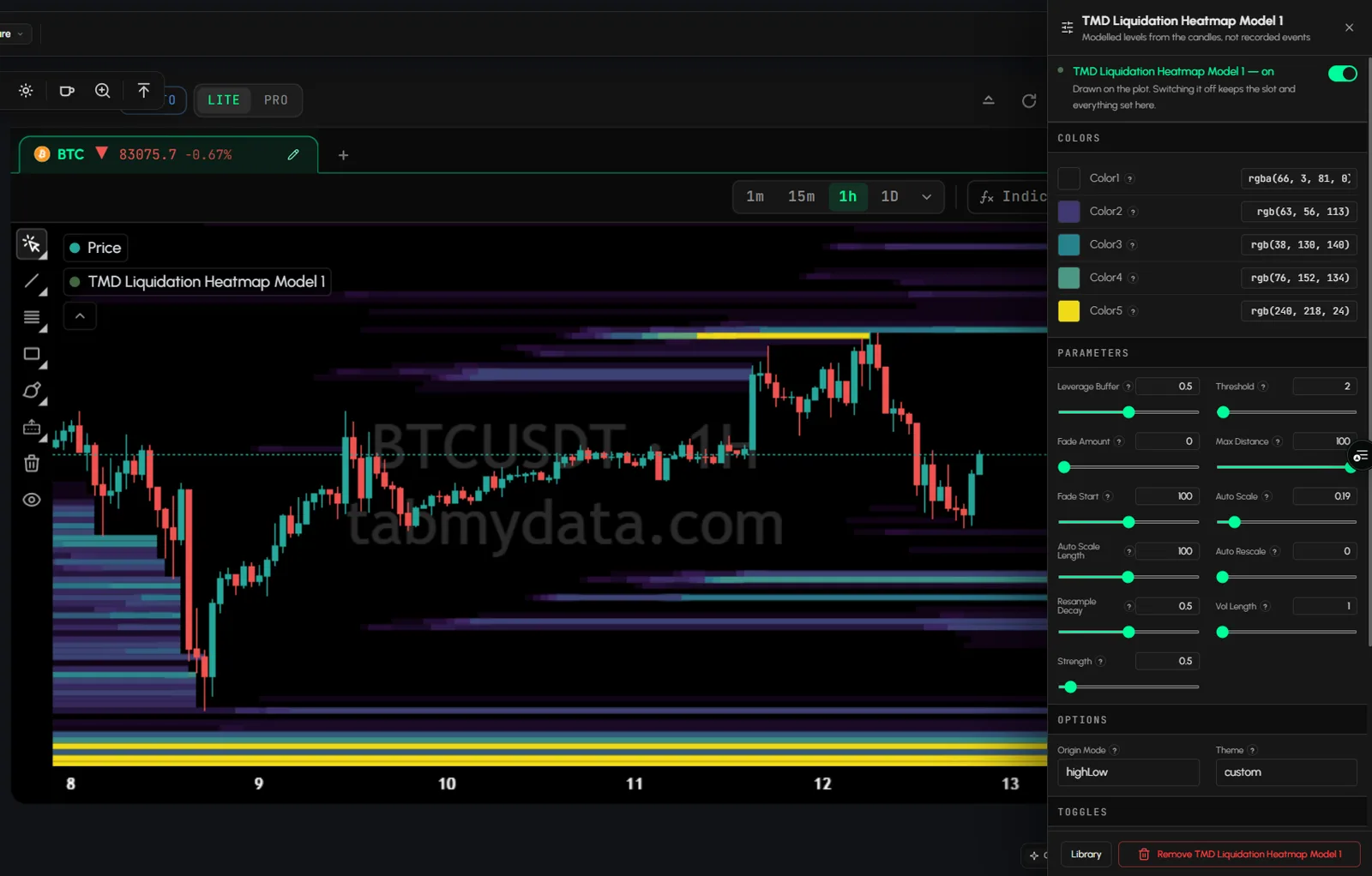
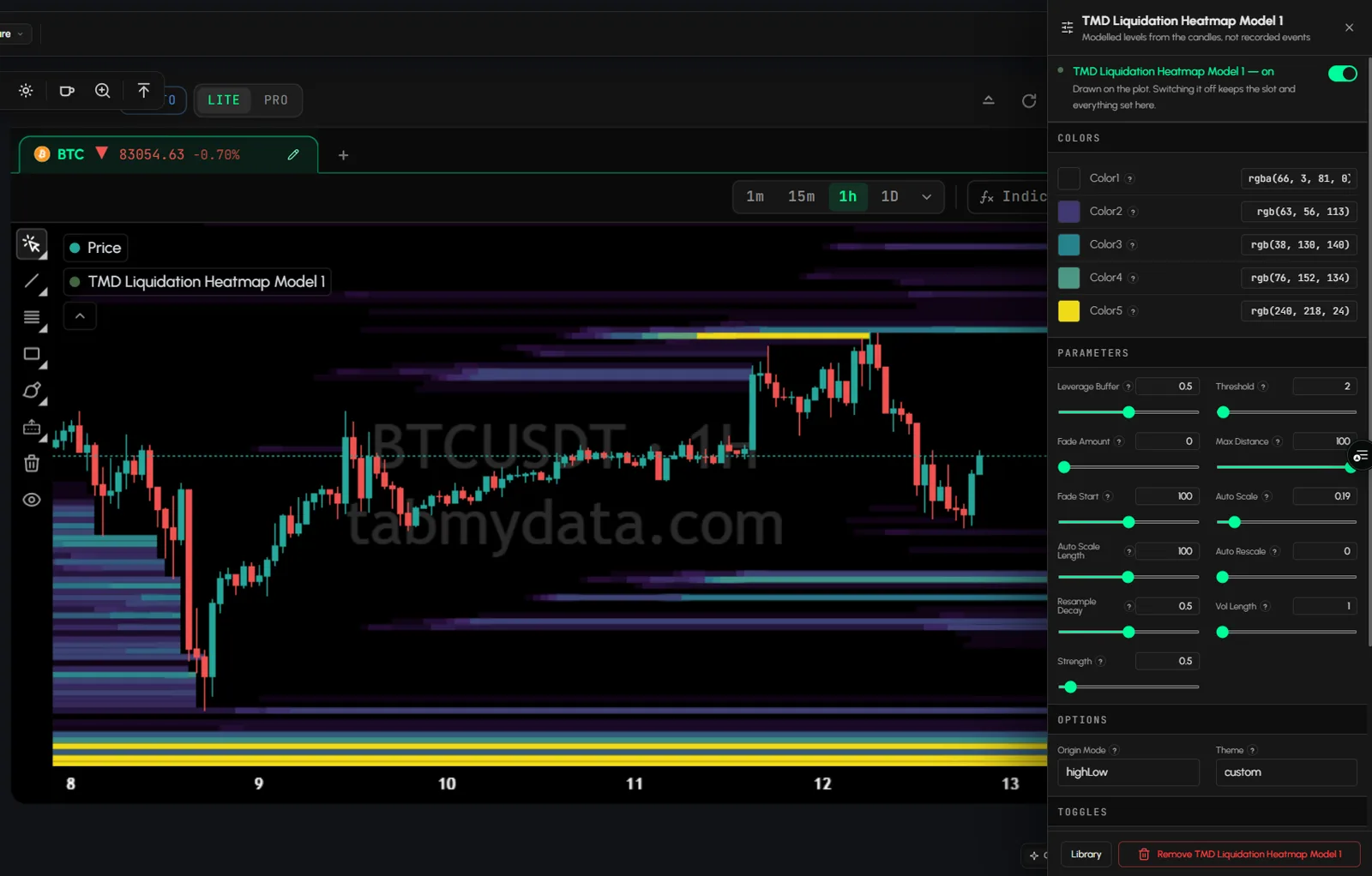
- In the settings, open COLORS. Color1 to Color5 run from the weakest cell to the strongest.
- Click a color to change it.
- Or open OPTIONS and pick a Theme, for example dark, light, inferno, ocean or monochrome. Pick custom to use your own colors.
How do I change the model's parameters?
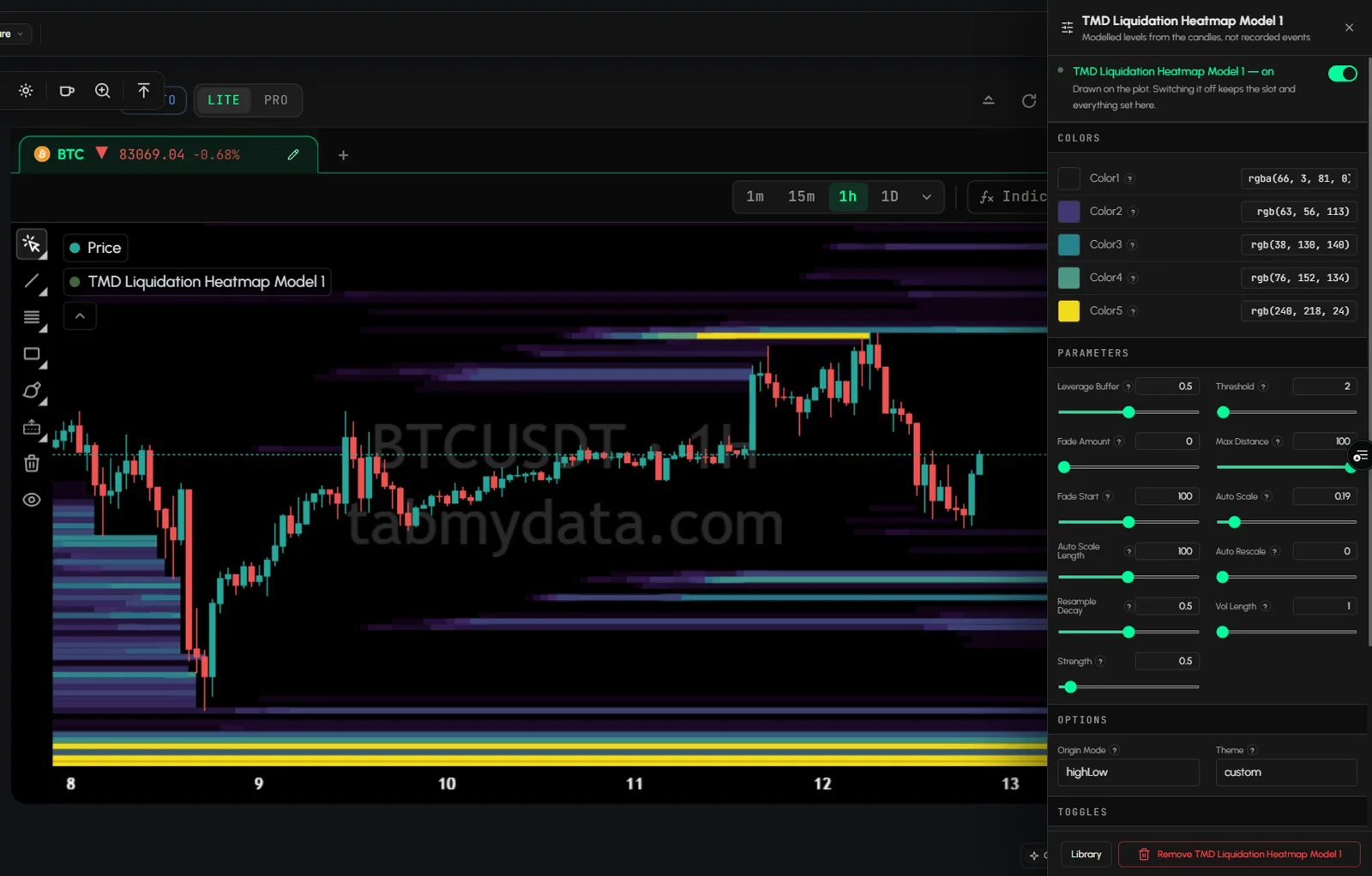
- Open PARAMETERS. It holds sliders such as Leverage Buffer, Threshold, Fade Amount, Max Distance and Fade Start, plus Auto Scale.
- Open OPTIONS for Origin Mode and Theme, TOGGLES for Use HK, Use Log and Draw Infinite, and SETTINGS for Leverages and Fixed Scale.
- Click ? next to any setting for its help. The in-app help explains what each one does.
Tip: change one setting at a time, so you can see what it did to the picture.
How do I turn the layer off without losing my settings?
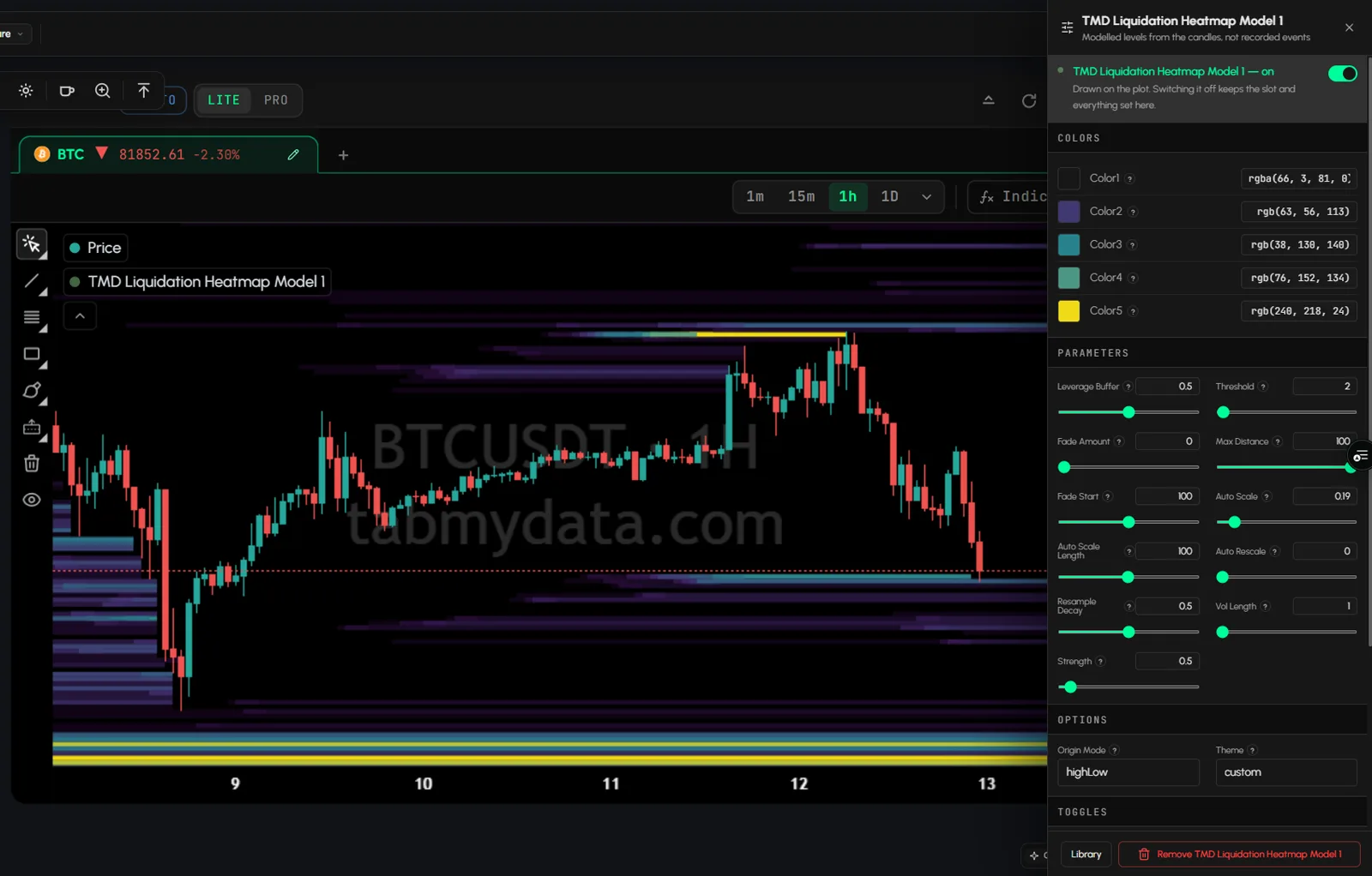
- Open the layer's settings with the gear.
- Use the on/off switch at the top. Or hover the layer's row in the legend and click the eye.
- Switching it off hides the layer and keeps everything you set. Switch it on again and it comes back as you left it.
A layer that is switched off still takes one of the 8 layer slots.
How do I remove the layer?
- Open the layer's settings with the gear, and click Remove. Or click the x next to the layer in the Indicators panel.
- Remove deletes the layer and frees its slot. To hide it instead, switch it off (see above).
- To bring it back later, click Add on it again in the Indicators panel. Layer settings are kept per layer type, so your choices are usually still there.
Frequently asked questions
How do you read a liquidation heatmap?
Stronger cells mark prices where the model estimates more leveraged positions would be liquidated. The candles run through it so you can see those levels against price.
What is a liquidation heatmap?
A chart layer that shows, by price and over time, where leveraged positions would be liquidated. In Tabmydata these levels are modeled from the candles, not recorded events.
Are these real liquidation orders?
No. Exchanges don't publish liquidation levels. The layer shows modeled estimates.
Does the liquidation heatmap predict where price will go?
No. It is a model of where liquidations would cluster. It is not a signal, a forecast or advice.
How is it different from the Orderbook Heatmap?
The Orderbook Heatmap shows resting orders that really sat in the order book. The Liquidation Heatmap layer shows modeled levels. More in liquidity heatmap vs liquidation heatmap.
How is it different from the Liquidations layer and tab?
Liquidations show forced closes as they print. The Liquidation Heatmap layer models where they could cluster.
Is a liquidation heatmap accurate?
It is a model, so it gives estimates. It works out where leveraged positions could be liquidated from what it can see of the market. Treat each level as an area, and check it against the liquidations that actually printed.
What do the colors on a liquidation heatmap mean?
Cells run from the weakest color to the strongest. A stronger cell means the model puts more estimated liquidations at that price. The colors show relative size, not an amount.
Where can I change the colors?
Open the layer's settings with the gear, then COLORS for Color1 to Color5, or OPTIONS to pick a Theme.
Where do I find a BTC liquidation heatmap?
Open a Charts tab on BTC, click Indicators and add TMD Liquidation Heatmap Model 1. The levels draw behind the candles.
How many layers can I add to a chart?
Up to 8. A hidden layer still counts, so remove one if the panel says "At the layer limit".
Does the layer change when I remove it and add it again?
Layer settings are kept per layer type, so your colors and parameters are usually still there. Remove deletes the layer itself.