Alerts & Notifications
How to follow Hyperliquid wallets and get alerts
In Tabmydata, open the Hyperliquid Whale Tracker tab, favourite a trader with the star on their row, and you follow that wallet. When it opens or closes a position you get an alert in the bell, in the Alerts tab, and by email, push or Discord if you turn those on. This is free during Alpha.
On this page
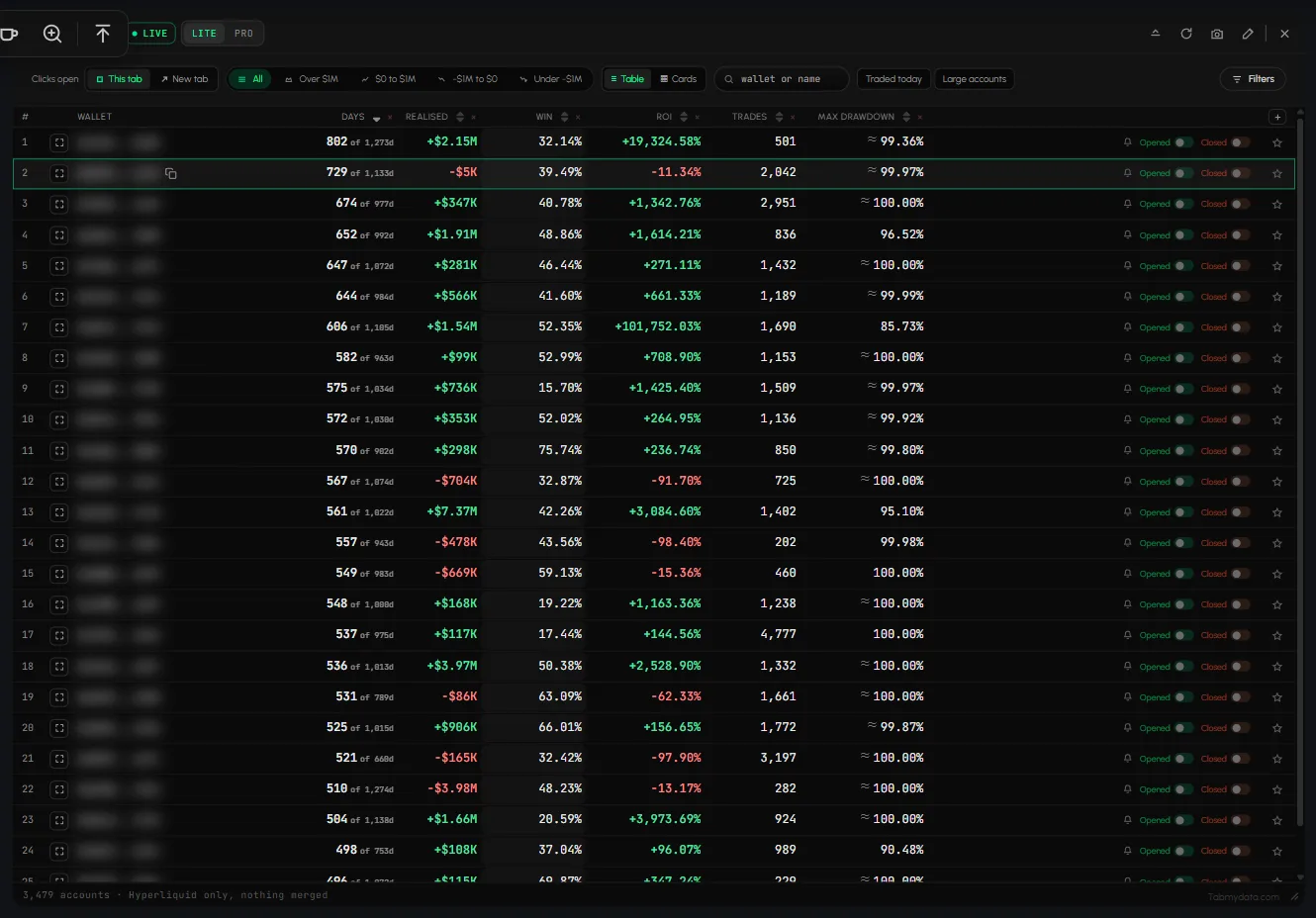
The Hyperliquid Whale Tracker tab lists every account on the venue with PnL, win rate, ROI, trades and drawdown, so you can pick whom to follow. More on Hyperliquid wallet alerts. Tab guide: Hyperliquid Whale Tracker tab.
How do I open the Hyperliquid Whale Tracker tab?
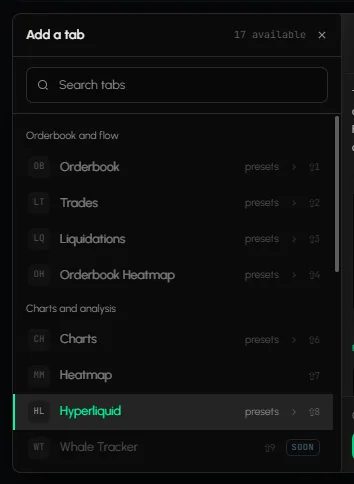
- Click Add a tab on the tool rail, open Charts and analysis and pick Hyperliquid Whale Tracker.
- The Add a tab card lists three ready-made views: Top traders (ranked by PnL), Top positions (largest open positions) and Favorite traders (the accounts you follow).
How do I follow a trader?
- In the Hyperliquid Whale Tracker tab, find the account. Sort by a column header, use the PnL chips (All, Over $1M, $0 to $1M, -$1M to $0, Under -$1M), or use Filters to narrow the list.
- Click the star (Add to favourites) on the row. Or click the row to open Trader overview and click Add to favourites there.
- To choose which events alert you, switch Opened or Closed on the row, or Opens and Closes under "Tell me when it" in the overview. Switching one on saves the account too.
A green OPEN badge on a wallet means it has a position open right now.
How do I see alerts from traders I follow?
- Click the alert bell in the top bar.
- Click Favorites to show only alerts from the accounts you follow. Whale shows large prints, All shows everything and Mine shows rules you set yourself.
- Click Mark all read to clear the unread count.
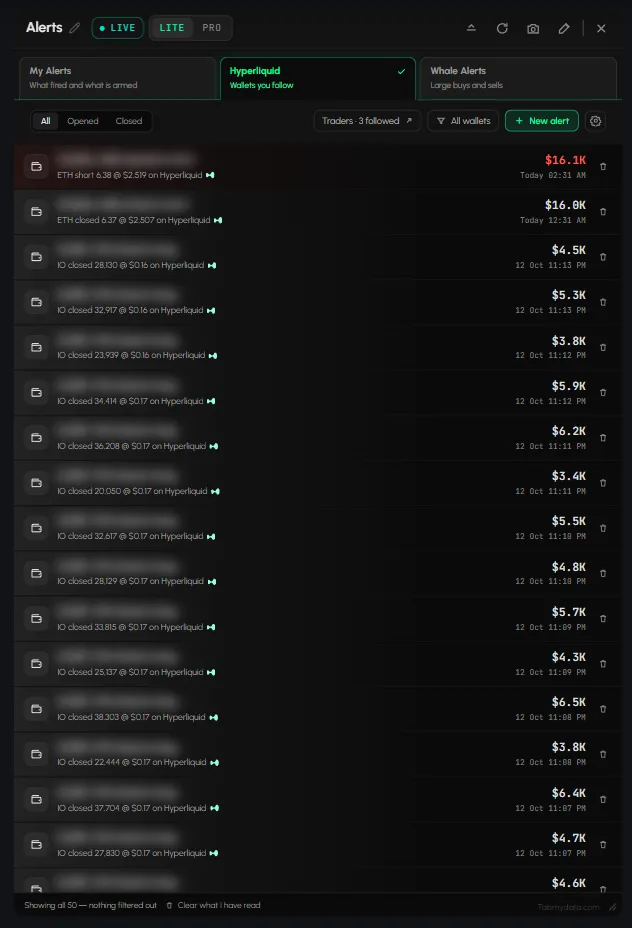
In the Alerts tab, the Hyperliquid sub-tab shows the opens and closes of the wallets you follow, with a filter for All, Opened or Closed and a Traders button that shows how many you follow. On the Tracking page, Favorite Traders lists them with an alert bell per trader.
How do I get these alerts by email, push or Discord?
Click the gear in the Alerts panel to open the alert settings. Switch on email or push under delivery, or add your Discord webhook there. Steps: Alert settings. Personal alerts are not sent to Telegram: it is a public channel with market-wide alerts.
How do I stop following a trader?
On the Tracking page, click the bin at the end of the trader's row in Favorite Traders.
Frequently asked questions
How do I track a Hyperliquid trader's positions?
Favourite the trader in the Hyperliquid Whale Tracker tab. You get an alert when they open or close a position.
Is there a free Hyperliquid whale tracker?
Tabmydata is free during Alpha, and the Hyperliquid Whale Tracker tab lets you follow wallets and get alerts on them.
Where do the alerts show up?
In the bell under Favorites, in the Alerts tab, and by email, push or Discord webhook if you turn them on in the alert settings.
Can I get these alerts outside Tabmydata?
Yes, by email, push or your Discord. Turn them on in Alert settings.
Are the numbers on a wallet advice?
No. They describe what an account did in the past. Tabmydata does not tell you to copy anyone.