Workspaces & Tabs
How to share a tab or workspace
In Tabmydata you can share a chart or workspace three ways: take a screenshot of one tab or the whole workspace, send a tab to another workspace or as a link (PRO), or switch on Public workspace and share its link to X, Facebook, Reddit or WhatsApp. A workspace link opens only while the workspace is public.
On this page
What you can do
- Screenshot one tab or the whole workspace.
- In PRO, copy or move one tab to another workspace, or create a link to one tab.
- Make a workspace public so anyone with the link can view it.
- Share the link to Twitter/X, Facebook, Reddit or WhatsApp.
- Set the name, description and cover of the card others see.
- Share your public profile.
How do I take a screenshot of a tab?
- Click the camera button in the tab's title bar, or open More (...) and click Screenshot.
- A Captured image dialog opens. Click Copy to clipboard or Download. Nothing downloads on its own.
How do I take a screenshot of the whole workspace?
- Click Fit every tab in view in the bottom bar if you want every tab in the picture.
- Click Screenshot workspace (the camera icon in the bottom bar). The same Captured image dialog opens.
How do I share one tab (PRO)?
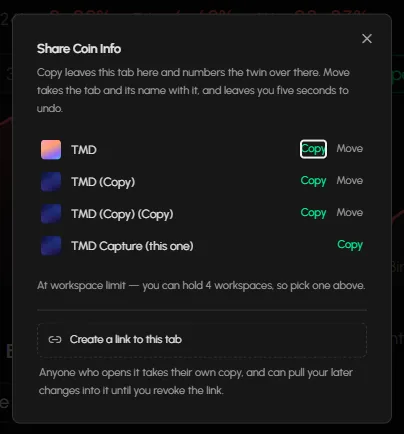
In PRO mode, a tab's title bar has a Share button. See LITE and PRO modes.
- Click Share in the tab's title bar.
- To send the tab to a workspace of yours, choose Copy or Move:
- Copy leaves the tab where it is and numbers the twin.
- Move takes the tab out of this workspace. You have 5 seconds to undo.
- To send it to someone else, click Create a link to this tab. Anyone who opens the link takes their own copy, and can pull your later changes into it until you revoke the link.
How do I make a workspace public?
- Open Workspace settings for the workspace. See Workspace settings.
- Open Details.
- Switch on Public workspace. The line reads "Anyone with the link can view this workspace". When it is off, only you can open it.
- Click Save & Close.
Public workspaces show a Public badge on their card in the Dashboard and the Workspaces list.
How do I share the workspace link?
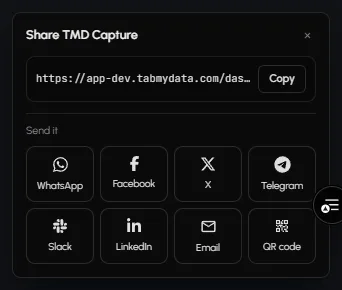
- In the Workspaces list, click Share on a card. Or, inside the workspace, click Share in the top bar.
- The Share your workspace box shows the link. Copy it, or click Twitter/X, Facebook, Reddit or Whatsapp.
- Click Close when done.
The link opens only while the workspace is Public. If it is private, turn on Public workspace first.
How do I set the card others see?
In Details: Workspace card name, Description and Card cover photo (upload a PNG or JPG up to 4 MB, or pick a preset). The PREVIEW shows the card. When someone likes your workspace, you get a "Workspace likes" notification.
How do I share my profile?
Click the Share profile icon on the Dashboard, or Share Profile on your profile page. See Your public profile.
Frequently asked questions
Who can open my workspace?
Only you, until you switch on Public workspace. Then anyone with the link can view it.
Can I screenshot all my tabs at once?
Yes. Click Screenshot workspace in the bottom bar.
Can I share just one tab?
Yes, in PRO. Use the Share button in the tab's title bar to copy or move it to another workspace, or to create a link to it.
What happens when someone opens a tab link?
They take their own copy. They can pull your later changes into it until you revoke the link.
How do I stop sharing a workspace?
Open Workspace settings, then Details, switch off Public workspace and click Save & Close. The link then opens only for you.
Are workspaces advice?
No. A workspace is a view of the market, not advice.