Workspaces & Tabs
How to save and load coin lists
In Tabmydata you save the markets of a tab as a named list, then load it again in one tap from the Lists button of the Orderbook, Trades or Liquidations tab. Your lists also live on the Dashboard, the Tracking page and your profile, so you can edit them without opening a workspace.
On this page
A list stores exactly what a tab reads from: exchange, market and symbol.
What you can do
- Save the markets of your Orderbook as a named list.
- Load a list from the Lists button of Orderbook, Trades and Liquidations.
- Start a tab from a ready-made preset.
- Find, add, duplicate, edit and delete your lists on the Dashboard, the Tracking page and your profile.
How do I load a saved list?
- Open the Orderbook, Trades or Liquidations tab.
- Click Lists in the header.
- Pick a list. One press sets the whole book.
The Lists menu shows only the lists you saved yourself. It has no ready-made lists. For a ready-made start, use a preset (below).
How do I save a coin list?
- Open your Orderbook and click Change.
- Pick a coin, click Review, then confirm the markets. See Choose coins and exchanges.
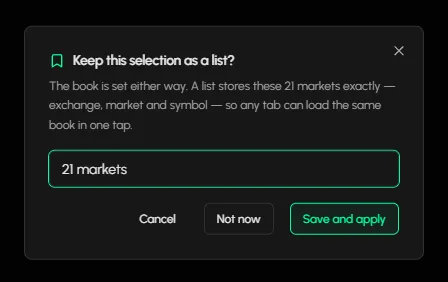
- When the box "Keep this selection as a list?" appears, type a name. The default is the coin and the number of markets, for example "BTC · 18 markets".
- Click Save and apply.
The book is set either way. Not now applies the selection without saving. Cancel goes back.
How do I start a tab from a preset?
- Click + (Add a tab) on the tool rail, or press T.
- Hover Orderbook. The preview card shows presets: BTC deep book, ETH deep book and BNB deep book.
- Pick a preset. The tab opens with its coins and exchanges chosen.
Trades has BTC, ETH and BNB tape presets. Liquidations, Orderbook Heatmap, Charts and Hyperliquid Whale Tracker have presets too.
Where your lists live
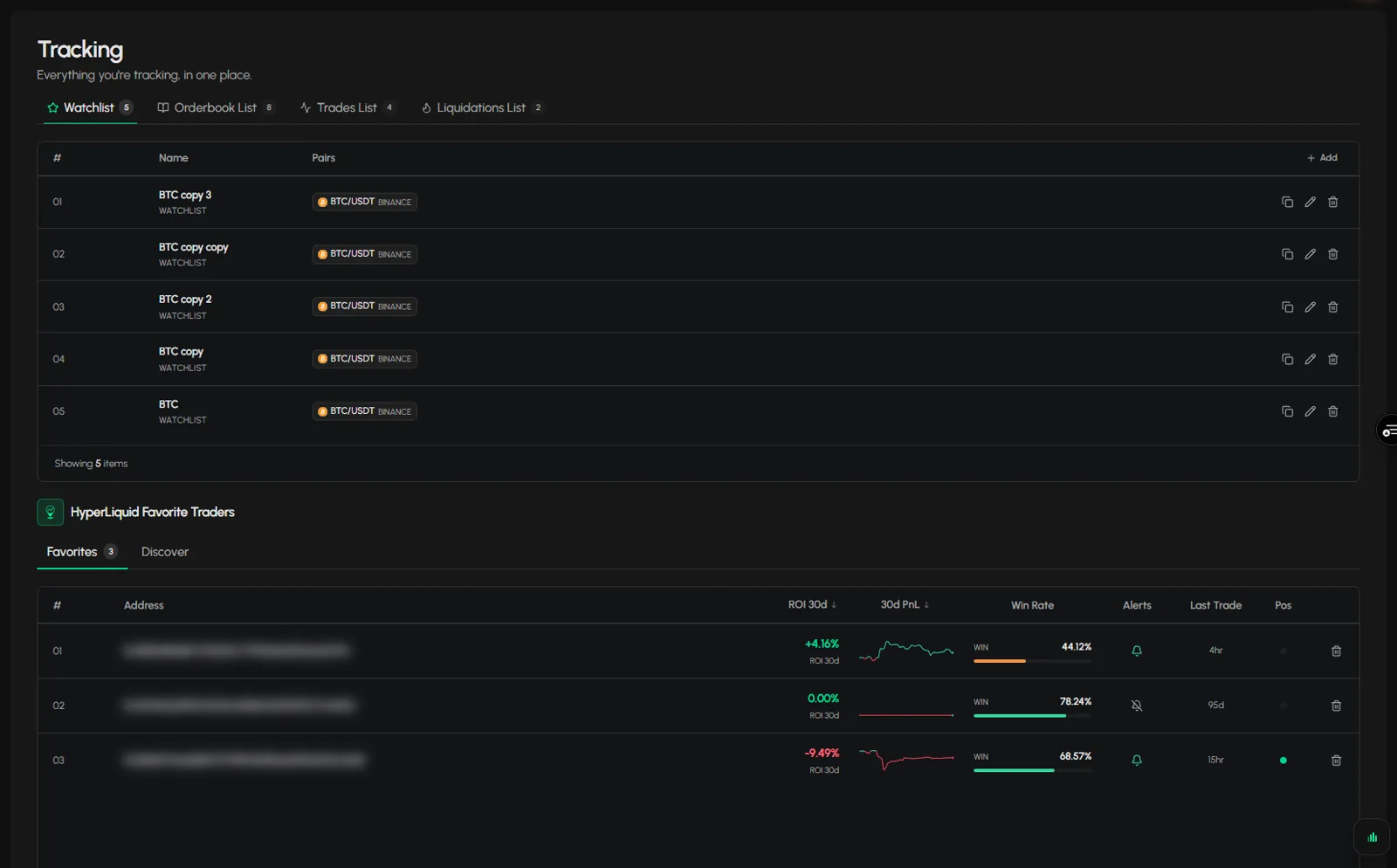
Your saved lists sit in four types: Watchlist, Orderbook List, Trades List and Liquidations List. You see and manage them on three account pages:
- Dashboard: the panel at the bottom, one tab per type.
- Tracking: one chip per type, with a count. See Your Tracking page.
- Profile: the Profile tab shows the same lists.
How do I add, duplicate, edit or delete a list?
- Click + (on the Dashboard and Profile) or Add (on Tracking) to add a list of the type you have open.
- Click the copy icon to duplicate a list.
- Click the pencil to edit it. For a Watchlist list it opens the Edit Watchlist dialog: the name, the pair picker, Spot or Futures and the exchanges, with Cancel and Update.
- Click the bin to delete it.
Frequently asked questions
What does a saved list contain?
The exchange, market and symbol of every market, stored exactly.
Do I have to save a list?
No. Click Not now and the selection still applies.
What are presets?
Ready-made selections on the Add a tab preview cards. They open a tab with coins and exchanges chosen.
Which tabs have a Lists button?
Orderbook, Trades and Liquidations.
Does the Lists button have ready-made lists?
No. It shows the lists you saved. Presets are on the Add a tab cards.
Where do I manage my lists?
On the Dashboard, Tracking or Profile page, with the copy, pencil and bin icons.
Is a saved list the same as a preset?
No. A list is yours and you name it. A preset is a ready-made start on the Add a tab preview cards.