Getting Started
How to switch between dark and light mode
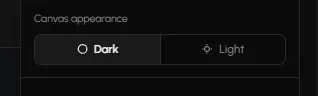
Tabmydata has two separate Dark and Light choices. The moon switch in the top bar sets the look of the page, and Canvas appearance in your avatar menu sets the workspace canvas. You can keep a dark canvas on a light page, or the other way round. Both take a few seconds to change.
On this page
How do I change the page theme?
- Look at the top bar and find the moon icon.
- Click it. Its name is Toggle color theme.
- The page switches between Dark and Light.
Your choice stays after you reload the page.


How do I change the workspace canvas?
- Click your avatar in the top bar to open the user menu.
- Find Canvas appearance.
- Choose Dark or Light.
This changes the workspace canvas only. It is independent from the moon switch, so the page and the canvas can differ.
Where are the colours, skins and backgrounds?
Dark and Light is a basic choice. To change the look of your tabs or the canvas background, open Workspace settings (the gear on the tool rail, or the Canvas chip in the bottom bar). See Workspace settings, Tab color and skins and Background customization.
Frequently asked questions
Does the moon switch change my tabs?
It changes the page. Your tab skins and colours are set separately in Workspace settings.
Will the theme stay after I close the browser?
The page theme stays after you reload. Switch it again any time from the top bar.
Can I have a dark canvas on a light page?
Yes. Set the page with the moon switch and the canvas with Canvas appearance.
Is there a different setting for each workspace?
Workspace look settings, such as background and skin, are per workspace. See Workspace settings.