Workspaces & Tabs
How to read the Orderbook Profile
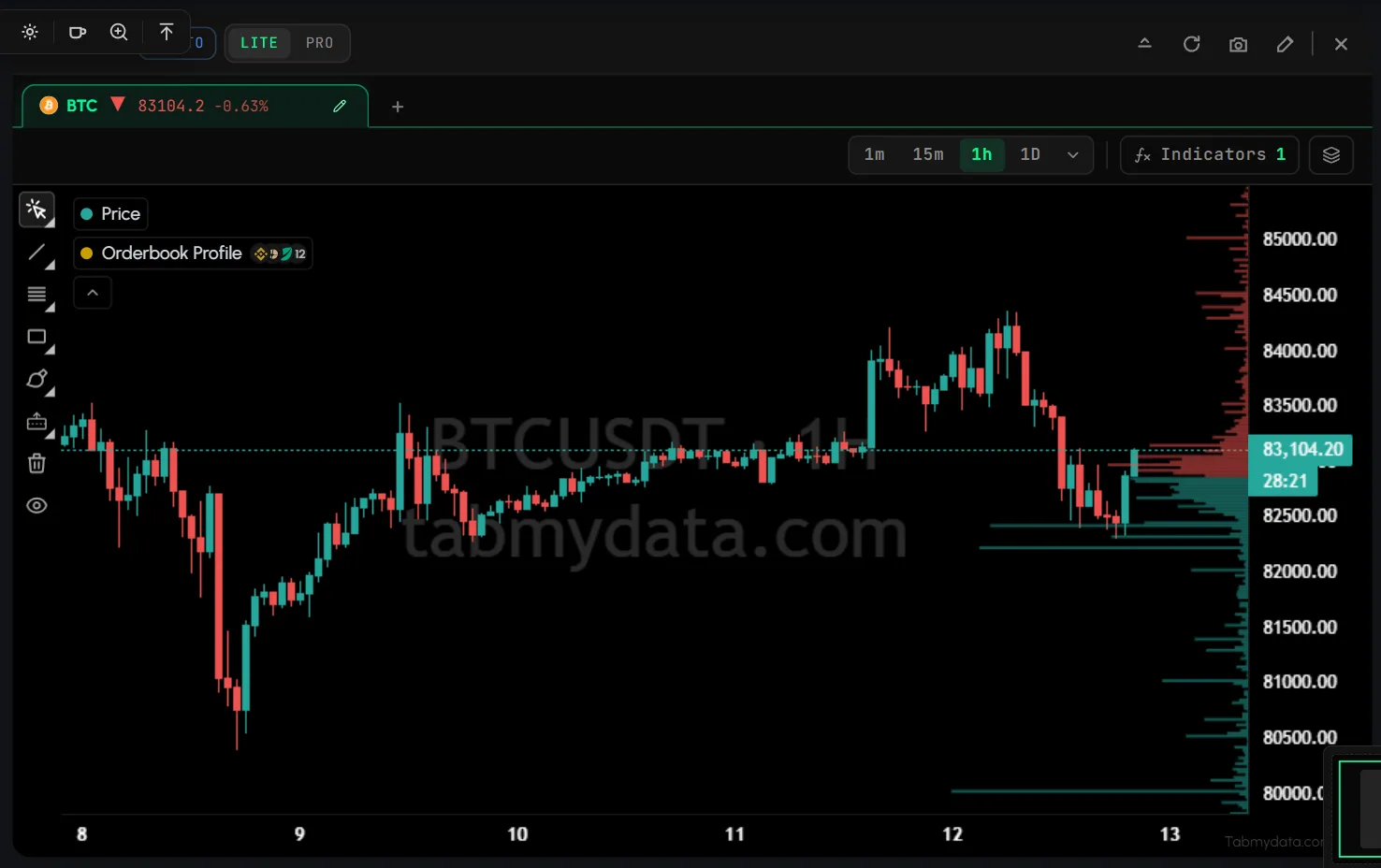
The Orderbook Profile in Tabmydata shows how much resting order-book size sat at each price level, as horizontal bars on the right edge of the chart. Longer bars mean more resting size. Read it live or summed over 4H to 1W, next to the Orderbook Heatmap, to see where size was concentrated.
On this page
It shows where liquidity sat and how big. It is not a forecast.
Product overview: Orderbook Heatmap.
What does the Orderbook Profile show?
- Horizontal bars, one per price level. A longer bar means more resting size at that price. A shorter bar means less.
- Resting size, not traded volume. The bars count orders waiting in the order book. They do not count trades that already happened.
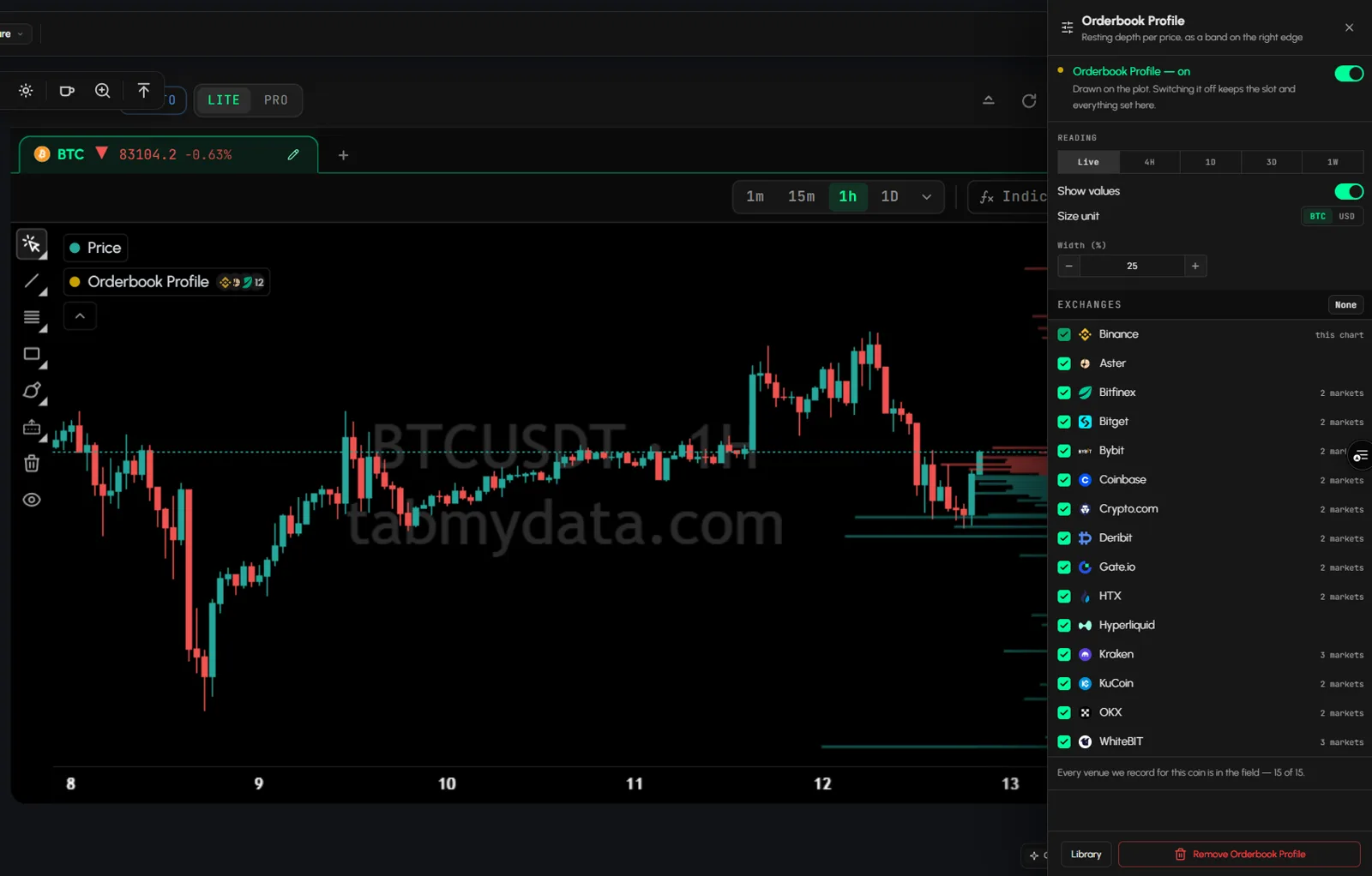
- Merged across the exchanges you pick. You choose them under EXCHANGES in Field settings, so the picture follows your selection, from 24+ exchanges to choose from.
- Live or summed. Live is the current book. 4H, 1D, 3D and 1W add up resting size over that window.
The Orderbook Profile replaces the older "Resting size over time" layer.
How do I turn it on?
In the Orderbook Heatmap tab:
- Click Heatmap (the sliders icon) to open Field settings.
- Set PROFILE to Live, 4H, 1D, 3D or 1W. Off hides it. It is off until you choose a mode.
- Optional: switch on Show values to print the size on each bar, and set Width (%) with - and +.
- Optional: set Size unit to BTC or USD, and switch Tooltip on to read the size when you hover a bar.
In a Charts tab:
- Click Indicators.
- Under the group that reads candles, find Orderbook Profile and click Add.
- Click its gear. Here the window control is named READING, with the same choices: Live, 4H, 1D, 3D and 1W. Show values, Size unit, Width and EXCHANGES are in the same panel.
The Orderbook Profile is available in these two places. In both, the exchange list decides which exchanges are counted.
Tip: start with Live, then try 1D. Comparing the two shows which levels are new.
How do I read it?
- Find the longest bars. They mark the price levels with the most resting size in the window you chose.
- Compare with price. Look at where the candles are relative to those levels, and how far away they sit.
- Switch the window. Live shows the book as it is now. A longer window such as 1D or 1W shows where size sat over that time. If a level is long on Live but short on 1W, it is recent. If it is long on both, it has been there a while.
- Check it against the heatmap. The heatmap shows when that size appeared and whether it stayed. The Profile adds it up per level.
- Change sensitivity if the bars all look alike. In the Orderbook Heatmap, move SENSITIVITY or set Floor and Ceiling so the scale fits the book you are reading.
- Narrow the exchanges. Untick exchanges under EXCHANGES to see how the picture changes with fewer sources. Click None to clear the list and tick again.
- Switch the unit. Size unit changes the bars between BTC and USD.
Many traders watch levels like these as support and resistance. That is a way of reading a level, not a promise of what price will do.
Worked example
Say you open a coin on a 1h chart and set PROFILE to 1D.
- One level above price has a long bar. The heatmap behind it shows a bright band running across many candles. Together they say: a lot of size sat at that level for a good part of the day.
- Another level has a long bar on Live but a short one on 1D. The heatmap shows a band that only starts near the right edge. That size is recent.
- You switch PROFILE to 1W. The first level is still long. The second one barely shows.
What you learned: where size has sat, and for how long. What you did not learn: whether price will go there, stop there or pass through. Use it as one input next to the chart, the order book and liquidations in the same workspace.
Common mistakes
- Reading it as a forecast. Long bars show where size sat. They do not say where price will go.
- Reading it as volume. The Orderbook Profile shows resting orders, not trades. It is not a volume profile.
- Treating a long bar as permanent. Orders can be filled, moved or pulled at any time. Check the heatmap to see whether the size stayed.
- Comparing windows without noticing the window. A 1W bar and a Live bar answer different questions. Check PROFILE before you compare.
- Forgetting the exchange list. Changing EXCHANGES changes the bars.
- Comparing sizes in different units. Check Size unit (BTC or USD) before you compare two readings.
- Confusing it with the Liquidation Heatmap. The Orderbook Profile shows orders that sat in the book. The Liquidation Heatmap shows modeled liquidation levels.
Frequently asked questions
What is the Orderbook Profile?
Bars on the right edge of the chart that show resting order-book size at each price level, live or summed over 4H, 1D, 3D or 1W.
Is it the same as a volume profile?
No. A volume profile counts trades. The Orderbook Profile counts resting orders.
Does it predict where price will go?
No. It shows where liquidity sat. It does not forecast what price will do.
What happened to "Resting size over time"?
The Orderbook Profile replaces it.
Where do I find the Orderbook Profile?
In the Orderbook Heatmap tab, open Heatmap (Field settings) and set PROFILE. In a Charts tab, open Indicators and add Orderbook Profile.
Is the Orderbook Profile on by default?
In the Orderbook Heatmap, PROFILE starts on Off. Pick a mode to show it.
What is the difference between Live and 4H, 1D, 3D and 1W?
Live shows the book as it is now. The other modes add up resting size over that window.
Why do the bars change when I change the exchanges?
The bars add up resting size from the exchanges you picked under EXCHANGES. Fewer exchanges, fewer orders counted.
Related
- How to use the Orderbook Heatmap: add the tab, move through time, set sensitivity and exchanges.
- How to use the Orderbook tab: the live ladder from the exchanges you choose.
- How to use the Charts tab: add the Orderbook Profile from Indicators.
- How to use the Liquidation Heatmap: modeled liquidation levels.
- How to track live liquidations in the Liquidations tab
- Liquidity vs liquidation heatmap: the difference, explained.
- Product page: Orderbook Heatmap