Workspaces & Tabs
How to move, resize, rename and pause a tab
Every tab in Tabmydata has the same title bar, so you can move, resize, rename, pause, refresh, minimise, screenshot or close any tab the same way. Drag the title bar to move a tab, drag its corner to resize it, click the title to rename it. When a tab is narrow, some buttons move into the More (...) menu.
On this page
- What you can do
- How do I add a tab?
- How do I move a tab?
- How do I resize a tab?
- How do I rename a tab?
- How do I pause and resume live data?
- How do I switch between LITE and PRO?
- How do I minimise a tab?
- How do I refresh a tab?
- How do I take a screenshot of a tab?
- How do I change a tab's look?
- What is in the More menu
- How do I close a tab and undo it?
- Side panels
- Canvas controls
- How do I arrange the open tabs?
- Settings
- States
- Frequently asked questions
- Related
What you can do
- Add a tab from the Add a tab menu.
- Move a tab by its title bar and resize it from the corner.
- Rename a tab.
- Pause and resume a live feed.
- Switch a tab between LITE and PRO.
- Minimise a tab to its title bar, refresh it, screenshot it or close it with Undo.
- Change its skin, colours and font for this tab only.
- Arrange, fit and zoom all tabs from the canvas controls.

How do I add a tab?
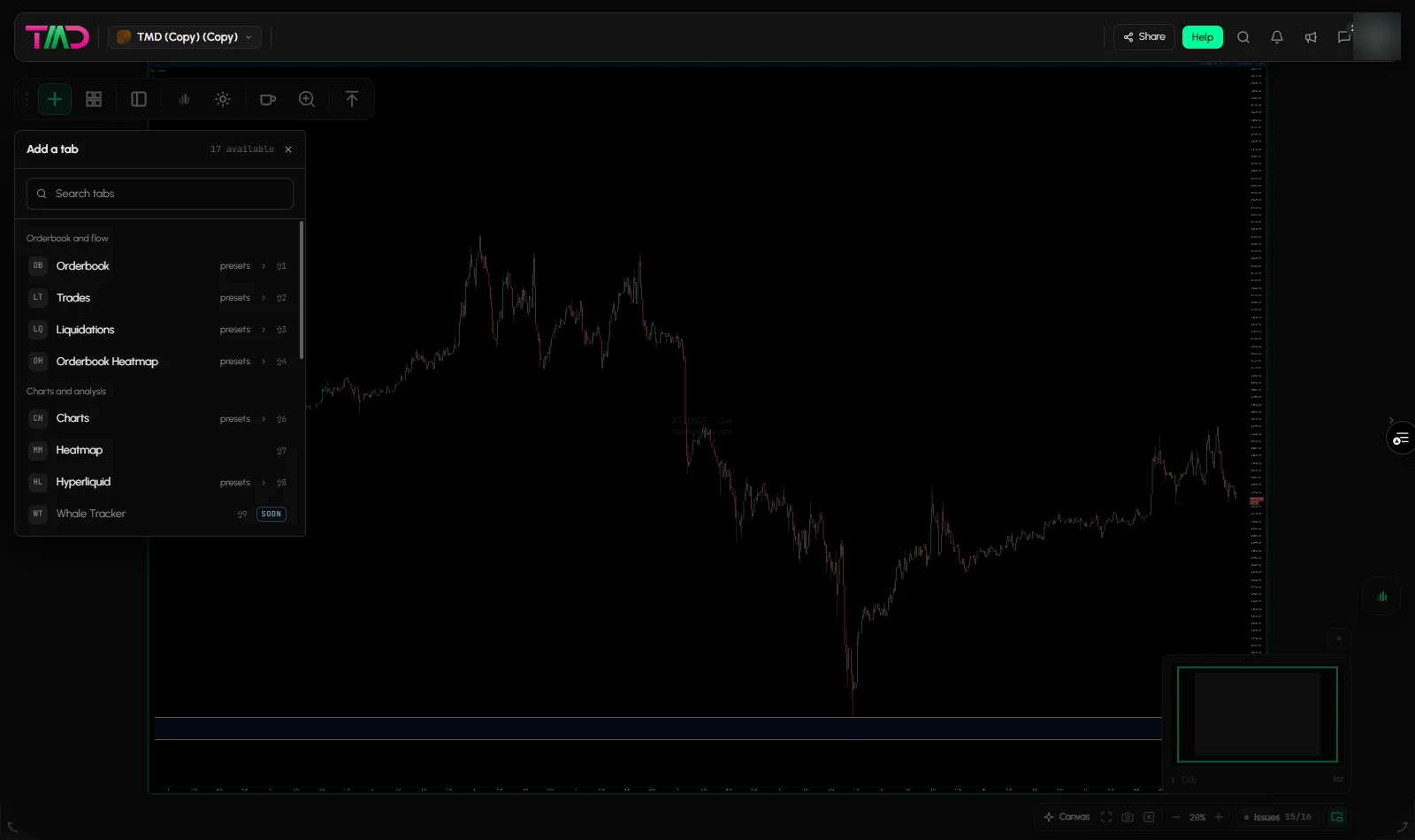
- Click + (Add a tab) at the top left of the canvas, or press T.
- A menu lists the tabs in groups. Type in Search tabs to filter.
- Hover an entry, or use the arrow keys, to see a preview card: name, group, shortcut, status badge (LIVE, AUTO or SCHEDULED), a description, a live mini preview, Ready-made presets, Why it helps and a help link.
- Click Add <tab>, or click a preset ("presets >") to add it already configured.
- The tab lands on the canvas and the workspace saves it.
| Group | Tab and shortcut |
|---|---|
| Orderbook and flow | Orderbook Shift+1, Trades Shift+2, Liquidations Shift+3, Orderbook Heatmap Shift+4 |
| Charts and analysis | Charts Shift+6, Heatmap Shift+7, Hyperliquid Whale Tracker Shift+8 |
| Market data | Watchlist Alt+1, Coin Info Alt+2, Fear & Greed Alt+3 |
| News and events | News Alt+4, Calendar Alt+5, Market Clock Alt+6, YouTube Alt+7 |
| Tools | Alerts Alt+8, Cards (a list of card providers, not a canvas tab) |
How do I move a tab?
- Grab the tab by its title bar.
- Drag it where you want it. Release.
How do I resize a tab?
Drag the handle in the bottom-right corner. A handle titled "Drag to change the tab height" also appears at the bottom. The contents adapt to the new size.
How do I rename a tab?
- Click the tab title, or the pencil next to it ("Rename tab, currently <name>").
- Type a new name and press Enter.
How do I pause and resume live data?
- In a streaming tab, click the round status button in the title bar ("Pause this tab's feed, currently LIVE").
- The tab stops updating and the tooltip becomes "Resume this tab's feed, currently paused". Click it again to resume.
Pause freezes that tab only. Only streaming tabs have the pause button.
How do I switch between LITE and PRO?
- Click the LITE | PRO switch in the title bar. Chart-style tabs have a two-part switch. Stream tabs have one button ("Display density for every Orderbook tab").
- PRO adds title-bar controls, such as Share, which sends the tab to a second workspace of yours or makes a link to it. See Share a tab or workspace.
The switch applies to every tab of that type, not to one tab. Both modes show the same data. See LITE and PRO modes.
How do I minimise a tab?
- Click Minimize, the chevron on the title bar or the item in More. The tab collapses to its title bar and reads "MINIMIZED, header only, the arrow restores it".
- Click the arrow to restore it.
How do I refresh a tab?
Click the circular arrow in the title bar, or Refresh in More.
How do I take a screenshot of a tab?
- Click the camera button, or Screenshot in More.
- A Captured image dialog opens with Copy to clipboard and Download. Nothing downloads on its own.
How do I change a tab's look?
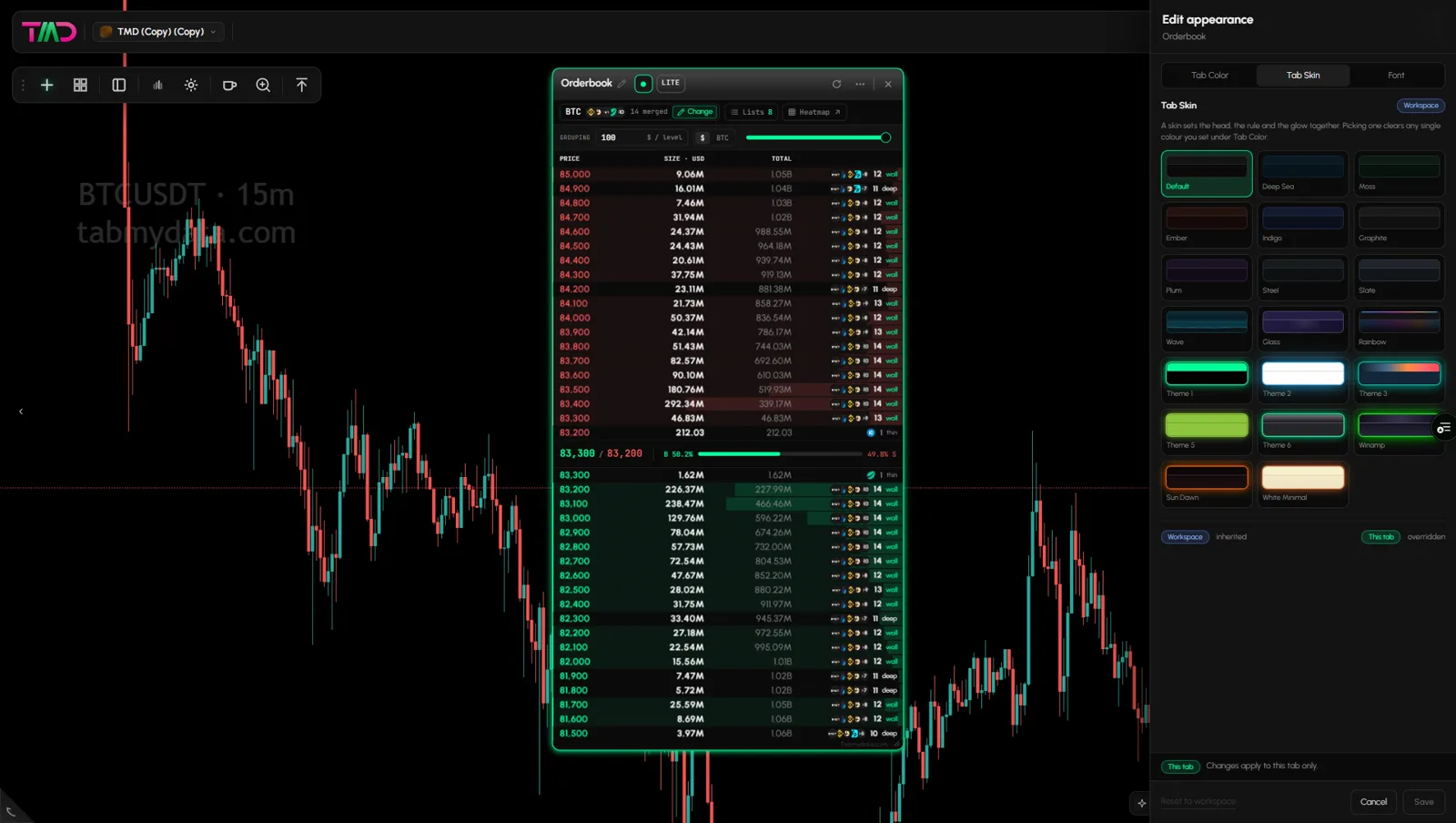
- Click Edit appearance (the pencil icon, or in More). A side panel opens.
- Tab Color: pick the part (Head, Body, Edge or Glow), Solid or Gradient, Color 1 and Color 2 with a hex field and 8 swatches. A live preview updates.
- Tab Skin: Default, Deep Sea, Moss, Ember, Indigo, Graphite, Plum, Steel, Slate, Wave, Glass, Rainbow, Theme 1, 2, 3, 5, 6, Winamp, Sun Dawn or White Minimal.
- Font: Family (Urbanist, Inter, Poppins, Sanchez, JetBrains Mono, IBM Plex Sans, Space Grotesk, Georgia), Title size and Content size.
- The footer says "This tab. Changes apply to this tab only." Click Save, Cancel, or Reset to workspace.
What is in the More menu
At a wide tab, the title-bar actions sit inline. As the tab narrows, they fold into More (...). At a narrow width, More can hold only Screenshot. In the Watchlist and News tabs, that is all it holds at a narrow width.
Favourites shows only on the Orderbook tab. The Heatmap tab's More menu holds only Minimize, Screenshot and Edit appearance. At a very low canvas zoom, the title bar collapses to the title and the close button.
On the Orderbook Heatmap, Watchlist and Hyperliquid Whale Tracker tabs, Edit appearance is also a direct pencil button.
How do I close a tab and undo it?
- Click x. A message "<Tab> closed" appears with Undo.
- Click Undo to bring it back.
Side panels
Most tab actions open a side panel on the right: the symbol picker, the indicator library, layer settings, alerts panels and Edit appearance. Close it with its x (Close panel). In the Alerts panels, Esc closes it too.
Canvas controls
The bottom bar of the canvas holds the controls for all tabs:
- Canvas appearance button.
- Fit every tab in view, Screenshot workspace and Close all tabs. Close all tabs asks you to confirm and cannot be undone.
- Zoom out, the zoom %, and Zoom in. Ctrl with the mouse wheel zooms the canvas too.
- Issues, for example "15/16, Exchange status: Partial outage". See Data not loading.
- A minimap with "N tabs" and a list. Hide the minimap switches it off, and the button then reads Show the minimap.
- PAN arrows at the left and right edges.
- Corner hints "Turn the page to <workspace>" (Shift+Left or Shift+Right).
- The Issues button opens a list of exchanges marked Available or Unavailable, with Refresh.
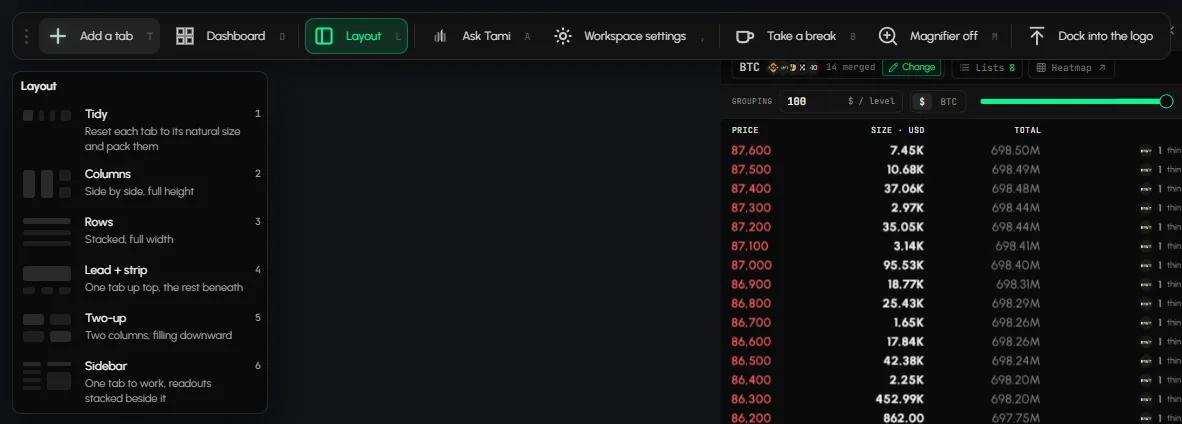
The toolbar at the top left holds Add a tab (T), Dashboard (D), Layout (L), Workspace settings (,), Take a break (B) and Magnifier (M). See Tools bar and Arrange tabs.
How do I arrange the open tabs?
- Press L, or click Layout.
- Pick a preset, or press its number: Tidy (1), Columns (2), Rows (3), Lead + strip (4), Two-up (5) or Sidebar (6).
Details: Arrange tabs.
Settings
| Setting | Options | Scope |
|---|---|---|
| Title | Any name | This tab |
| Feed | Live or paused | This tab |
| Display density | LITE or PRO | Every tab of that type |
| Edit appearance | Tab Color, Tab Skin, Font | This tab |
| Position and size | Drag, resize | This tab |
States
- Paused: the status button flips to Resume.
- Minimised: only the title bar shows.
- Closed: a toast with Undo.
Frequently asked questions
Why is a button missing?
Narrow tabs move buttons into More (...).
Does Pause stop my alerts?
Pause stops that tab's own feed only. To manage alerts, see the Alerts page.
Can I rename every tab?
Yes. Every tab can be renamed.
Does LITE or PRO change just one tab?
No. It changes every tab of that type.
Does changing the skin change my other tabs?
No. It applies to this tab only. Reset to workspace returns it to the workspace look.
How do I take a picture of one tab?
Click the camera button or Screenshot in More, then Copy to clipboard or Download.
Can I get a tab back after closing it?
Yes. Click Undo in the message that follows. Close all tabs has no Undo.